

Issue a CFDI invoice
What to configure before your first CFDI, how to create an invoice from a sell order or on its own, what blocks a stamping, and what you get once it is stamped.
Control Total issues Mexican CFDI: it builds the document, sends it to the fiscal provider for stamping and keeps what comes back. This guide walks the whole flow, from the configuration you only do once to the XML and the PDF you hand to the client.
Fiscal invoicing has to be available for your team. Two things have to be true: the Facturación module is activated from your team's add-ons, and the team's Operating Country in Settings → General information is Mexico, with the Mexican fiscal package installed on the installation. Without both, there is no Invoicing tab in the settings and no invoices screen. If you are not sure, look for Fiscal Invoices in the menu: no entry, no module.
One more thing to hold on to before you start. What a CFDI carries is decided by the SAT and by the fiscal provider, not by Control Total. Control Total refuses what it knows the provider will reject, and shows you the provider's answer when it does reject something; it never promises that a document will be accepted.
Before the first invoice
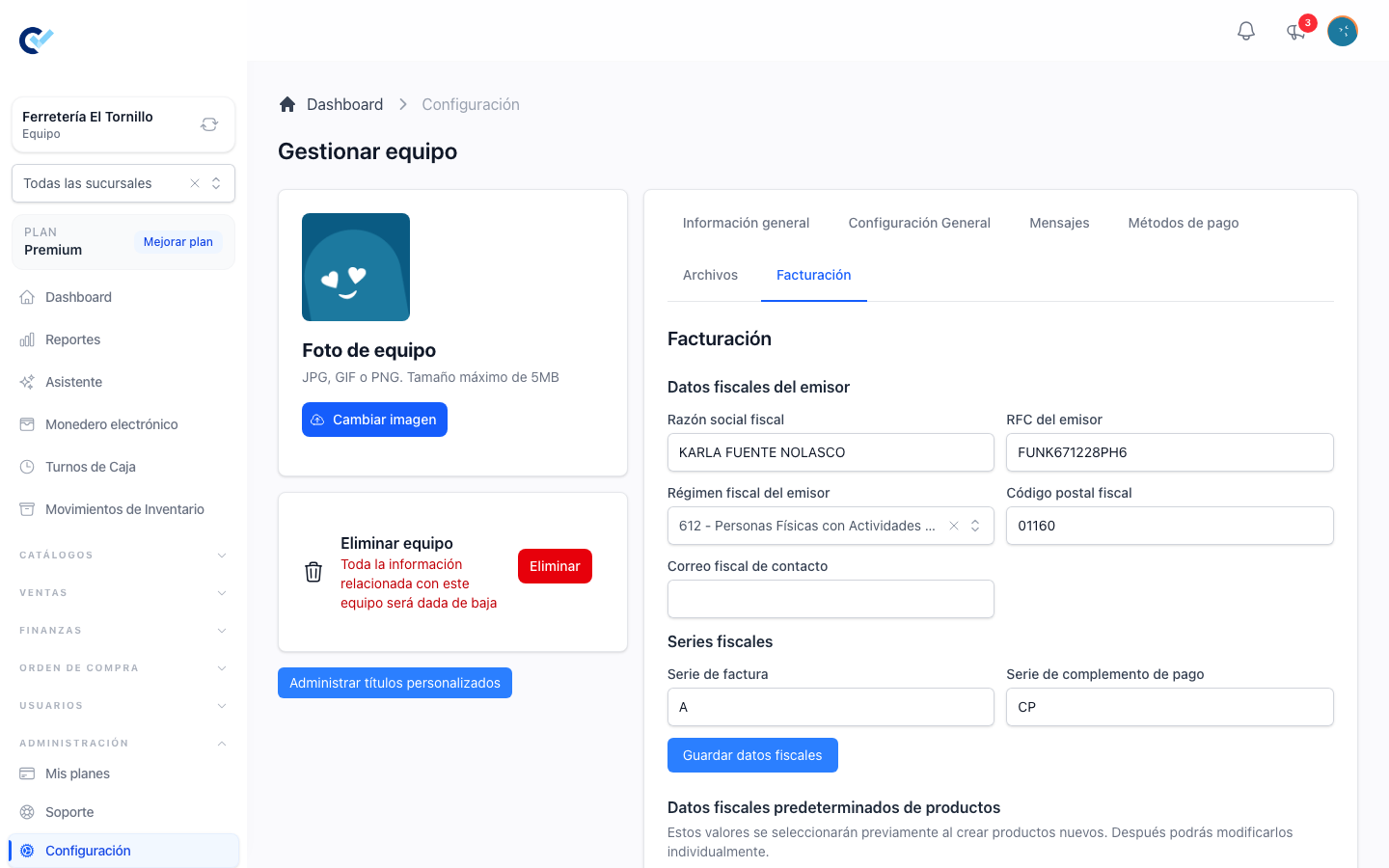
All of this lives in Settings → Invoicing. You do it once, and the screen warns you with Incomplete fiscal data while something is missing — "You can keep selling, but you cannot stamp CFDI until these data are complete."
Your fiscal issuer data
Under Fiscal issuer data, capture Fiscal business name, Issuer RFC, Issuer tax regime, Fiscal postal code and Fiscal contact email. Under Fiscal series, give the Invoice series and the Payment complement series; the series is the letters your folios are numbered under, and folios are counted per series. Then Save fiscal data.
Your Digital Seal Certificate
A CFDI is signed with your CSD, so the Digital Seal Certificate section asks for three things: the CSD certificate (.cer), the CSD private key (.key) and the Fiscal password. Upload certificate stores the certificate's details — certificate RFC, certificate number, valid from, valid to, who uploaded it and when — and saves it with the fiscal provider.
The certificate has to belong to the same RFC as the issuer. When it does not, the upload is refused naming both: "The CSD belongs to RFC … and the issuer RFC is … The provider cannot stamp with a certificate from a different RFC." A CSD already loaded can be replaced with Replace certificate, after confirming.
Default fiscal data for your products
Every concept on a CFDI needs a SAT product/service key, a SAT unit key and a tax object. Rather than filling those in one product at a time, Default fiscal product data sets the values that new products are created with: Fiscal product/service key, Fiscal unit key, Fiscal tax object and the federal taxes the product carries. A product can still be changed afterwards, in the Fiscal data panel of its own form, and that panel shows a warning icon listing exactly what is still missing. Replace existing product fiscal data applies the defaults to the products you already have.
Your payment methods
Payment method fiscal configuration maps each of your payment methods to the SAT payment form it corresponds to. That is what lets an invoice created from a sell order arrive with its payment form already right.
Your clients
A receiver needs Fiscal business name, Fiscal RFC, Fiscal postal code, SAT tax regime and SAT CFDI use. They live on the client, in the Mexico fiscal data panel of the client's form, and Control Total copies them onto each invoice for that client.
The generic SAT RFC is not accepted as a client's RFC: "The generic SAT RFC cannot be used for clients. Use a global invoice instead."
Creating an invoice
From a sell order
This is the usual way. Open a finalized sell order and use Create fiscal invoice. The invoice arrives carrying the order's client, its lines and its payment conditions, and its fiscal payment method is worked out from what the client actually paid: an order paid in full with a single payment method comes in as PUE with that payment form, and anything else — still owing, paid in several forms, or a method with no SAT form mapped — comes in as PPD with payment form 99.
When part of the order is already invoiced. An order paid with several methods can be invoiced by parts from a global invoice — for example, what was paid by card goes into a global invoice and the cash part is left. In that case Create fiscal invoice invoices only what is left, never the whole order again:
- The invoice carries the same lines, with the same quantities and the taxes each product was sold with; only the unit value and the amount of each line are reduced to what is left.
- Its payment form is the one of the method still pending, or of the one with the largest amount when several are. It comes in as PUE. If that method has no SAT form mapped, or the order still owes something, it comes in as PPD with payment form 99.
- Once it is created, the order is fully invoiced and the button stops appearing.
- When everything is already invoiced, the button does not appear on the order. From the sell order list, the action answers "Nothing is left to invoice on this sell order."
- Cancelling that invoice, or deleting its draft from the fiscal invoices list, gives the part back: the button offers it again. The same happens when a global invoice that took a part is cancelled or its draft is discarded.
- If another invoice took the same part while you were working, saving or stamping is refused naming the folio affected.
When the order already has a stamped invoice. If an invoice for the whole order was already stamped, Create fiscal invoice tells you "This sell order already has a fiscal invoice." and lets you create another one anyway.
Only a finalized order with a client and at least one line can do this. Otherwise you are told why, in the same words: "Only finalized sell orders can create fiscal invoices.", "A client is required before creating a fiscal invoice.", "Add at least one product before creating a fiscal invoice.", "Complete the fiscal data for the client …", "Complete the fiscal data for these products: …".
See Create a sell order for the document itself.
On its own
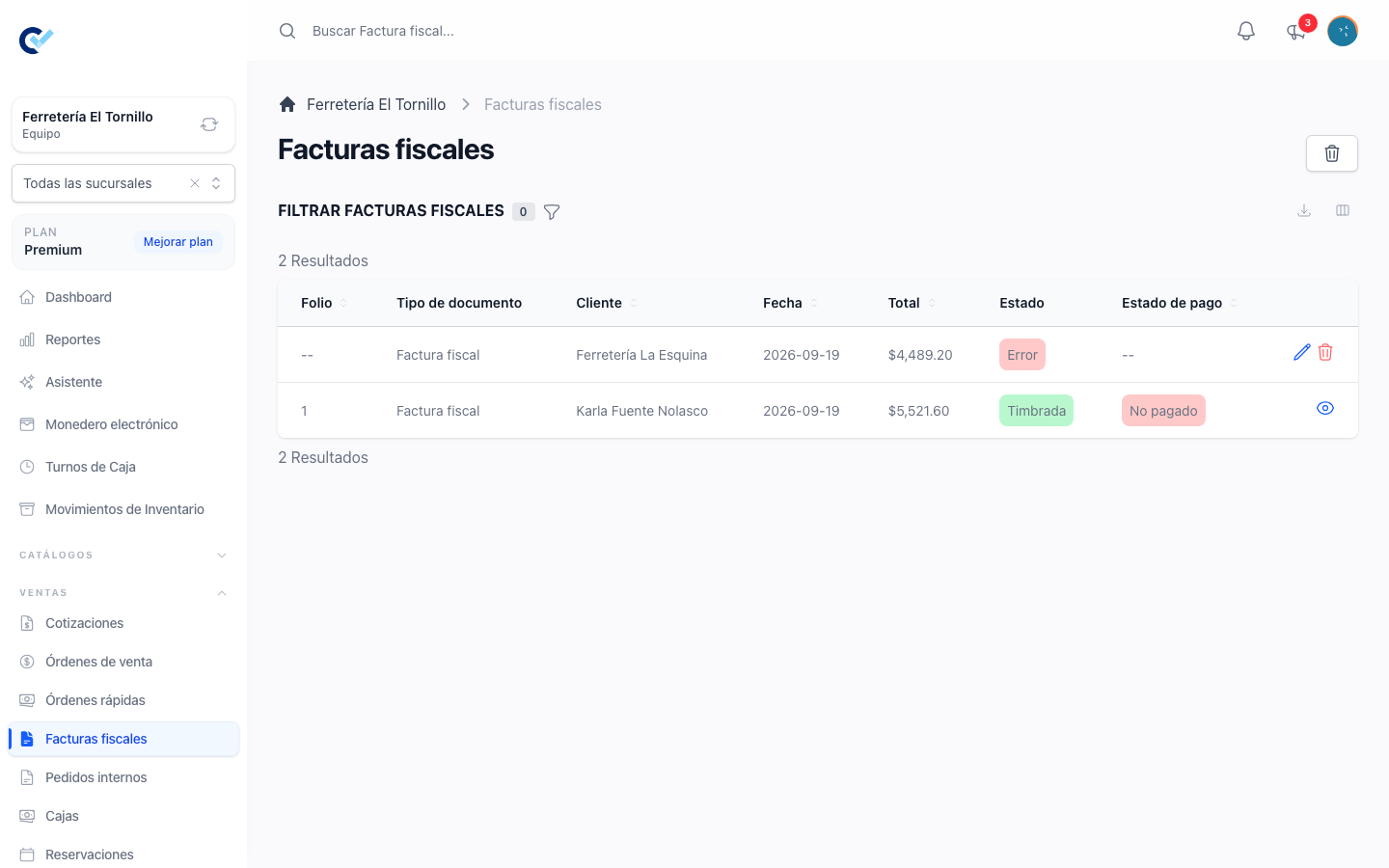
Fiscal Invoices → New invoice offers the kinds of fiscal document you can issue, each on its own card:
- Fiscal invoice — an income CFDI for one client. Create fiscal invoice opens an empty editor where you pick the receiver and the concepts yourself.
- Global invoice — one CFDI to PUBLICO EN GENERAL grouping the sell orders of a period.
- Egreso invoice — a credit note against a stamped income invoice. Pick the Source invoice and Create egreso invoice.
- Payment complement — a payment CFDI for a stamped PPD invoice.
The editor
The header carries Date, Category, User, Fiscal payment method (PUE or PPD), SAT payment form, CFDI use, Description and Payment conditions. PUE and payment form 99 are not allowed together, and neither is PPD with anything other than 99; the editor says so as you pick them.
Issuer shows your own fiscal data, as read-only: it is what you saved in settings.
Receiver shows the fiscal data of the client, read-only, like the issuer. A draft always shows what the client holds now, so a client corrected from their own screen is already corrected here. To change it, press Edit data: it opens the client's fiscal data — business name, RFC, postal code, tax regime, default CFDI use and fiscal email — and saving changes the client for every invoice from then on, and this one on the spot. The invoice's own CFDI use follows the client's new default only if you had not changed it on this invoice. Edit data appears once the invoice has a client, and only to someone allowed to edit clients.
Concepts are the lines of the CFDI. Add from catalog brings in a product with its fiscal data; Add free concept adds a line you write yourself. Each line has a name, description, price, discount and quantity. The pencil icon, Edit concept, opens its fiscal detail — the SAT product key, the unit key, the tax object and the taxes for that line; it sits with the line's other actions, and its name shows when you rest the pointer on it. The price field has room for amounts up to hundreds of millions with their cents, and a long concept name wraps inside its line. On a narrow screen the concepts table scrolls sideways inside its card.
Save as draft saves your work without issuing anything. A draft has no fiscal weight: nothing has been reported to anyone until it is stamped.
Opening one that is not stamped. A link to a fiscal document — from a client's history, from another invoice's related CFDIs, or from a credit note — opens the editor when the document is a draft and you are allowed to edit it. A draft whose stamping was sent but never confirmed, or one that was archived, opens on its detail instead, with a notice saying what happened. A credit note that is still being prepared shows its status, with what it means and the reason the provider gave, when there is one. An invoice that is being cancelled does not open until that finishes.
Related documents only shows what you can open. On a sell order, a quotation or an invoice, a related document and its View link appear only when you are allowed to open that document.
Stamps
Every CFDI you stamp spends one stamp from your team's balance: an invoice, a credit note, a global invoice and a payment complement alike. A stamping that fails spends nothing. The Facturación module itself costs nothing; the stamps are what you pay for, and no plan includes any, so your balance is exactly what you bought.
Stamps are bought from Add-ons, under Administration in the menu. The stamps card shows how many you have left; Buy more timbres opens the packages, each with how many stamps it grants and its price, and pressing one takes you to pay. The stamps are added to your balance as soon as the payment is confirmed, and they do not expire.
| Package | Price (MXN) | Per stamp (MXN) | Price (USD) |
|---|---|---|---|
| 100 stamps | $250 | $2.50 | $12.50 |
| 200 stamps | $400 | $2.00 | $20 |
| 500 stamps | $750 | $1.50 | $37.50 |
| 1,000 stamps | $1,200 | $1.20 | $60 |
| 5,000 stamps | $5,000 | $1.00 | $250 |
A team in Mexico sees the packages in pesos; a team in any other country sees the same packages in dollars. Either way each package is a one-time purchase, separate from your plan.
With no stamps left, stamping stops before anything is sent to the provider, and the reason reads "You have no timbres left. Buy a package of timbres to keep going."
What blocks a stamping
Stamp CFDI first saves the invoice, then checks everything the SAT and the provider require. When something is wrong, nothing is sent: a Cannot stamp CFDI dialog names every problem it found at once, so you can fix them in one pass rather than one at a time. The same list stays on the screen above the form.
What it checks, and roughly how each one reads:
| Area | What you will see |
|---|---|
| Configuration | "Complete the fiscal issuer data before stamping CFDI.", "Load a valid CSD before stamping CFDI.", "Save the CSD certificate with the fiscal provider before stamping CFDI." |
| Receiver | "Complete receiver fiscal business name.", "Complete receiver fiscal RFC.", "Receiver fiscal postal code must have 5 digits", "Select SAT tax regime", "Select SAT CFDI use" |
| Concepts | "Add at least one product before stamping CFDI.", "Select the SAT product key", "Select the SAT unit key", "Select the tax object", and, for a line that pays tax, "Select the tax", "Select the factor type", "Select the rate or quota" |
| Payment | "Select fiscal payment method.", "Select SAT payment form.", "Select fiscal currency." |
| Date | "The invoice date cannot be in the future.", "The invoice date is outside the 72-hour window the SAT accepts." |
That last one is worth remembering: the SAT accepts a CFDI dated up to 72 hours before it is stamped, and never one dated ahead. An invoice left as a draft over a long weekend has to have its date moved forward before it can be stamped.
You may also be warned, without being stopped, when the stamped invoices of a sell order would add up to more than the order's total. You can continue or go back.
When everything passes, a confirmation dialog repeats the receiver, the total, the method and the form before anything is sent. That is the last point at which nothing has happened yet.
When the provider rejects or does not answer
An invoice, a credit note, a global invoice and a payment complement all stay a Draft while they are sent, and become Stamped only once the CFDI is confirmed. Each time you press Stamp CFDI, Control Total keeps the exact request it sent, with an identifier the provider recognises if the same request arrives again. The Stamp attempts panel lists every request, when it was sent and what came back: on the document's detail, and below the form of an invoice draft you can still edit.
In the fiscal invoices list and in the order's Related documents, a document whose request has no final answer yet still reads Draft, with a second label beside it that says where the request stands: Stamp in progress while it is being sent, Stamp not confirmed while it can be retried, and Requires reconciliation once it can no longer be sent.
The provider rejected it. The draft goes back to being editable. Whenever you open it again, a notice above the form shows the reason the provider gave, and the Stamp attempts panel below the form keeps the rejected request. Correct what it names and press Stamp CFDI again: it goes out as a new request. No stamp is spent.
The answer was lost. A dropped connection or an unclear reply does not prove the CFDI was not issued, so the draft locks: it cannot be edited, discarded or sent with different data. In the list it reads Draft with Stamp not confirmed beside it. Open it and press Retry stamp. It sends the identical request again, and the provider answers it with the CFDI it already issued if there is one, so it cannot issue a second CFDI. The notice says until when the retry is available: the provider protects a request for about 72 hours from when it was first sent. When the CFDI comes back, Control Total checks that it matches the document before marking it Stamped.
The protection expired with no answer. The notice on the draft now says it requires reconciliation, and sending it again could issue a duplicate CFDI, so nobody can: the detail no longer offers Retry stamp or any message asking you to retry. Someone who can cancel that kind of document checks in the provider's portal whether the CFDI exists, then fills in Reconcile with the fiscal provider on the detail:
- Under Evidence checked with the fiscal provider, write what you checked, where and when. It is kept with the attempt.
- If the CFDI exists, enter its Fiscal UUID and press Recover the stamped CFDI. Control Total downloads it from the provider and marks the document Stamped only if its issuer, receiver, type, series, folio and total match.
- If no CFDI was issued, press Confirm no CFDI was issued. The draft is released, and you can edit it and stamp it again.
When another invoice already replaced it. If someone created and stamped a second invoice for the same sell order while the first was locked, Confirm no CFDI was issued offers Replaced by (optional) with the stamped invoices of that order. Choosing one confirms that it covers the same part of the sale, and archives the unstamped draft: it leaves the invoice list and does not count towards the order's invoiced total, but it stays in the order's Related documents as Archived, with its attempts and its history. Credit notes and global invoices are never archived. If the provider confirms that both invoices were stamped, both stay stamped: recover the first one with its UUID.
After stamping
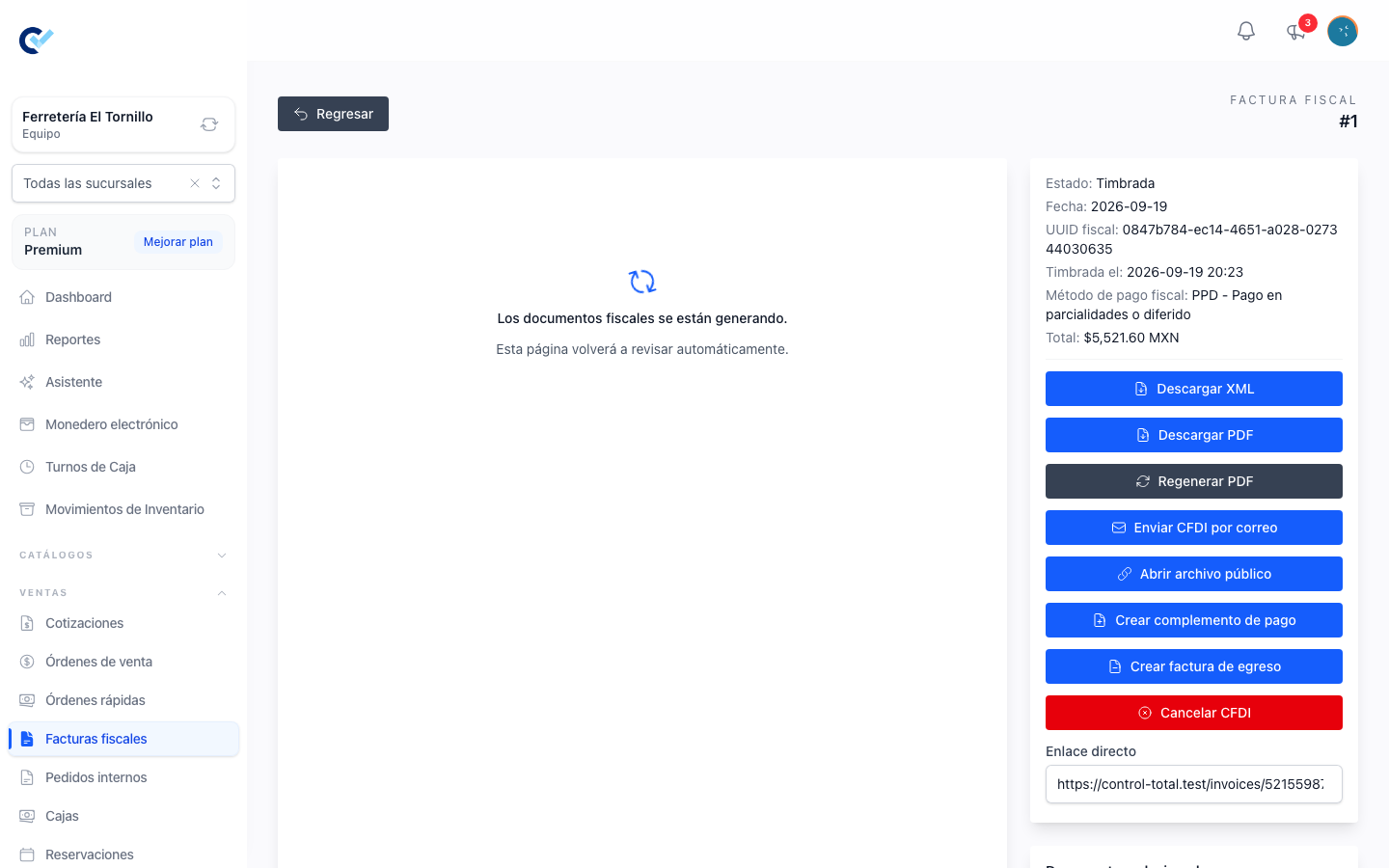
The invoice comes back with its Fiscal UUID, its folio in your series and the date it was stamped, and the editor grows a Post-stamp actions panel. From there:
- Download XML — the stamped XML, which is the invoice. Keep it; it is what the SAT recognises.
- Download PDF — the printable version. Regenerate PDF builds it again from the XML if you need a fresh copy. Under your logo and your details it carries a Document data panel (folio, issue and certification dates, place of issue and CFDI type), then the receiver and the fiscal folio side by side, every value with its label beside it. The concepts show the SAT unit and product keys as codes only.
- Download acknowledgment — the acknowledgment, once there is one.
- Send CFDI by email — opens a form with the address, a subject and a message already written, and attaches the XML and PDF available. The address comes from the invoice's fiscal contact email, falling back to the client's.
- Cancel CFDI — cancellation goes through the SAT. The form asks for a SAT cancellation reason and, for the reason that replaces a CFDI, for the Replacement fiscal invoice, which has to be a stamped CFDI that declares it replaces this one. An invoice with live payment complements cannot be cancelled until those are cancelled first. Read the warning on the form before confirming: "Fiscal cancellation does not cancel the sell order, payments, or inventory."
- Create payment complement — offered when the invoice is PPD, to report a payment against it.
A cancelled invoice that came from a sell order offers Create new CFDI invoice, which starts a fresh draft from that same order — the way to reissue an invoice that had to be cancelled.
Downloading a document can take a few seconds, because Control Total asks the provider for it when it does not already hold a copy. The screen says so while it waits.
Who can do it
In Users → Roles, each row of the permissions grid is something the system holds and each column an action, written here as Row: Column. The switches below the grid are named on their own. A role needs:
| Action | On the Roles screen |
|---|---|
| See fiscal invoices and open one | Fiscal Invoice: See |
| Create an invoice and stamp it | Fiscal Invoice: Create |
| Cancel a stamped invoice, and reconcile an invoice whose stamping was never confirmed | Fiscal Invoice: Delete |
| Create and stamp an egreso invoice | Egreso invoice: Create |
| Cancel an egreso invoice, and reconcile one whose stamping was never confirmed | Egreso invoice: Delete |
| Create a payment complement | Payment complement: Create |
| Cancel a payment complement, and reconcile one whose stamping was never confirmed | Payment complement: Delete |
| Edit the fiscal settings | The Edit Settings switch |
A role can also be narrowed with Fiscal Invoice: Only sees their own data, which limits the person to the invoices they created themselves. Global invoices stay outside that limit, because they group the sell orders of the whole team.