

Create a quotation
How to build a priced proposal for a client, what each field decides, what happens when you finish it, and how to turn an accepted quotation into a sale.
A quotation is a priced proposal you give a client before there is a sale. It holds no money, it moves no stock, and it never blocks because something is out of stock — it is a document to send and negotiate. When the client says yes, one action turns it into a sell order, which is where the money and the inventory actually move.
Quotations live under Sells, in the list your team calls Quotes unless it has renamed them.
The list
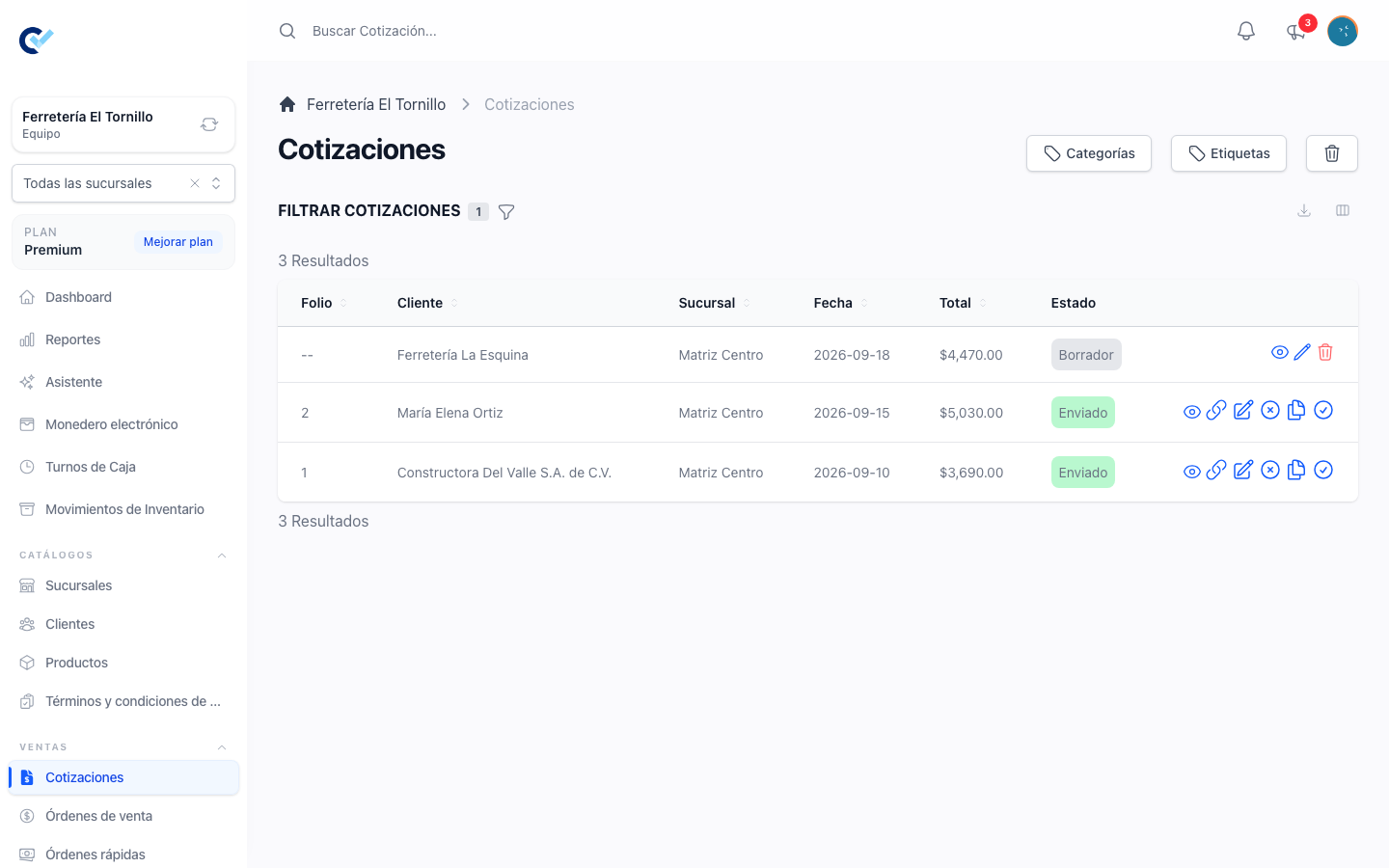
Sells → Quotes shows the quotations of the team you are in — or only those of the branch you are standing in, when your team uses branches. Each row carries the folio, the client, the category, the tag, the date, the total and the status, and a branch column joins them when you are looking at every branch at once.
Two things about the list are worth knowing before you go looking for something:
- Unless you are the team owner, the Created By filter opens set to you, so you see your own quotations first. Clear it to see the rest, if your role reaches them.
- A quotation you opened but never saved is not listed. Nothing is left behind when you abandon the form.
The filter bar also narrows by status, category, tag and date range. Two buttons above it, Categories and Tags, are where those two classifications are created.
Start one
Create Quote, at the top right of the list. You need the create permission, and your plan has to have room: when the team has used every document its plan allows, creating stops and a message points you at your plans.
The button takes you straight into the form — there is no intermediate screen.
What the form asks
| Field | What it decides |
|---|---|
| Client | Who the quotation is for. Required. Type to search; each result shows the client's phone under the name. If nobody matches, Create client opens a short form asking only for a name and a phone, already carrying what you typed — as the name if you typed letters, as the phone if you typed digits. The new client lands on the quotation. |
| Date | The date the quotation carries. Required; it starts at today. |
| Category | Optional. Your own classification, from the categories your team created for quotations. |
| User | Who is responsible for the quotation. Required; it starts as you. Changing it moves the quotation to that person's list. |
| Description | Optional, one line, shown on the quotation. |
| Payment conditions | Optional free text — deposits, terms, deadlines. It prints on the document. |
The client field also warns you, right there, when that client has an outstanding debt.
Add the products
The Product selector above the table searches your catalogue as you type. Pick one and it becomes a line.
If you work with a barcode reader, you do not need the selector: scan while no field is focused and the product with that code is added, or its variant picker opens. If the code matches nothing, the system offers to create the product with that code already filled in.
Each line shows the name, the price, the discount, the quantity and the line total, and adds a subtotal and a taxes column when your team invoices or has taxes enabled. What you can change per line:
- Quantity — free. Products that track stock show their current quantity underneath, for information only: a quotation is never blocked by stock.
- Price — editable only on products that allow it.
- Line discount — the percent icon at the end of the row.
- Description — products sold by unit detail carry an editable note.
- Extras — products with numerical variations open a small form to add them.
- Reservation dates — reservable products carry the dates you chose.
The row also lets you duplicate a line, remove it, and drag it by its handle to reorder — the order you leave is the order the document prints in.
Under the table, the Subtotal row carries a discount icon that applies one discount across every product at once. It appears once the quotation has products and no line has a discount of its own — the two ways of discounting do not mix. Tax rows sit below it and can be removed one by one, and the Total closes the table.
Terms and conditions
When your team uses terms and conditions, a section appears under the products with the terms that already apply — the ones marked for every document, plus the ones the products carry. You can add or remove terms for this document only, without touching the catalogue. A term marked as requiring acceptance says so.
Finish it, or leave it for later
Two buttons close the form.
Save as draft keeps the quotation as a draft. It checks the required fields and the quantities, and returns you to the list. A draft has no folio yet, can be edited again as many times as you like, and is the only state in which a quotation can be deleted outright.
Finish Quote issues it. Beyond the fields and quantities it also confirms that reservable products are actually free for their dates. Then the quotation becomes a sent quotation: it receives its folio — the next number for your team, or for your branch when your team uses branches — and it stops being editable in this form.
What you see after you finish
A panel opens over the list with everything you can do with the quotation you just issued:
- View — the quotation's own file inside the system.
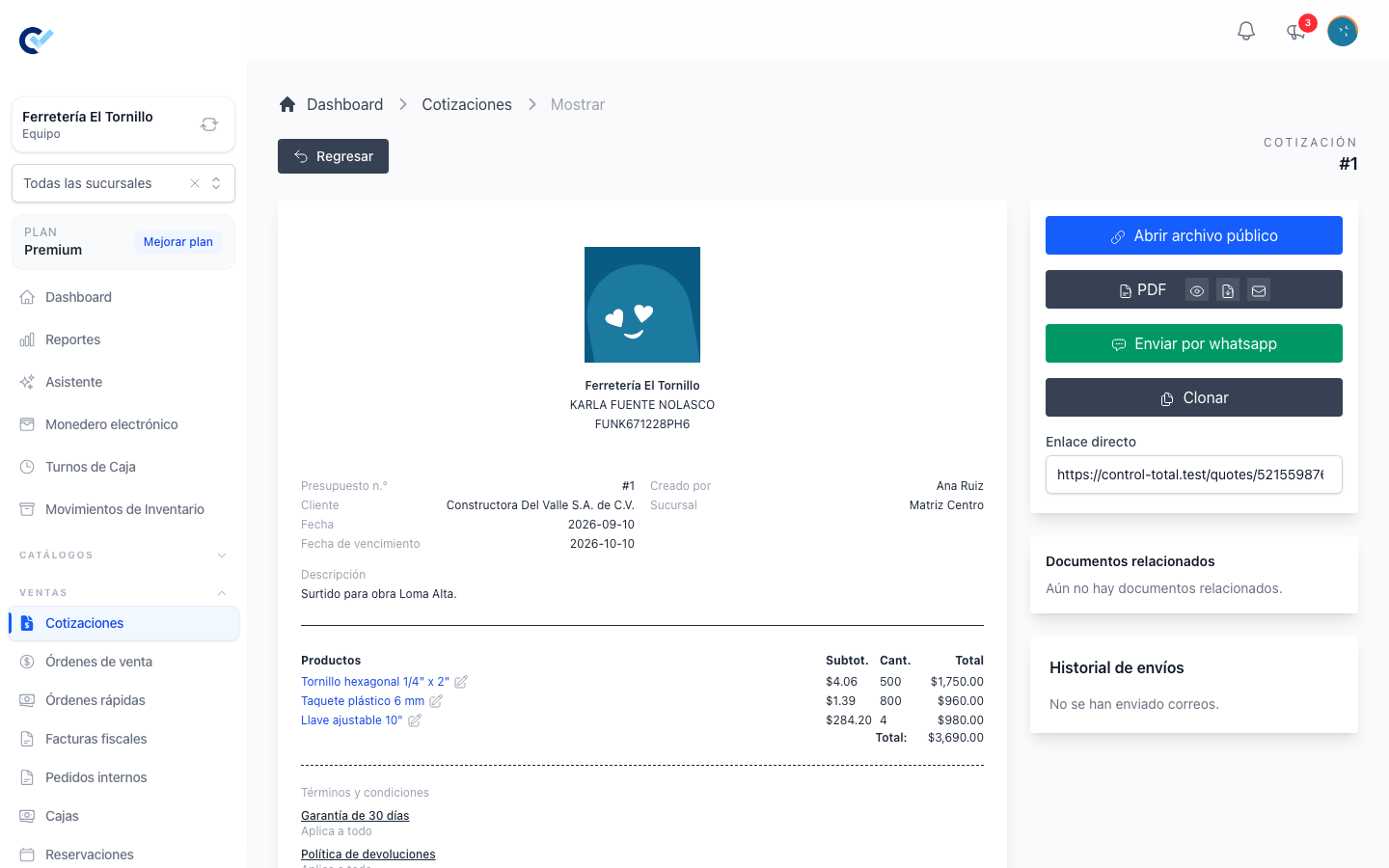
- PDF — three controls side by side: open the PDF, download it, or send it by email.
- Send by whatsapp — opens WhatsApp with the message your team configured and the link already inside. It only appears when the client has a phone number and your plan still allows sending documents.
- Direct link — the public address of the quotation. Click the field to copy it.
- Return — back to the list.
What the client sees
The link opens a public page with your business details, the quotation, its folio, its date, its expiration date and its products, and a Download PDF button. The first time somebody opens it without being signed in, the quotation records the visit, and the date of that first access appears on the quotation for you to see.
The page carries an Accept proposal button. The client accepts there, the quotation moves to "accepted by client", and the person responsible for it is notified. If terms required acceptance, the client answers them in the same step, and what they accepted is kept as evidence.
Members of your own team see the page too, but they cannot accept on the client's behalf — the page says so. While a quotation is still waiting for an answer and its expiration date has passed, the page warns the reader that prices may have changed. The number of days is set in Settings, under Days for Quotes, and is counted from the quotation's date.
Turn it into a sale
Once a quotation is finished, the row carries a Create order action. It builds a sell order from the quotation: the same client, branch, products, prices, discounts and taxes, the same description and payment conditions, and the accepted terms carried across. The two documents stay linked, the quotation is marked as converted, and you land in the new sell order ready to capture the payment. See Create a sell order.
The new sell order belongs to whoever converted the quotation, not to whoever wrote it, so it appears in your own list.
It will refuse to convert when:
- a term the client had to accept is still unanswered — the message names which;
- a product that tracks stock does not have enough of it, or a reservable product is no longer free;
- your plan has no room for another document.
After it is issued
| What you want | How |
|---|---|
| Look at the internal file | The show icon on the row: products, totals, terms, related documents, the message history and the full timeline |
| Open the client's page | See public file |
| Change the category, the tag, the responsible or the status | Edit — available only once the quotation is finished |
| Cancel it | Cancel. Needs the delete permission. A finished quotation is never deleted, only cancelled |
| Start a new one from it | Clone |
Who can do it
In Users → Roles, each row of the permissions grid is something the system holds and each column an action, written here as Row: Column. A role needs:
| Action | On the Roles screen |
|---|---|
| See the list and open a quotation | Quote: See |
| Create one, and keep editing your own draft | Quote: Create |
| Edit someone else's draft, or edit a finished quotation | Quote: Update |
| Delete a draft, or cancel a finished quotation | Quote: Delete |
| Convert one into a sell order | Sell Order: Create |
The team owner can do all of it without any box ticked. A role with Quote: Only sees their own data reads and works its own quotations without See, but still needs Update and Delete to change or cancel them.