

Customer debt and statements
How to see what every client owes, read and send their account statement, and settle part of the debt without opening the orders one by one.
A sell order finished as credit, or collected in part, leaves a balance the client owes. The accumulated debt module gathers those balances client by client, so what is owed is read in one place instead of order by order. From a client's account statement the debt can be reviewed, sent and collected. How the balance is created in the first place is covered in Register a payment.
Your team may have renamed these entities for itself, so the screen can say something other than "client" or "sell order". The behaviour is the same.
Who can open it
The module appears under Finances in the menu, as Accumulated Debt, when two things are true at once:
- The team has the Deuda Acumulada module, activated from its add-ons.
- The person's role has Accumulated Debt: See ticked in Users → Roles.
Without either one the menu entry is not shown and the address is refused, so a saved link does not get past it. Applying a payment from the statement asks for one permission more, named further down.
The list of clients
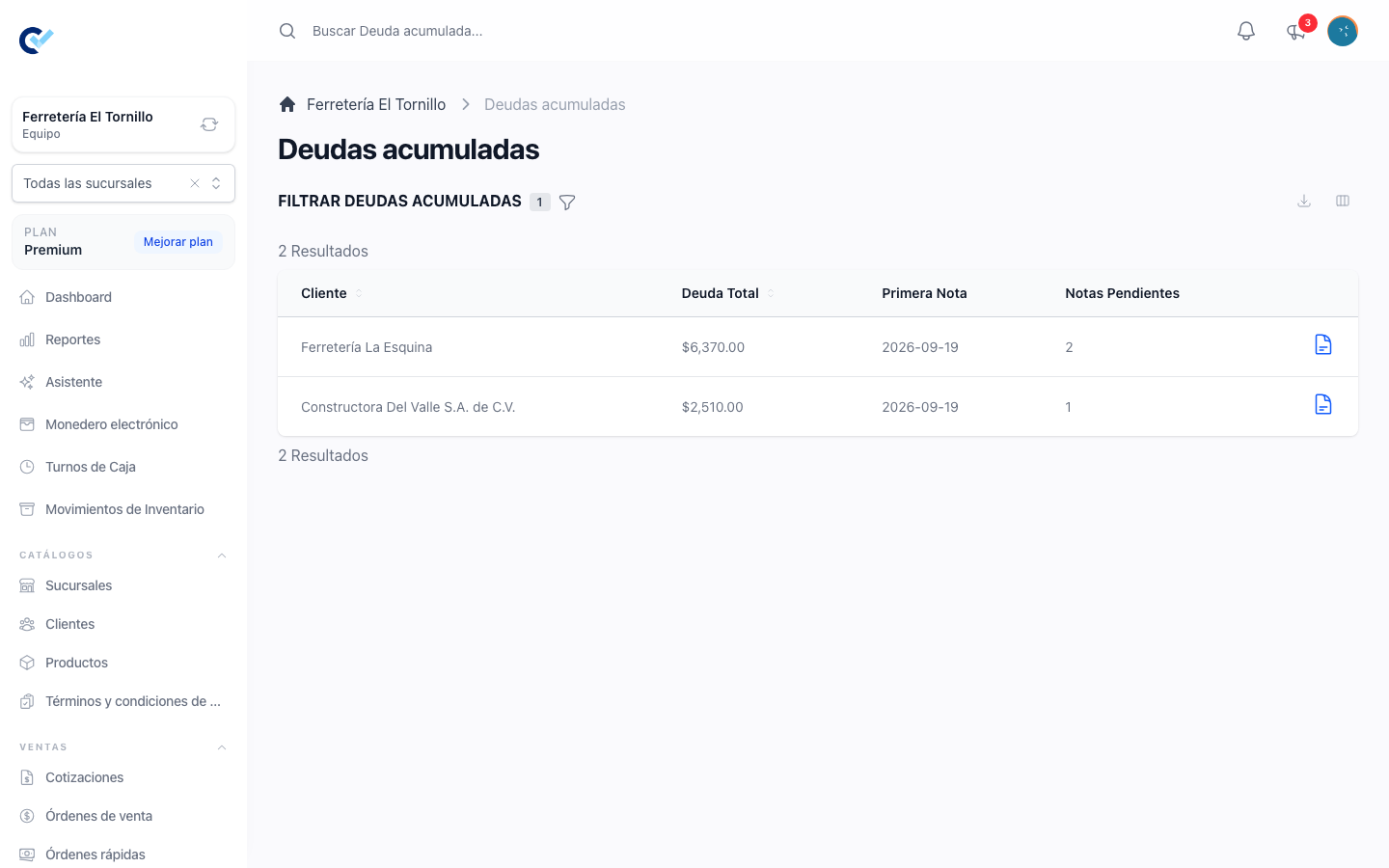
One row per client, with:
- The client's name.
- Total Debt — everything still pending across their finalised orders.
- The date of their oldest order with a balance.
- How many of their orders still have a balance.
A client with no orders at all never appears, whichever filter is set: the module is not a second client catalogue. Two filters narrow the rest — Clients, which shows either only those who owe something or all of them, and Minimum Total Debt, which hides anyone below the amount typed.
There is nothing to create, edit or delete here. The only action on a row is Account Statement, which is where the work happens.
The account statement
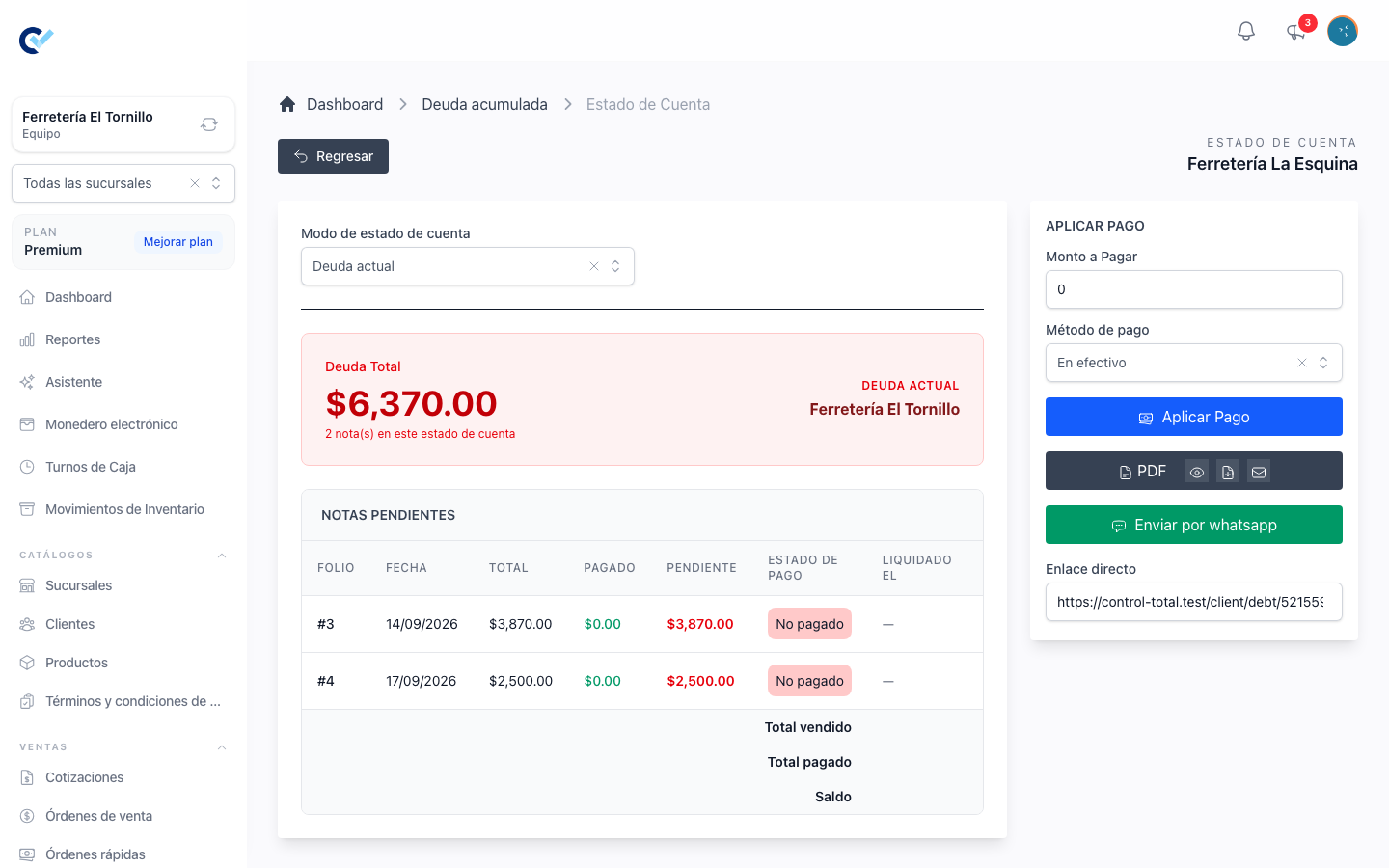
The statement opens for one client and shows the total owed, the orders behind it, and a totals line: Total sold, Total paid and Balance.
Each order is one row — its folio, its date, its total, what was paid, what is pending, its payment status, and a Settled At column that shows a dash while something is still owed and the order's date once the balance is closed. Expanding a row with Payments lists every payment against that order with its date, concept, method and amount, and says plainly when an order has none yet. When an order was reduced after the sale — by a wallet discount, a return or a post-sale discount — the expanded row also shows its original total and each deduction, so the smaller balance is explained rather than merely smaller. From the row, View order opens the order itself for anyone allowed to see it.
The two modes
Account statement mode decides which orders are listed:
| Mode | What it lists |
|---|---|
| Current debt | Only the orders that still have a pending balance. This is the default. |
| Full history | Every order of that client, settled ones included. |
Full history adds a From date. Orders dated before it are dropped — except any order that still owes something, which always stays in the statement whatever its date, because hiding it would show the client less than what they owe.
The mode and the date follow everything that leaves this screen: the link, the PDF, the email and the ticket all carry what is on screen at that moment, so what the client receives is what was reviewed.
Applying a payment
The Apply Payment panel settles debt across orders in one go, without opening them one by one. It asks for an Amount to Pay — capped at the total owed, and the cap is shown under the field — and a Payment Method, the same list as anywhere else, custom methods included.
The amount is applied to the oldest orders first, filling each one up to its pending balance before moving to the next, so what has been owed longest stops getting older. One payment of $5,000 against three orders of $2,000, $2,000 and $3,000 settles the first two and leaves $1,000 on the third. Each order gets its own payment record, and each one's payment status is recalculated straight away. An amount larger than the total debt is refused with a message and nothing is written.
This panel is only shown to someone whose role also has Payment: Create — the same permission that collects money anywhere else in the product. It replaced an older debt-specific permission, so a role that may register payments may apply them here too, without anything extra being granted.
Sending the statement to the client
Four ways out, all of them following the mode and date on screen:
| Control | What it does |
|---|---|
| Direct link | A public address for this statement. Clicking the field copies it. |
| Three buttons — view it in a new tab, download it, or send it by email. | |
| Send by whatsapp | Opens WhatsApp with the team's debt message and the link already written. |
| Print ticket | Prints the statement on a thermal printer. |
The Direct link opens without signing in, which is what makes it sendable, and it carries a long random code that belongs to this client alone, so nobody reaches another client's statement by changing the address. A link sent before, which carries the client's phone number instead, keeps working while that number stays registered on the client. On that page the client can switch between the two modes themselves.
Send by whatsapp needs the client to have a phone number registered, and the button is withdrawn when the team has reached the sending limit of its plan. The message it carries is the team's debt message, set in Settings → Messages.
Emailing the PDF opens a small form with the address, the subject and any additional recipients, separated by commas, semicolons or line breaks. When the client has no email on file it asks for one and offers to save it on the client record.
Print ticket only appears once thermal printing has been turned on for this team in this browser, from Settings → Local Configuration → Activate thermal printing. That preference is stored in the browser and not on the team, so a computer that has never been set up does not show the button.
Because the full history can reach far back, sending or printing it asks for a confirmation first, naming the mode, the period and how many orders are about to leave the screen. The current debt mode sends without asking.