

Register a payment
How money is captured against a sell order — full, partial or credit — with one method or several, and what the order's payment status becomes.
Money is never captured on its own in Control Total: it is always registered against a sell order. There are two moments to do it — while the order is being finished, and later from the order itself, as many times as it takes to settle the balance. This guide covers both, the payment methods, and the payment status the order ends up carrying. Creating the order is covered in Create a sell order.
Your team may have renamed these entities for itself, so the screen can say something other than "sell order" or "payment". The behaviour is the same.
Deciding how the order will be paid
On the sell order form, Initial Payment Type decides what the payment section asks for:
| Type | What it means | What the form asks for |
|---|---|---|
| Full Payment | The order is collected in full at the moment it is finished. | Only the payment method. The amount is the order total and is not typed in. |
| Partial Payment | Part of the order is collected now and the rest stays owed. | The method and an Amount To Pay, which cannot be more than the total. |
| Credit Payment | Nothing is collected now; the whole order stays owed. | Nothing. The payment section disappears from the form. |
Finishing the order with Finalize Sell Order collects what was captured and dates it with the Payment Date field. A Credit Payment order is finished with no payment at all and goes straight to an unpaid balance, which the client then owes — see Customer debt and statements.
Fast orders work slightly differently: they are always Full Payment, they have no type selector, and they start with Cash already chosen, because the point of that screen is to collect and move on.
Payments need their own permission
Capturing money answers to Payment: Create in Users → Roles — the Payment row, Create column — and it is separate from the permission to create the order. Someone who can write orders but not collect money can still finish them — as credit. If they pick any other type, the form puts Credit Payment back and says so: This user does not have permission to register payments. Contact your administrator.
The payment methods
Four methods ship with the product, and a team can name up to five more of its own:
| Method | Extra fields it asks for |
|---|---|
| Cash | Total Received, and it works out Money Change on its own. |
| Credit Card | Commission, worked out from the team's percentage, and a Validation Number. |
| Debit Card | None. |
| Bank Transfer | An Authorization Number. |
| Up to five custom methods | None. |
The custom methods are named in Settings → Payment Methods, in the five Custom Payment Method fields. A custom method that has not been given a name does not appear in the list at all, so the list stays as short as the team actually needs. Anything a team collects with that the product does not name — a voucher, a food card, a wallet app — belongs here.
Whether the Validation Number and the Authorization Number are compulsory is a team decision: the Transaction Reference Required switch, in Settings → General Configuration, makes them required. With it off they stay optional fields.
Cash and the change
With Cash chosen, capture the amount the client handed over in Total Received. Money Change is computed and read only: it is what was received minus what is being paid, never less than zero. On the sell order form the received amount has to cover the amount being paid, or the order does not finish.
The credit card commission
Settings → General Configuration → Credit Card Commission holds a percentage, written whole — 3 for 3%, 3.5 for 3.5%. When the method is Credit Card, the form shows the resulting Commission and a Total To Charge, which is the amount plus that commission: the first is what the order is paid with, the second is what to charge on the terminal.
The commission never reduces what the client owes. The order counts the amount, not the total charged, so a $1,000 payment with a 3% commission settles $1,000 of the order and leaves $1,030 to run through the terminal.
A payment that has already been collected keeps the commission it was charged with, even if the team changes the percentage afterwards.
Collecting with several methods at once
Half in cash and half on a card is one order and several payments. In the Payment Method list, pick Several payment methods and the form turns into rows.
Each row asks for its own method and its own Amount To Pay, and shows the extra fields that method needs — the received amount and the change for cash, the commission for a card, the reference number where one applies. Add payment method adds a row; the bin icon removes one, and the last row cannot be removed.
Under the rows, a running line says Captured and Remaining. What has to be true to finish depends on the type:
- Full Payment — the rows must add up to exactly the order total.
- Partial Payment — the rows may add up to less, never to more.
Amounts are handled with two decimals, so the sums match to the cent.
Registering a payment later
An order that was finished owing something is collected afterwards from the order itself. Open it and use Add payment. The button is there when the order is finalised, is not cancelled, still has a pending balance, and your role has Payment: Create.
The modal asks for the Payment Method, the Total To Pay and the Date, plus whatever extra fields the method needs. The Date starts at the current moment and is required: left empty, the modal says so under the field and nothing is saved. The amount cannot be more than what is pending; if it is, the modal says so and nothing is saved. A confirmation appears when the payment goes through, and the order's balance and status update at once.
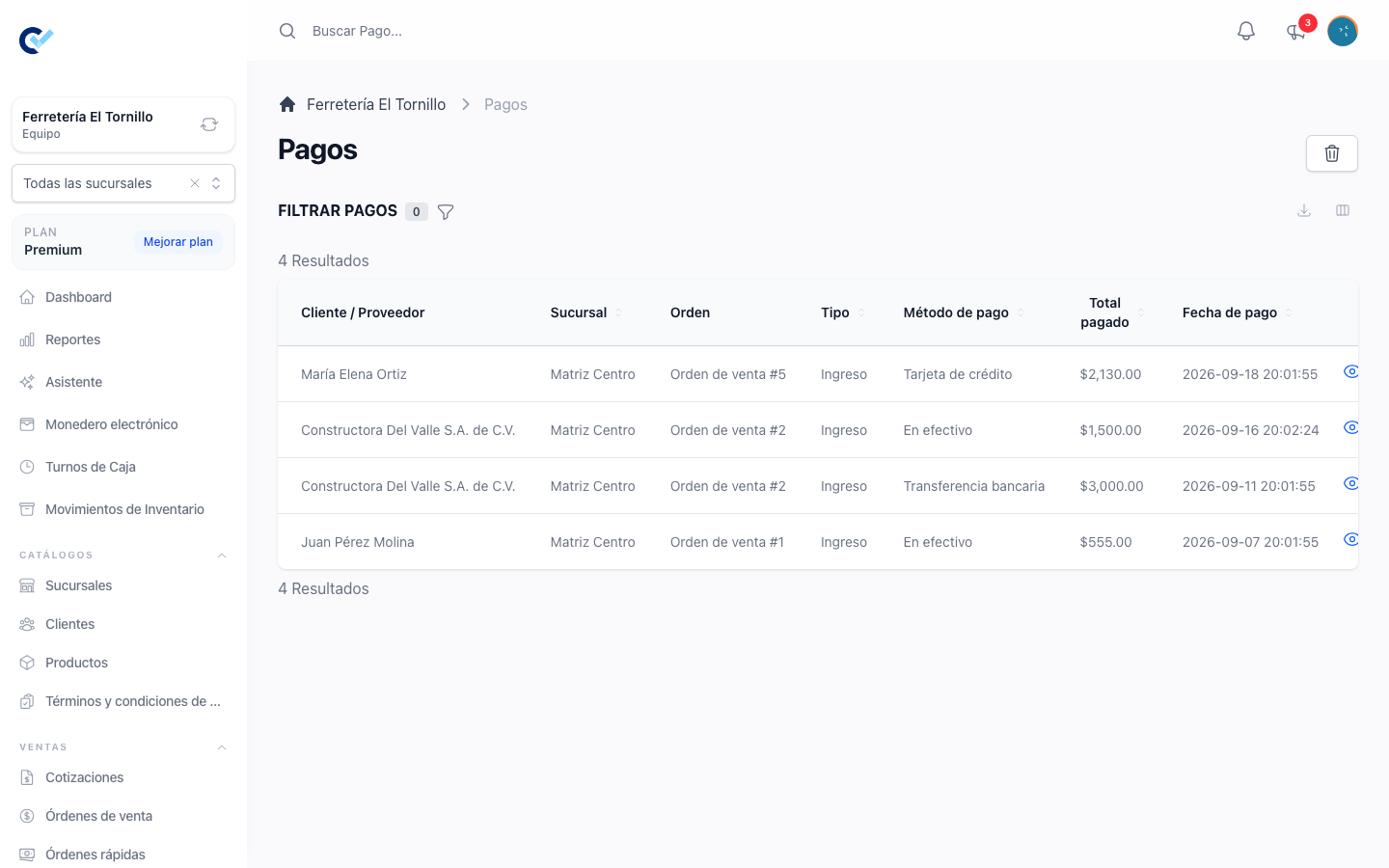
Each payment is kept as its own record. The order lists them under Payment and refund history, one row per payment with its date and its concept, and opening a row shows that payment in full: its method, its reference, its amount, and — for cash and cards — the amount received, the change given and the commission charged. The order also carries Payments made, Total Paid and Total Pending.
One amount can also be spread across several orders at once from the account statement — see Customer debt and statements.
What the payment status becomes
Every time a payment is collected or removed, the order recalculates its status from what has actually been paid against its final total — the total after any wallet discount, return or post-sale discount:
| Payment status | When the order carries it |
|---|---|
| Paid | What was paid reaches or passes the final total. |
| Partially Paid | Something was paid, but not all of it. |
| Unpaid | Nothing has been paid yet. |
This is what the debt module reads, what the account statement adds up, and what decides whether Add payment is still offered. A cancelled order owes nothing and takes no further payments.