

Charge each customer its own price
How price lists work: naming them in the settings, assigning one to a customer, capturing a price per list on each product and variation, and what happens when a product also has pricing packages.
A business rarely charges everybody the same. A wholesaler pays less than somebody walking in off the street, a customer who buys every week has earned something, and a large company negotiated its own numbers. Price lists let you write those prices down once instead of correcting each sale by hand.
You name the lists you actually use, assign one to each customer, and give every product the price it has on each list. From then on the price shows up on its own whenever you sell to that customer.
Your team may have renamed these entities for itself from the settings, so the screen can say something other than "quotation" or "sell order". The behaviour is the same.
Before you start
Price lists are a module. Activate Listas de Precios from your team's add-ons and the blocks described here appear; while it is off, nothing on any screen changes.
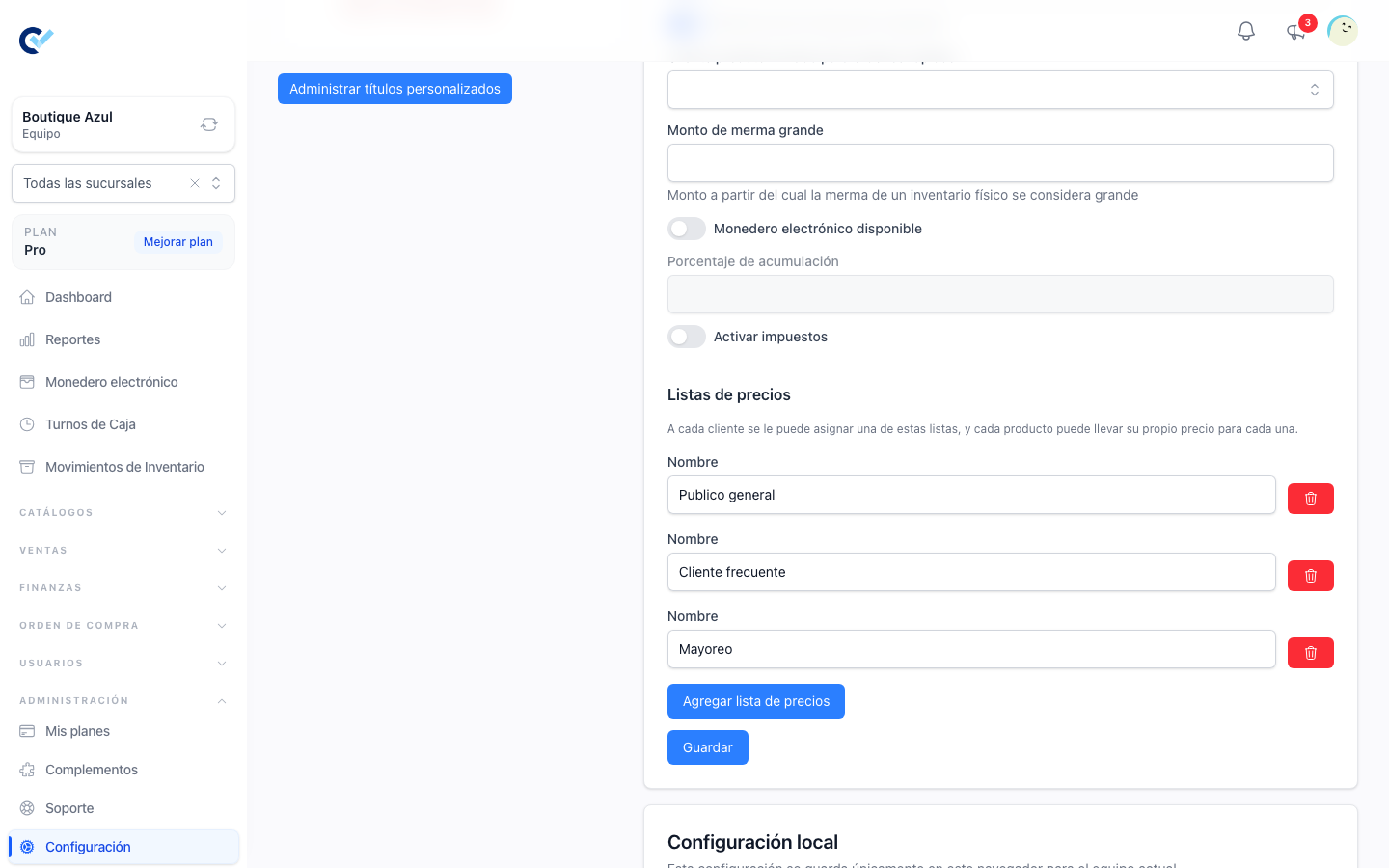
Name your lists
Go to Configuración → Configuración General. Below the taxes you will find Listas de precios: write a name, use Agregar lista de precios for the next one, and save. Two, three or four is the usual number — one per kind of customer you charge differently. Naming them needs the permission to configure the team.
You can rename a list whenever you like. Everything that points at it follows the rename, because a list is identified by more than its name: the customers assigned to it and the prices captured for it all stay in place.
Removing a list takes it out of every selector at once, and it erases nothing. The prices you captured for it stay stored, and the customers that had it keep pointing at it, so creating the list again brings all of it back. While it does not exist, those customers are sold to at the normal price.
Assign a list to a customer
Open any customer and you will find a Lista de precios field with your lists in it. Choose one, or leave it empty. A customer with no list buys at the normal price, exactly as before. Assigning one needs the permission to edit customers.
Capture the prices
Open a product. Under Listas de precios there is one field per list. Type what that kind of customer pays for that product and save.
A field you leave empty has no price of its own, and the product is sold at its normal price on that list. The field shows the product's own price in grey so you can see what would be charged, but nothing is stored until you type something. You never have to fill in every product for every list — only the ones that really differ.
Products with variants work the same way, one variant at a time: open the variant editor and each variant carries its own prices, independent of the product that owns them.
Capturing prices needs the permission to edit products, and in the variant editor the one that covers variants. Somebody who keeps the catalogue up to date does not need access to the team configuration.
Where the price shows up
Quotations, sell orders, fast sales notes and reservations all use it. Add a product and the line arrives at the price of the customer's list; when the customer has no list, or the product has no price on it, the line arrives at the normal price.
Purchase orders never use price lists. What you buy at is the supplier's cost and has nothing to do with what you sell at.
If you pick the customer last
Very common in a fast sales note: you ring up the products and choose the customer at the end. When you do, the lines you have not touched are repriced with the new customer's list. A line whose price you typed by hand keeps what you gave it — that was a decision, and the system does not overrule it.
Price lists and pricing packages together
If a product also has pricing packages, the customer pays the cheaper of the two. The system works out what the line would cost on the customer's list, works out what it would cost with the packages, and charges the lower one.
This is on purpose, and it runs in both directions. A customer on an expensive list who buys enough to hit a package gets the package price. If you do not want your packages to undercut that customer, do not give that product packages.
Numerical variations keep being added on top of whichever price won.
What does not change
A document already created keeps its prices. Editing a list, changing a product's price or moving a customer to another list never goes back and rewrites a quotation, a sell order or a note that already exists — each line froze its price the moment it was created, exactly as it always did.