

Products and stock
How to build the product catalogue: the two product types, when stock moves, fractional quantities, variants, pricing packages, barcodes, categories and search.
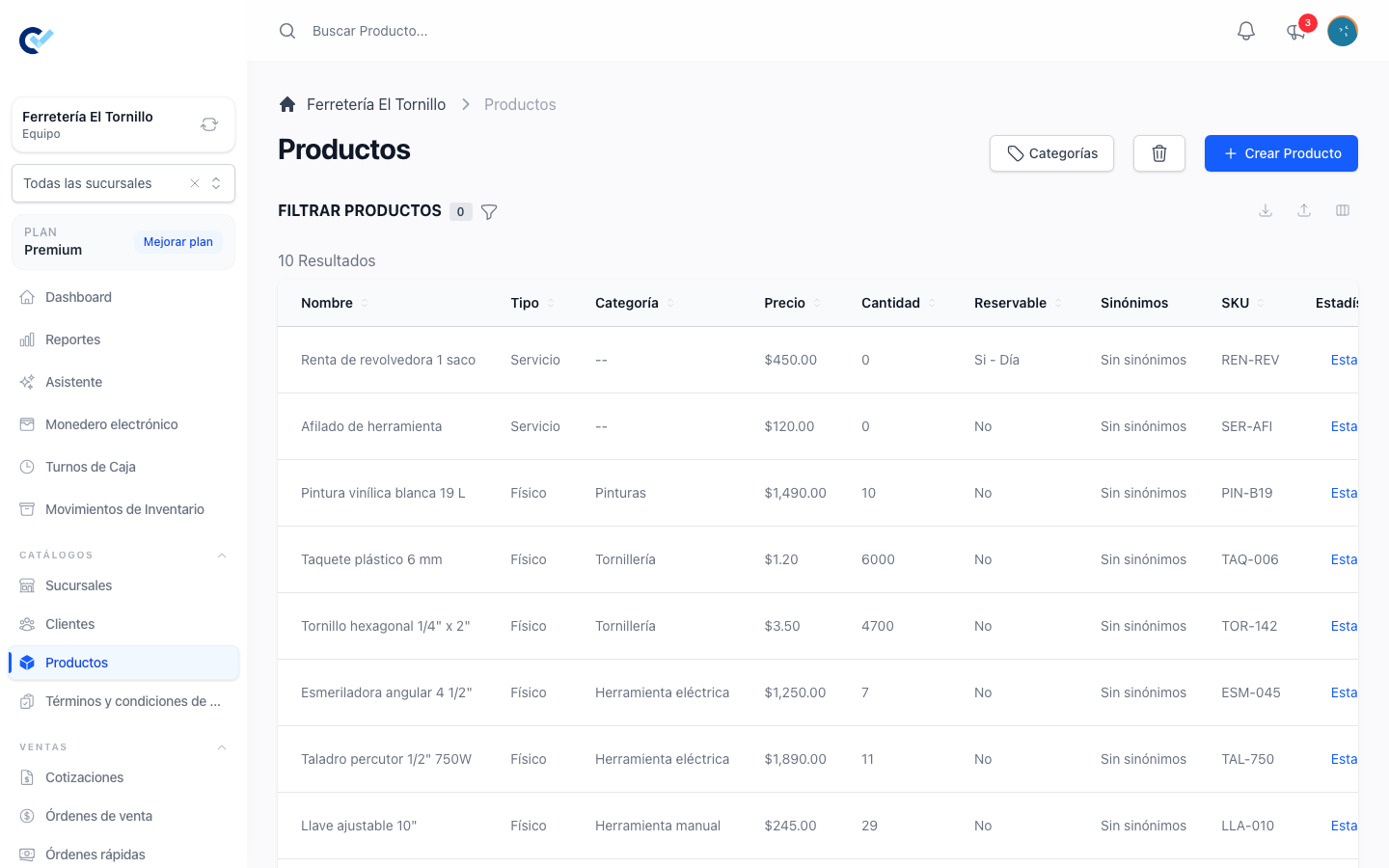
Everything you sell or buy lives in the product catalogue, under Catalogs → Products. This guide covers the catalogue as an operator uses it every day: creating a product, what stock means and when it changes, products sold in fractions, variants, pricing packages, scanning barcodes and finding a product again.
If your team calls these something other than "Products", the name you see is the one your team set in Settings → Manage custom titles. The screens are the same.
The two product types
Every product has a Type:
- Physical — something you hold. Only a physical product can carry stock.
- Service — work or time. It has a price and can be sold and invoiced, but Control Total never counts a quantity of it.
The type also decides which toggles the form shows. Switch a product to Service and the stock options disappear, because there is nothing to count.
Creating a product
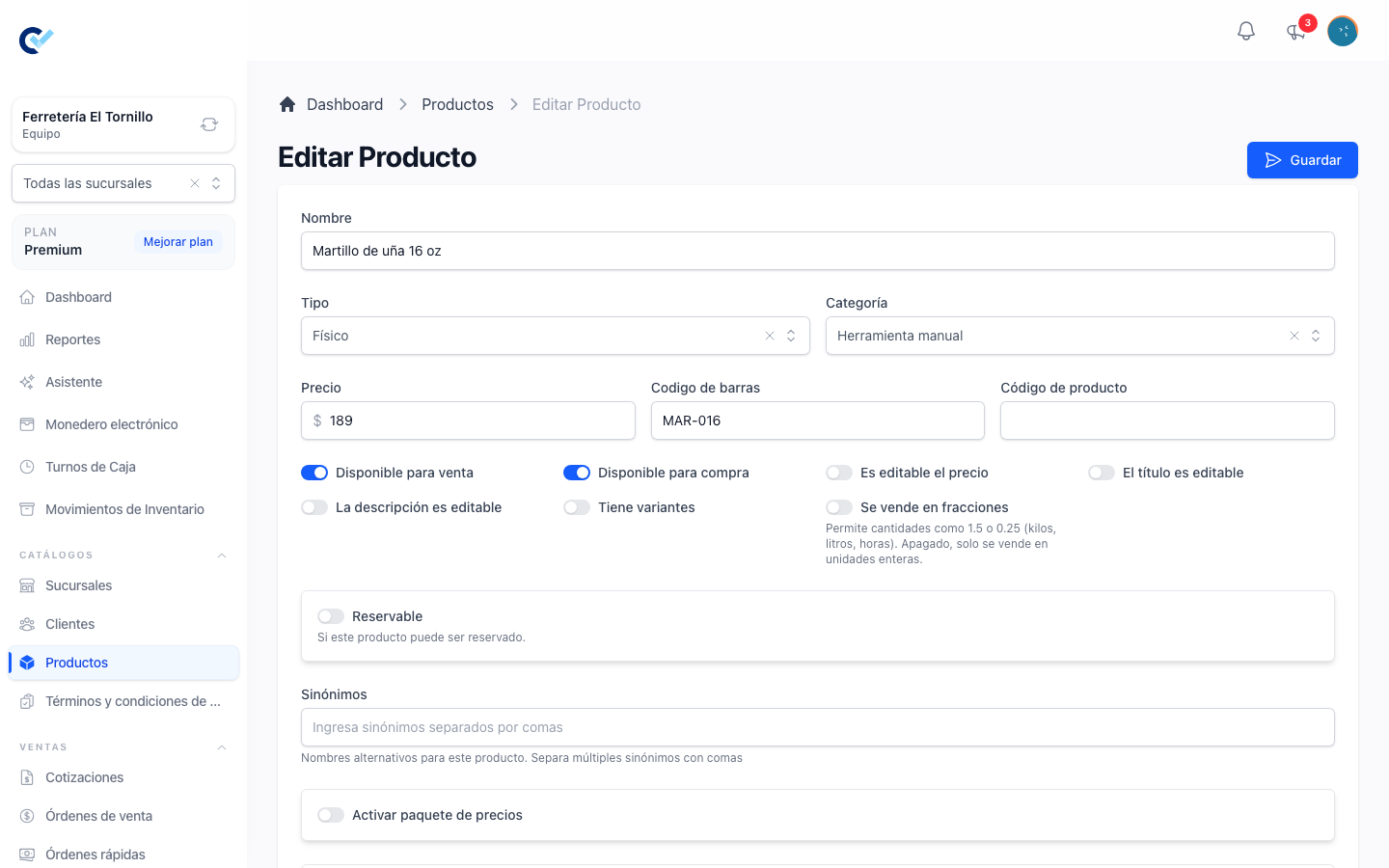
Create Product opens the form. The fields that matter on the first save:
| Field | What it is for |
|---|---|
| Name | What the product is called on every document. Required. |
| Type | Physical or Service. |
| Category | Optional. Used to group and filter the catalogue. |
| Price | The selling price. Required. |
| Bar Code | The code your scanner reads. It has to be unique across the whole catalogue: if another product or another variant already uses it, the form says so. |
| Product Code | Your own internal reference. Free text, not checked for duplicates. |
Below them there is a row of toggles:
- Available for Sale and Available for Purchase decide where the product turns up. A product only offered for purchase never appears in the picker of a quotation or a sell order, and one only offered for sale never appears on a purchase order. At least one of the two has to be on.
- Is Price Editable, Is Title Editable and Is Description Editable let the person writing a document change that field for one line, instead of being stuck with what the catalogue says.
- Sold in Fractions is explained below.
- Has Variants appears when your team has Variación de Producto on.
Further down the form you can attach a Photo, a File for the client to download, a Description, and, when your team has Términos y Condiciones on, terms and conditions that every quotation and sell order carrying this product will show.
Product photos and files are kept in your team's Media and use part of your team's storage space. While the team has space left, they are saved whole, even when one takes the team past its space. Once the team has used up its space, the product is still saved, only without the new photo or file, and a message tells you which one was not saved. Free some up by deleting files you no longer need in Media, or get more space, then open the product and add it again.
When you import products from Excel, a row whose photo cannot be saved is not imported: the Import result lists the row with the reason, and the other rows are imported. That happens when the team has used up its space, when the photo address is not a public http or https address (an address on your own network, for example), when the photo is too large, or when it cannot be downloaded from that address. Fix the address or free up space, and import that row again.
Your plan may limit how many products a team can hold. If you reach that limit, creating one more is refused with a message naming it and asking you to upgrade.
What stock means, and when it moves
There are two different situations, and which one you are in depends on whether your team has the inventory module. It is activated as Inventario from your team's add-ons.
With the inventory module
Control Total keeps a running quantity for every physical product, and the product form shows it as Current quantity. It is the real stock — the sum of everything that moved it, transfers between branches and physical counts included — so it always agrees with the product's own screen. You can type a number there to set the stock you have right now: saving records the difference as a movement, and saving the same number records nothing. See every movement of your stock. Everything else moves on its own:
- Stock comes in when a purchase order is finalized. See Purchase orders and cost.
- Stock goes out when a sell order is finalized — not while it is a draft.
Because of that, a sell order refuses to be finalized when one of its lines asks for more than there is. While you are writing the document the line shows Exceeds stock and the stock available, so you see the problem before you try to close it.
If your team works with branches, stock is counted per branch, and you have to have a branch selected before you change a quantity. Without one, saving stops with Select a branch.
Without the inventory module
No quantity is kept. Instead a physical product gets a plain Has Stock toggle, which records whether you have it at all. It is useful on variants: a combination with Has Stock off is not offered when you add the product to a sale.
Products sold in fractions
Sold in Fractions decides how quantities are typed. With it off, the product is sold in whole units only. With it on, quantities take up to three decimals — 1.5 kilos, 0.25 hours, 2.75 metres — on documents and on the stock figure alike.
The toggle belongs to the product. A variant follows its product, so both sides of a document always agree on how the item is counted.
Variants and combinations
Variants are a module: activate Variación de Producto from your team's add-ons.
When Variación de Producto is on, turning Has Variants on and saving adds a Variants section to the bottom of the product form.
You describe the product's options there — one option per row, each with its own list of values. A shirt might have Size with S, M and L, and Colour with Black and White. Use Add another option to add one, type the Option Name and its Option Values, and press Done. The grip on the left of each row reorders the options by dragging.
From those options Control Total builds the Combinations table: every value of every option crossed with the others. Two options with three and two values give six combinations. Each combination is a sellable item of its own with its own Bar Code, Price, quantity and Is Active flag; the pencil at the end of the row opens it for editing, and Done saves it.
Two things are worth knowing before you change an option:
- Regenerating does not start from scratch. When you add, edit, reorder or delete an option, Control Total matches each combination that already exists and updates it in place, keeping its barcode, its price and its stock. It creates only the combinations that are genuinely new, and deletes only the ones that the options can no longer produce. A name you wrote yourself on a combination is kept; one that Control Total had generated is rewritten to match the new options. When the change would delete combinations, you are asked to confirm first and told how many.
- Variant stock is counted in whole units. Even when the product is sold in fractions, the quantity of a combination is a whole number. The fractions apply to what you sell, not to how the combination is stocked.
The product's own stock is the sum of its combinations. The form says so, and the Price and Current quantity fields of the product itself disappear once it has variants, because each combination carries its own.
Pricing packages
Pricing packages are a module: activate Paquetes de Precio from your team's add-ons.
When Paquetes de Precio is on, the product form has an Activate Pricing Package toggle. A package is a quantity and a total price for that quantity: 6 for $100, 12 for $180. Use Add Package to add as many as you need, each with a Name, a Quantity and a Price.
When the product is added to a document, Control Total fills the quantity with the largest packages that fit, biggest first, and charges the remainder at the unit price. Twenty units against packages of 12 and 6 come out as one 12, one 6 and two loose units. The applied packages are listed under the quantity on the document, and Show pricing package on ticket decides whether that breakdown is also printed.
Scanning barcodes
The Bar Code field is what a scanner writes to, and Control Total recognises a scanner by how fast the characters arrive.
- On the product form, scanning anywhere on the page fills Bar Code, without you having to click into the field first. While you are editing a combination, the scan goes to that combination's Bar Code instead.
- On a quotation, a sell order or a purchase order, scanning adds the product to the document, or, when the line is already there, adds one to its quantity. If the code belongs to a product with variants, the combination picker opens. If no product or combination carries the code, Control Total offers to create the product with that code already filled in.
For a scan to be read on a document, the focus must not be inside a text field, and no window may be open over the document.
Categories and finding a product
The Categories button on the catalogue takes you to the product categories, where you can create them and nest one inside another. On the catalogue, the Category filter narrows the list, and picking a parent category also brings in the products of the categories directly under it. There are filters for Type and, with the inventory module, for products with or without stock.
The search box at the top of the screen matches a product's name, its bar code, its product code and its number, so the same box finds "blue shirt", a scanned code and a reference someone read out over the phone.
When your team has the AI module, products also carry Synonyms — alternative names, separated by commas — which Control Total uses when it has to recognise a product from a written order.
Suppliers on a product
With the purchase orders module, a saved product that is available for purchase shows a Suppliers section where you relate the suppliers you buy it from, each with a Default Cost and internal notes. On a purchase order, the suppliers related to the chosen supplier are shown first in the product picker, marked Related supplier.
Who can do it
In Users → Roles, each row of the permissions grid is something the system holds and each column an action, written here as Row: Column. A role needs:
| Action | On the Roles screen |
|---|---|
| See the catalogue and open a product | Product: See |
| Create a product | Product: Create |
| Edit a product | Product: Update |
| Delete a product | Product: Delete |
| Create a combination | Product Variation: Create |
| Edit a combination | Product Variation: Update |
| Delete combinations by regenerating | Product Variation: Delete |