

Purchase orders and cost
How to buy from a supplier: writing the order, what finalizing it does to your stock and your cost, paying the supplier and cancelling with or without a refund.
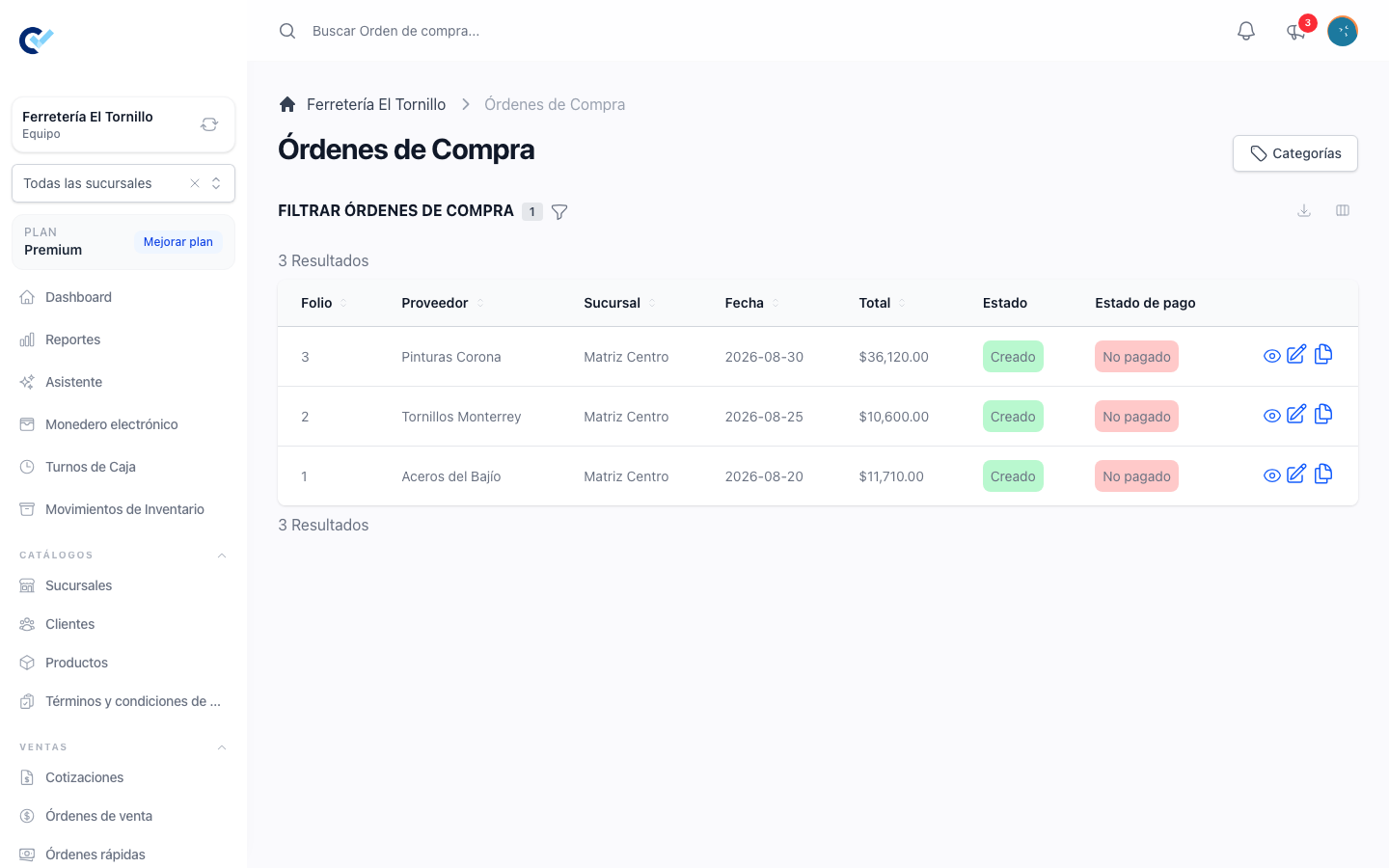
A purchase order records what you bought from a supplier, what you paid for it and what it added to your stock. It lives under Purchase Order → Purchase Orders in the menu, and it is available once you activate Orden de Compra from your team's add-ons.
If your team calls this document something else, the name you see is the one your team set in Settings → Manage custom titles.
Writing the order
Create Purchase Order opens a new one straight away, already saved as a draft, so nothing is lost while you fill it in.
The header asks for:
| Field | What it is for |
|---|---|
| Supplier | Who you are buying from. Required. |
| Date | The date of the purchase. Required; it starts at today. |
| Category | Optional, for grouping your purchases. |
| Initial Payment Type | Full Payment, Partial Payment or Credit Payment. See below. |
| Description | A free note about the purchase. |
Under the header, the Product picker adds lines. Pick the supplier first: until there is one, adding a product is refused with Please select a supplier before adding products. Only products marked Available for Purchase are offered, and the ones related to the supplier you chose are listed first, marked Related supplier. You can also scan a barcode to add a line — see Products and stock.
Adding a product that is not related to this supplier asks Create supplier relation? You can capture a Cost and Create relation and add, which saves that supplier as one of the product's suppliers for next time, or Add without relation, which adds the line and leaves the catalogue alone.
- Create relation and add needs the Cost, because that cost is what the relation keeps for next time.
- Add without relation does not. The line comes in at the cost you typed, or at the product's price when you left it empty, and you can change it in the Price column like any other line.
For each line you type what you are paying, in the Price column, and how many units. When the product already has a default cost for this supplier, the line comes in with that cost filled in. That price is the cost of the purchase, not the price you sell at: nothing you do here changes the selling price in the catalogue.
When the inventory module is on, a physical line also shows a Stock movement box with three figures that help you check the line before you close the order:
- Current stock — what you have now.
- New stock — what you will have once the order is finalized.
- Last cost — what you paid per unit the last time you received this product.
Two buttons close the screen. Save as draft leaves the order as a draft you can come back to. Finalize Purchase Order issues it. An order with no lines refuses to be finalized, with There are no products added to the purchase order.
What finalizing does
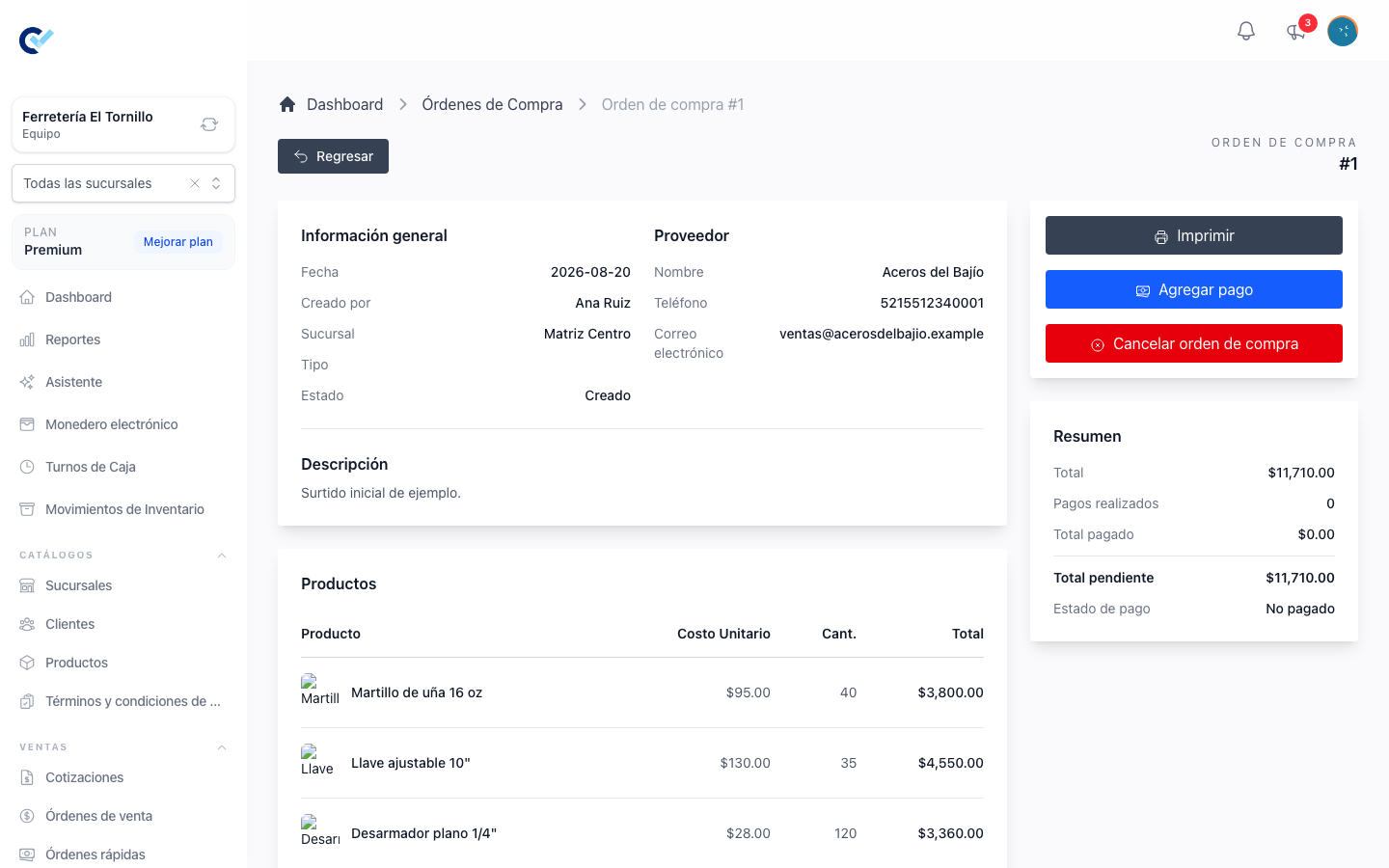
Finalizing gives the order its folio and moves it to its final state. From then on it cannot be edited any more — only paid or cancelled.
When your team has the inventory module, finalizing also does two things to every physical line at once:
- It adds the units to your stock. The quantity of the purchase is added to the product, or to the combination, that the line points at, with the same decimals you typed.
- It records what that stock cost you. Each line becomes a receipt layer: a batch of units with the price you paid for them.
How cost is worked out when you sell
Stock bought at different times usually cost different amounts. Control Total does not average them: it keeps each purchase as its own layer and spends the oldest layer first. That rule has a name — FIFO, first in, first out — and it is the wording you will see on the screens that show it.
An example. You buy 10 units at $20 and, a month later, 10 more at $25. You then sell 12 units. Control Total takes the 10 that came in first, at $20, and 2 from the second layer, at $25: a cost of $250 for that sale. The remaining 8 units stay in the second layer, still worth $25 each, ready for the next sale.
That is what lets a sell order show what it cost you and what you earned on it. Two situations are worth knowing:
- Stock that predates your purchase orders has no known cost. If you typed an opening quantity into a product by hand, those units belong to no layer. A sale that takes them from stock is recorded without a cost, and without a profit, rather than with a number that would be made up.
- Returning goods to stock puts the units back in the layer they came from, so the cost of the remaining stock stays right.
Paying the supplier
What you owe depends on the Initial Payment Type you chose when you finalized:
| Type | What happens on finalizing |
|---|---|
| Full Payment | The whole total is registered as paid, with the payment method you chose, and the order is left with nothing pending. |
| Partial Payment | The amount you typed in Total To Pay is registered, and the rest stays pending. |
| Credit Payment | Nothing is registered. The order is issued owing its whole total. |
An order with something still pending shows Add payment on its detail screen. The Register supplier payment form asks for:
| Field | What it is for |
|---|---|
| Payment Method | How you paid the supplier. Required. |
| Total To Pay | How much you paid. Required, and refused when it is above what is pending. |
| Date | The day and time you actually paid. It starts at the current moment, and you can change it to an earlier or a later one. Required. |
The payment is recorded on the Date you chose, not on the moment you typed it in, so a payment you register after making it — the usual case on an order bought on credit — keeps its real date in Payment history and in your cash-flow reports.
Each payment updates Total Paid, Total Pending and the Payment Status of the order, and is listed in Payment history. The payment registered when you finalize the order, through Full Payment or Partial Payment, asks no date: it is recorded on the moment you finalize.
Cancelling a purchase order
Only a finalized order can be cancelled, from Cancel Purchase Order on its detail screen. Nothing is deleted: the order stays, marked as cancelled, with who cancelled it, when, and why.
The form asks for a Cancellation reason, which is required. When the order has payments registered, it also asks Was a money refund given? — Yes records a refund for everything that was paid, so your cash figures match reality; No leaves the order cancelled without one.
Before you confirm, the screen shows you what will happen to the stock: the quantity received, the part already consumed by sales and the part still available. Then:
- The units that are still in stock are taken back out, up to what is actually there. Control Total never pushes a product into negative stock to undo a purchase.
- The units already sold stay as they are. Their cost has already been recorded on the sales that used them, and cancelling the purchase does not rewrite history.
- The cancelled order's layers are not used again, so no future sale takes its cost from a purchase that no longer exists.
The screen says as much in its own words before you confirm, and warns you separately when some of the received layers have already been consumed by sales.
Who can do it
In Users → Roles, each row of the permissions grid is something the system holds and each column an action, written here as Row: Column. A role needs:
| Action | On the Roles screen |
|---|---|
| See purchase orders and open one | Purchase Order: See |
| Create one and continue your own draft | Purchase Order: Create |
| Edit someone else's draft | Purchase Order: Update |
| Cancel a finalized one | Purchase Order: Delete |
| Register a payment to the supplier | Payment: Create |
A role can also be narrowed with Purchase Order: Only sees their own data, which limits the person to the purchase orders they created themselves.