

Work with branches
What a branch is, what changes on every screen once you are inside one, what stays shared across the whole team, and how a role is tied to the branches its people may open.
A branch is a place your business operates from: a shop, a warehouse, a stand, a van. It splits the records that belong to a place — the sales, the payments, the stock — while leaving the catalogue shared, so the same products and the same clients are used everywhere and each place answers for its own numbers.
Branches are a module. Activate Sucursales from your team's add-ons to start using them; while it is off the branch selector never appears, and everything in the system belongs to the team as a whole.
Every plan includes one branch, and the module costs nothing. To open more, buy Sucursal adicional from the same add-ons and choose how many: each one adds a branch to the one your plan includes, at 100 pesos a month or 1,000 pesos a year on a yearly plan — 5 or 50 dollars outside Mexico. Once the team has every branch it has room for, the branch list says so and offers to buy another. Lowering the quantity below the branches you already have is refused, and no branch is ever closed or deleted because of it.
The first branch
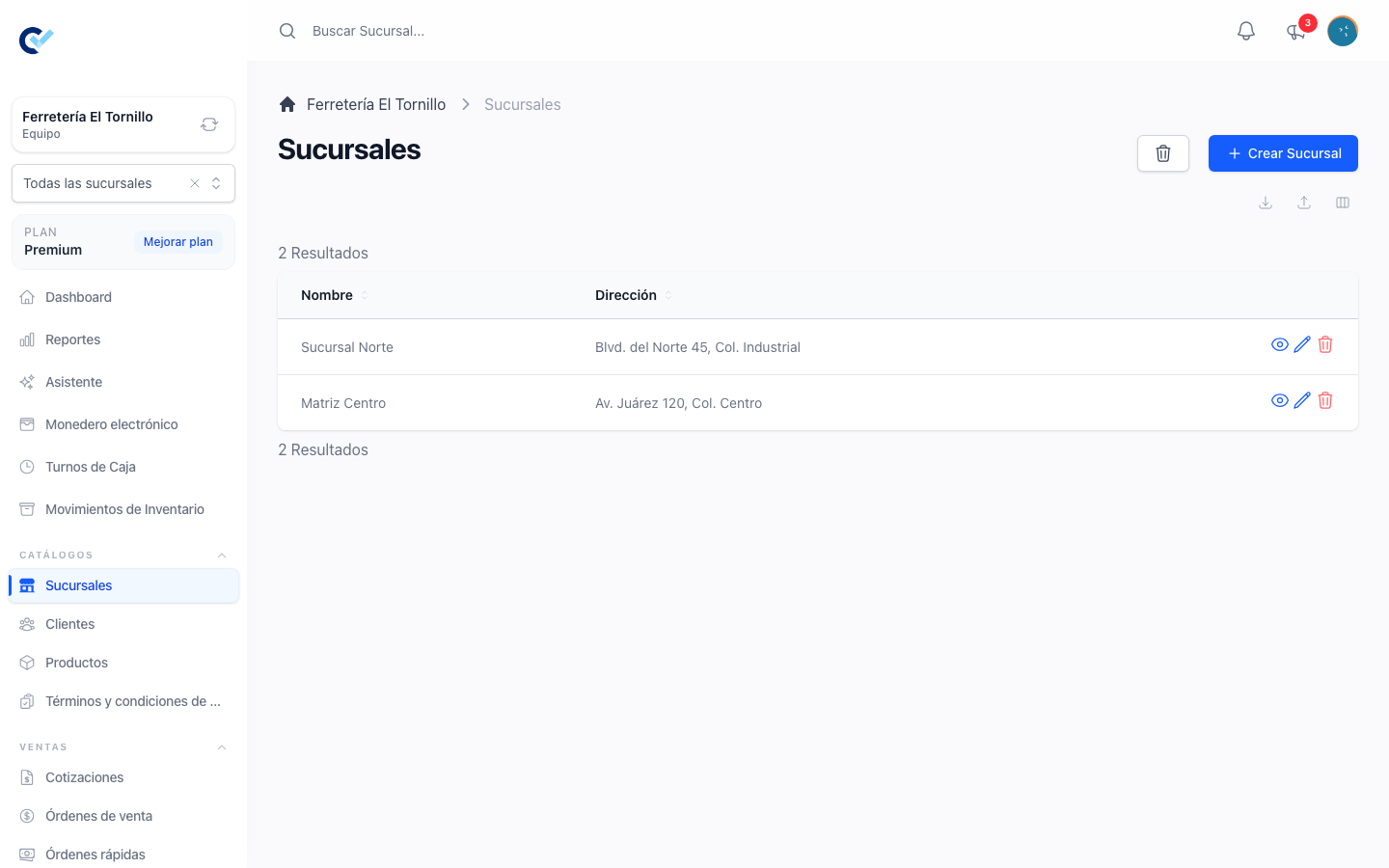
Branches live under Catalogs in the menu, as Branches. A branch has a Name and an Address, and that is all it is.
Creating the very first one is the moment to be deliberate about, and the form warns you: everything the team already has — its sell orders, its quotations, its payments, its purchase orders, its stock movements, its fiscal invoices, its cash registers and their shifts — is moved into that branch. It has to go somewhere, and there is only one place to put it. So make the first branch the one your existing history actually belongs to, and create the others afterwards.
Later branches take nothing with them. They start empty.
The selector
With branches on, a selector sits at the top of the menu and decides what you are looking at. It holds your branches and, when your role allows it, All Branches.
The choice lives in the browser, not in your account, and that is deliberate: in a shop where several people share one login, storing it on the account made one person's choice move where everybody else's records were being filed.
Inside a branch
Picking a branch narrows the whole workspace to it:
- The dashboard counts that branch's documents.
- The lists of sell orders, quotations, payments, purchase orders, fiscal invoices, cash registers and cashier shifts show that branch's.
- A cashier shift can only be opened on one of that branch's cash registers, and not at all on All Branches. See cashier shifts.
- A document you create is filed to that branch, without being asked.
- The stock of a product is that branch's stock, which is what the product screen shows and what a sale is checked against.
- Transfers appears, because moving stock only means something from somewhere to somewhere else. See move stock between branches.
Some things are deliberately not offered inside a branch, because they belong to the business and not to one of its places: Members, My plans, Support, Settings and Electronic Wallet — a client's balance is with the business, not with one of its shops.
On All Branches
All Branches is the whole business at once. Documents are not filed anywhere in particular from here, which is why the screens that write a document to a branch — the transfers among them — are not offered on it.
What a branch does not split
The catalogue is the team's, not the branch's:
- Clients belong to the team. The same client is reached from every branch, and so is their debt and their account statement.
- Products belong to the team. One product, one price, one description everywhere — what changes per branch is how many of it you have.
- Suppliers, document terms, categories, roles and members are the team's too.
That is the line the module draws: what is written is a branch's, what is looked up is the team's.
Tying a role to branches
A role can be given the branches its people may open. Edit the role, under Users → Roles, and pick them under Branches.
- A role with branches picked offers only those in the selector, and All Branches is not among them. Someone with that role cannot leave the branches they were given.
- A role with none picked offers every branch of the team, plus All Branches.
It is the tool for a counter that should only ever see its own shop. The rest of what a role decides is in who can do what.
Before you turn it on
Branches change the answer to how much stock do I have, everywhere, permanently: from that point the figure is per branch, and reading the whole business at once means switching the selector. Decide the places you actually operate from before creating them, and give them the names the people using the system already say out loud.