

Who can do what
How to add the people who work with you, what a role is, how to read the permission grid, and what "only sees their own data" really grants and takes away.
Everyone who works with you gets their own account and their own role. The account is who they are; the role is what they may do. Nothing in Control Total is decided by a person's job title — it is decided by the boxes ticked on their role.
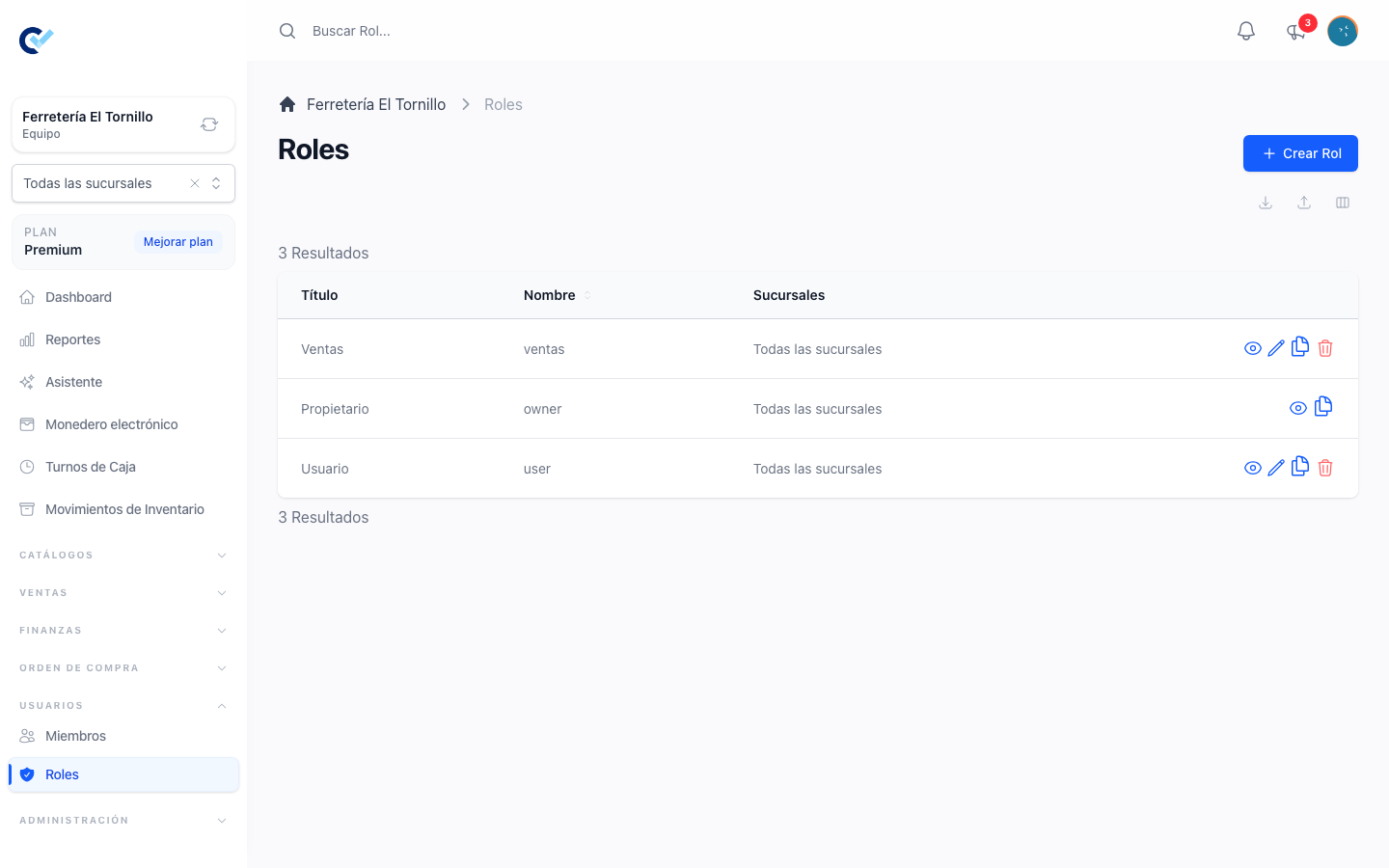
Two screens carry it: Members, under Users, for the people, and Roles, next to it, for what they can do. Neither is offered while you are standing inside a branch: they belong to the business, not to one of its places.
Roles first
Make the roles before you invite anyone, because adding a member asks which role they get and there is no decide later.
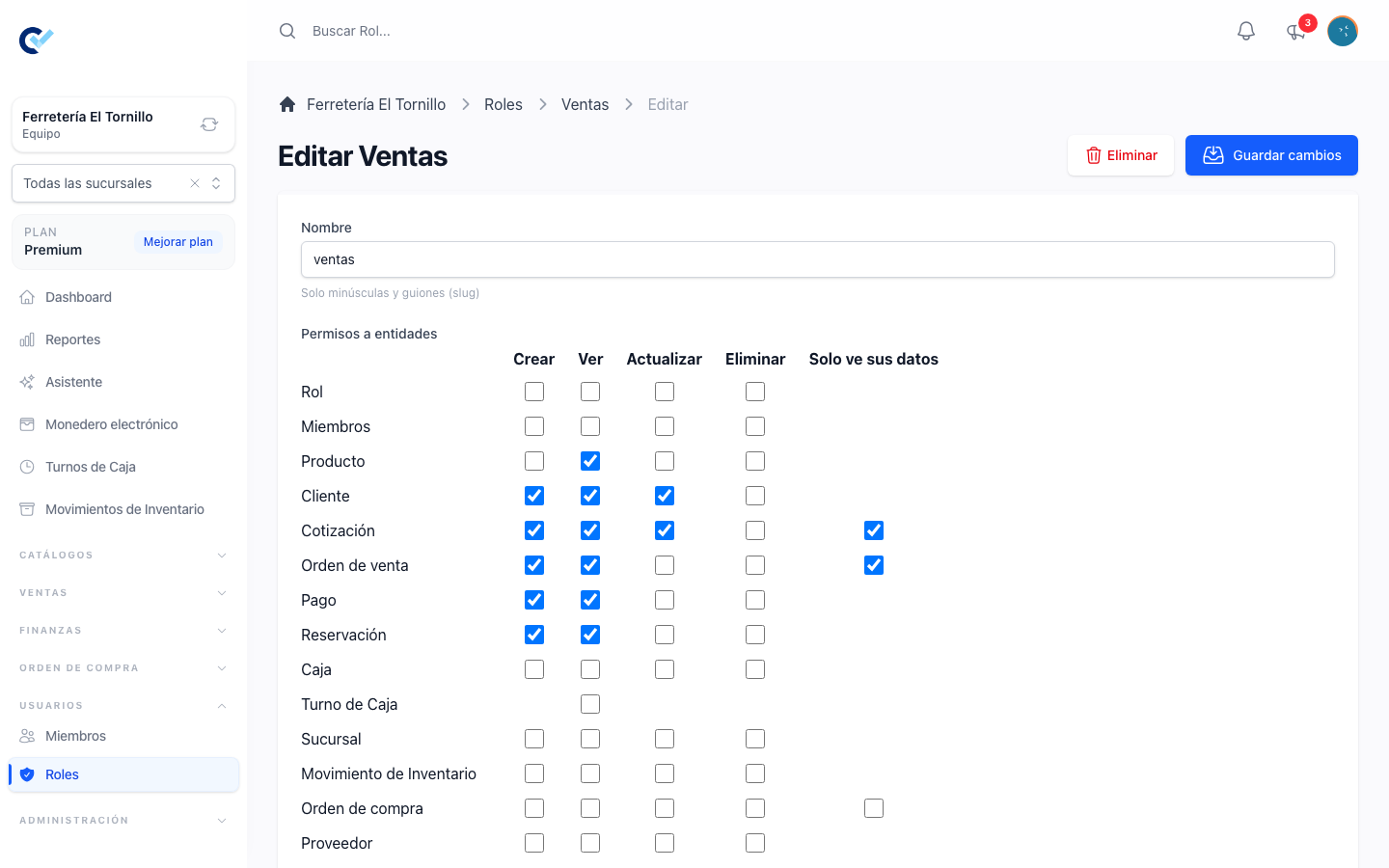
A role has a Name, written in lower case with hyphens — ventas, almacen, contador — and a grid of permissions. The name is yours: the system does not treat a role called administrador differently from one called mostrador. Only the ticked boxes matter.
Your own account already has the owner's role, with everything. It is created with the team and it is not what you hand out.
The grid
The first grid is one row per thing the system holds — clients, products, sell orders, quotations, payments, purchase orders, suppliers, branches, invoices, and the rest — and five columns:
| Column | What it lets the role do |
|---|---|
| Create | Make a new one. |
| See | Open the list and any record in it. |
| Update | Change one that was already finished. |
| Delete | Cancel a finished document. Not erase it — nothing finished is ever erased. |
| Only sees their own data | Explained below. It is a restriction, not a power. |
Clicking a column heading ticks that column for everything at once, and clicking a row's name ticks the whole row. Between the two, a role that reads everything and writes nothing takes one click, and a role that owns one module takes one more.
Rows for modules your plan does not include are not shown. There is no point offering a permission over something the team cannot reach.
Below the grid is a second, shorter list of permissions that are not about a record: changing the settings, renaming things, managing the plan, reading the accumulated debt, accepting returns, giving post-sale discounts. They are single switches. Registering a payment is not one of them: it is the Payment: Create box in the grid.
Only sees their own data
This one is worth reading twice, because it does two things at once.
It restricts: someone with it ticked on sell orders sees the sell orders they created and no one else's — not on the list, and not by opening a link to one.
It also grants: on its own, without See, it lets that person read their own records. That is how you build a salesperson who follows up their own quotations and never sees the rest of the floor's.
What it does not grant is anything else. Changing a finished document still needs Update; cancelling one still needs Delete. And it only exists for the four things it makes sense for: quotations, sell orders, purchase orders and fiscal invoices.
The reports are not narrowed by it. Reports carry no permission of their own, so anybody who can open Reports reads the whole team's figures — or the whole branch's — however restricted they are everywhere else. See reports.
One deliberate exception of the same kind: customer debt is never cut down by it. The accumulated debt list, the total owed, the account statement, the Total Debt column and the debt shown while writing a sale all show the client's whole balance, whoever made the sales. The module exists to collect from the client, and a figure cut per salesperson is not what the client owes. It does mean a restricted salesperson sees debt from sales they did not make.
Branches
When your team uses branches, the role also carries the branches its people may open. That is in work with branches.
Clone
Clone on the list copies a role with all of its permissions under a new name. It is how you make almacén sucursal norte from almacén without ticking forty boxes again.
Adding a member
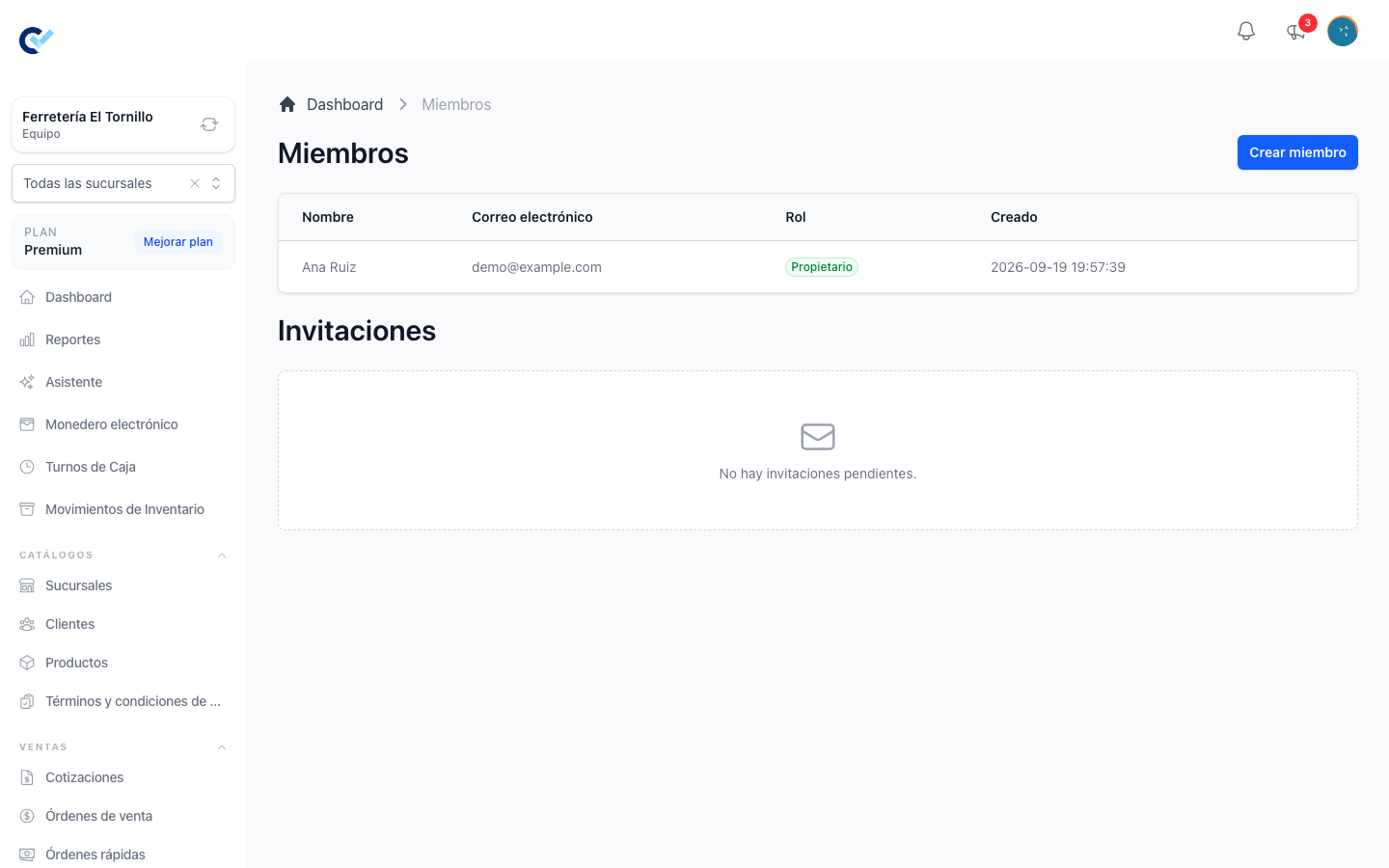
Members lists the people already in the team and, below them, the invitations still waiting to be accepted.
Create asks for two things: how you are identifying the person — their email, their phone, their username, depending on how your installation signs people in — and the role they get.
What happens next depends on whether that person already has an account:
- They already have one. They are added to the team straight away with the role you picked, and they reach it the next time they sign in.
- They do not. An invitation is created against their email and shows on the Members screen until it is accepted. Invitations by phone are not available.
Somebody who is already in the team is refused, by name, rather than added twice.
Changing and removing
Edit on a member changes their role, and one person holds one role at a time — picking a new one replaces the old.
Delete on a member takes them out of the team. It does not delete their account and it does not touch anything they wrote: their sales, their quotations and their payments stay exactly where they are, with their name on them. Removing somebody who left is safe, and it is the right thing to do rather than sharing a login.
Deleting an invitation withdraws it.
Your plan
How many people the team may hold is part of your plan. When the limit is reached the screen says so and adding is refused until the plan grows — see your plan and support.
Permissions on this screen
Reading Members needs See Members, adding needs Create Members, editing needs Update Members and removing needs Delete Members. Roles follow the ordinary See, Create, Update and Delete on roles.
Give them carefully: someone who can edit roles can give themselves everything.