Your plan and support
What each plan costs and includes, what your plan decides, what happens when you reach one of its limits, how the monthly document limits count, how much space your files get, how to add more space, users or branches, how moving up, moving down, cancelling and resuming a plan work, where the subscription, the cards and an outstanding balance are read, and what support your plan includes.
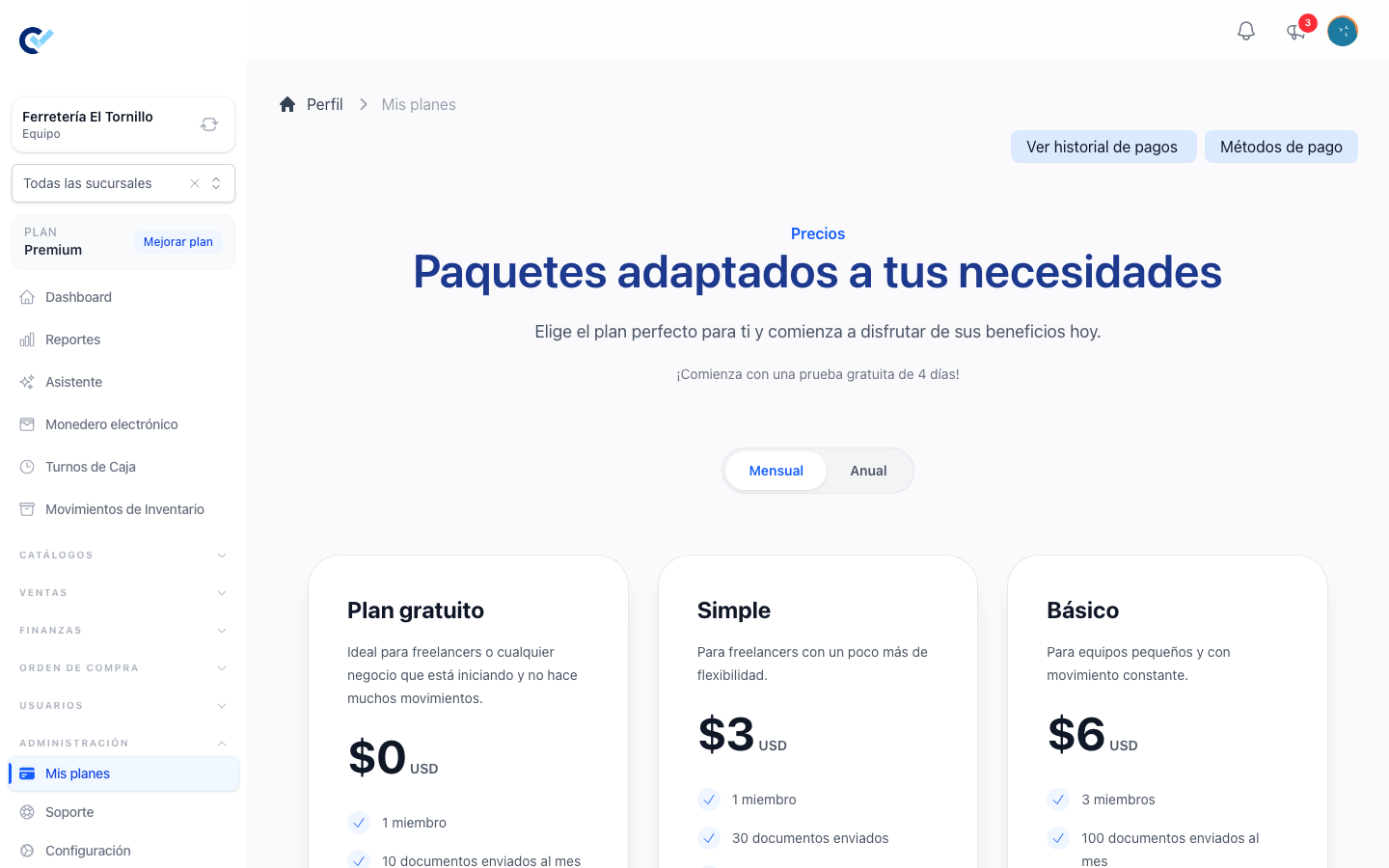
Your plan decides how much of the system your team may fill, and it is read and changed from My plans, under Administration in the menu. The modules are not part of it: each one is an add-on your team gets on its own, from Add-ons in that same menu.
The screen only appears for someone whose role may manage the plan, and it is not offered while you are standing inside a branch — the plan belongs to the business, not to one of its shops.
What each plan includes
| Free plan | Simple | Básico | Premium | Pro | |
|---|---|---|---|---|---|
| A month, in Mexico | $0 MXN | $50 MXN | $100 MXN | $200 MXN | $500 MXN |
| A month, elsewhere | $0 USD | $3 USD | $6 USD | $12 USD | $30 USD |
| Users | 1 | 1 | 3 | 6 | 15 |
| Created documents a month | 100 | 300 | 1,000 | 5,000 | Unlimited |
| Sent documents a month | 10 | 30 | 100 | 500 | Unlimited |
| Products | 30 | 100 | 300 | 600 | Unlimited |
| Branches | 1 | 1 | 1 | 1 | 1 |
| Space for files | 500 MB | 1 GB | 2 GB | 5 GB | 10 GB |
| Support | Tickets | Tickets | Tickets and live chat | Priority tickets and live chat | Priority tickets and live chat |
Paying for a year costs ten months; the free plan has no yearly price. Users and branches can be added one at a time without changing plan, as More users or branches below explains.
If you were already subscribed when these prices changed, you keep paying the price you signed up for. The new price applies only when your team changes plan or switches between monthly and yearly, and nothing is charged because the prices changed.
What the plan decides
Not the modules. Each module is an add-on, whatever plan your team is on, and Add-ons shows what each one costs:
- Free — inventory, branches, internal orders and fiscal invoicing. Press Activate on the module's card.
- Paid monthly or yearly — cash register closing, the loyalty wallet, pricing packages, customer debt, reservations, product variants, physical inventory, numerical variations, purchase orders, document terms, price lists, and income and expenses. Press Buy on the module's card and it is added to your subscription; Cancel on the same card takes it off again.
A paid module your team had already activated before it had a price stays yours at no cost: its button reads Activated and nothing is charged for it. The assistant is not in Add-ons at all — see The assistant.
A module that is off is not hidden behind a warning: its menu entry, its screens and its permissions are simply not there, which is why a guide you read about something you cannot find usually means the module is not on.
The limits. These are counted:
| Limit | What it counts |
|---|---|
| Created Documents | Quotations and sell orders together, created this month. |
| Sent Documents | Quotations and sell orders your team shared with a customer this month. |
| Products | How many products the catalogue holds. |
| Users | How many people the team holds. |
| Disk space | How much room the team's files take up. |
Clients are not limited. Neither are payments, invoices or anything else.
When a limit is reached
You are told before you lose work, not after. The screens that are about to create something warn you as you approach a limit, and once it is reached the action is refused with a message naming what ran out and pointing at the plans.
Reaching a limit never touches what you already have. Nothing is deleted, nothing is hidden, and everything already in the system goes on working — you simply cannot add another one until the plan grows.
The monthly document limits
Created Documents and Sent Documents are counted per calendar month. On the free plan they are 100 created and 10 sent a month; Simple gives 300 and 30, Básico 1,000 and 100, Premium 5,000 and 500, and Pro has no limit on either. Both counts start again on the first of each month at midnight UTC — in Mexico, that is the evening of the last day of the month before.
What counts as created. A quotation or a sell order counts as soon as it is saved, whether as a draft or finished. One you are still filling in does not count yet.
What counts as sent. A document counts as sent when your team shares it from Control Total, in any of three ways: Send by whatsapp, Send PDF by email, or copying its Direct link. Each document counts once a month, however many times you send it and to however many people. Viewing or downloading its PDF does not count, and neither does your customer opening the page.
When you reach one. The buttons stay where they are. Using one shows You reached your plan limit, with the date the count starts again and the option of changing plan to get more:
- At the created limit, you cannot start a new quotation or sell order — a fast order, a clone, a quote converted to an order, a renewed sell order and an order dictated to the assistant included — and one you were still filling in cannot be saved. Documents already saved stay editable, and a saved draft can still be saved as a draft, but it cannot be finished until the count starts again.
- At the sent limit, the three ways above are refused for a document not yet sent this month. A document already sent this month can be sent again, as often as you need. The Send by whatsapp button of a customer's account statement is not shown while the sent limit is reached.
How much of each your team has used this month is on the dashboard, in Plan statistics, next to its limit, with a warning once you pass 80%.
Space for your files
Every plan includes space for the team's files: 500 MB on the free plan, 1 GB on Simple, 2 GB on Básico, 5 GB on Premium and 10 GB on Pro.
Space, under Administration, shows how much the team's files take up against that figure, with a warning once you pass 80%. It appears for whoever may manage the team's files.
While the team has space left, a file you upload is saved whole, even if it takes the team past its space. Once the team has used up its space, the next file is refused, with a message saying you ran out of space. Delete files you no longer need from Media, or move to a larger plan, and the room is there straight away.
More space without changing plan. Almacenamiento adicional, in Add-ons, adds space on top of what your plan includes, in steps from 5 GB to 1 TB. Pick a step and how many of it you want. Steps add up: two of 1 TB give you 2 TB, and buying another step later adds to the ones you have instead of replacing them. The add-on's page lists each step you hold with its own Quantity, so you can lower or Remove one without touching the others, and Add more below them. Lowering or removing a step is refused while your files would no longer fit, and it never deletes a file. It is sold monthly or yearly, like the modules, so it can be held on a yearly plan too — the yearly price is ten months.
Nothing is deleted for space. A team already holding more than its plan includes keeps every file and only stops being able to upload more. A voice note you keep from the assistant is saved even when the team has no space left, and counts like any other file.
More users or branches
Two add-ons, in Add-ons, raise one number of your plan without changing it:
| Add-on | Adds | A month, in Mexico | A month, elsewhere |
|---|---|---|---|
| Usuario adicional | One user | $50 MXN | $2.50 USD |
| Sucursal adicional | One branch | $100 MXN | $5 USD |
Choose how many you want; each one adds to what your plan includes, and you can buy more later. They are sold monthly or yearly to match your plan, and a year costs ten months. When your team already has every user it has room for, Members shows Buy another user next to Create member, and it takes you straight to the add-on. Branches are covered in Work with branches.
Changing plan
My plans lists what is offered and what you are on. Picking a larger one takes you through payment and comes back with the new plan active, and the limits that come with it are the ones that apply from then on. The plan you paid for is the one you keep, even when you are back on the screen before the payment has finished confirming.
Leaving the free plan for the first time starts with a free trial. My plans says Start with a free trial of and the number of days, and nothing is charged until those days are over. The trial is given once per account: a team that already had a trial, or already paid for a plan, is not offered it again and the message does not appear.
Moving to a smaller plan billed the same way — monthly to monthly, or yearly to yearly — waits for your renewal. You keep the plan you already paid for, with everything it includes, until the current period ends, and the smaller one starts on that date. Its card reads Starts on and the date in the meantime. The time left on the larger plan is not refunded or credited: you simply use it. While the move is waiting:
- Picking any other plan, or cancelling, drops the scheduled move.
- An add-on you buy, remove or change applies straight away, as always, and stays on your subscription when the smaller plan starts.
A smaller plan is refused while your team holds more than it allows — more users or products than it includes, for instance — and the message says which limit is in the way.
Switching between monthly and yearly applies straight away, and what you had already paid for the current period counts towards the new charge. Your add-ons come with you at their price for the new period, Almacenamiento adicional with the same steps and Sucursal adicional and Usuario adicional with the same quantity.
Cancelling. Cancel on the card of the plan you are on — or picking the free plan — does not end it at once: the plan stays active until the end of the period you paid for, and the team moves to the free plan on that date. Until then the card of your plan offers Resume plan, and so does the subscription screen. Resuming takes the cancellation back with no charge, and the plan renews as usual.
Two links sit at the top of My plans:
- View payment history opens the subscription: the plan you are on, its status, the date it started, the date of the next payment, the add-ons you hold and the latest payments.
- Payment methods is where the cards live.
The subscription screen
It answers what am I paying, and when:
- Current Plan with its status — active, trialing, past due, cancelled.
- Start date and Next payment, or Active until when a cancellation is already scheduled.
- Credit, when you hold any, with what your next charge comes to after it.
- The latest payments, and the add-ons active on the account.
A payment that did not go through says so here, with Retry payment. While it is being retried your plan and your dates are untouched. Cancelling is scheduled rather than immediate: the subscription stays active until the date shown, and until then Resume plan, next to that date, takes the cancellation back.
An outstanding balance
When a subscription payment could not be charged in time, the subscription is cancelled and the amount stays as a balance to settle. The team is blocked until it is paid, and subscribing to a different plan does not clear it — the balance is the account's, not the plan's.
The screen that shows it lists the cards on file and settles it with one, or takes a new card and charges it straight away.
Support
Support, under Administration, says what your plan includes and how soon your tickets are answered, and has two buttons: Open a ticket and My tickets.
- Every plan includes support by tickets. Write what is happening and the support team answers in the ticket.
- Premium and Pro have priority: their tickets are answered sooner. The screen says within how many business days your plan's tickets are answered.
- Básico, Premium and Pro also include the live chat with the support team. Start it from My tickets whenever somebody from support is connected; when nobody is, open a ticket instead. On the free plan and Simple, the screen says the chat is not included.
Before you write, it is worth checking the guides — the search box at the top of the guides matches every title and summary, and most questions about what a screen does are answered there. What support is for is the rest: something that is not behaving as these guides describe, a plan or a payment question, or a module you want turned on.
When you do write, say which team you are writing about and what you were doing — the document, the screen, and what you expected instead. It is the difference between one message and five.