

Not all the money is a sale. The rent goes out, a taxi goes out, the scrap metal in the yard comes in, a partner puts cash in the drawer. Until now that money either stayed outside the system or was written down as a loose sentence nobody could add up.
Movements are where it lives now. You say what each one is for by picking a concept from your own list, and from then on every report can tell you what you are spending on.
Your team may have renamed these entities for itself from the settings, so the screen can say something other than "sell order". The behaviour is the same.
Before you start
Two things are worth separating, because they arrive with different modules.
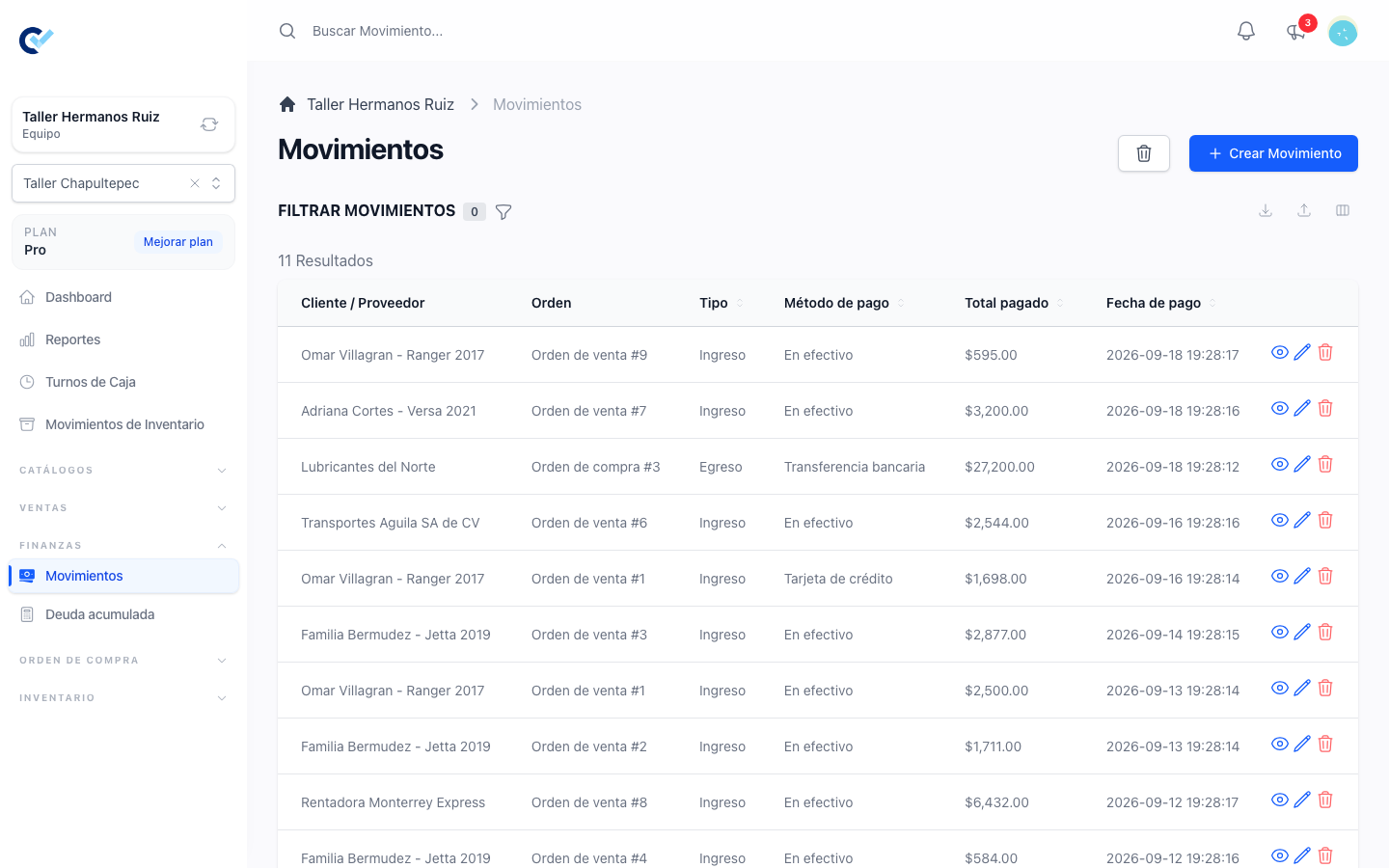
Seeing your movements needs nothing. Every team already has a Movements screen under Cash and payments that lists the money that went in and out — the payments of your sell orders, the refunds you gave, what you paid your suppliers, the expenses paid out of a cash register during a shift. It has always been there and it needs no module.
If you use Corte de Caja, a Cashbox column says which cash register holds each movement's money: the register of the shift for a shift expense, and for a sale paid or refunded in cash while its shift was open. It is blank for card, transfer and other methods, for supplier payments and loose movements, for a cancellation refund with no method, and for a refund made after the shift was closed. A loose movement or a supplier payment captured with a register shows that register. The register's name opens its page; a register that was deleted keeps its name, without the link. Once a shift is closed, its cash can no longer be edited or deleted from here — see cashier shifts.
Each row carries a tag saying Income in green or Expense in red, and the amount of an expense shows in red with a minus sign, so money going out reads as going out. The same tag appears in Movement Concepts. When you capture a movement you still type the amount without a sign: the concept says which way it goes.
Capturing a loose movement is the module. Activate Ingresos y Egresos from your team's add-ons (in Spanish it used to be called Movimientos, like the screen) and a Create Movement button appears on that screen. While it is off, nothing else changes: you go on seeing, editing and deleting the movements you already had.
Movement Concepts, the list of what money is for, appears with Corte de Caja or with Ingresos y Egresos — either one is enough, and with both it is the same one list. Suppliers works the same way with Orden de Compra or Ingresos y Egresos.
Name your concepts
Go to Cash and payments → Movement Concepts and use Create Movement Concept. A concept has a name and says whether it is money coming in or money going out:
- Shop rent — expense
- Fuel — expense
- Stationery — expense
- Scrap metal sale — income
- Partner contribution — income
Keep the list short and about kinds of money, not single events. "Shop rent" is a concept; "September rent" is a note you write on one movement. Ten or fifteen concepts is plenty for most businesses, and a short list is what makes the reports readable.
You can rename a concept whenever you like, and everything already captured with it follows the new name.
Capture a movement
From Cash and payments → Movements, press Create Movement and fill in:
- Movement Concept — required. It is what decides whether the movement is an income or an expense: you never choose that by hand, the concept already says it.
- Supplier — optional. Use it when the money went to somebody you buy from, and leave it empty for a general expense or income.
- Notes — optional. The detail that belongs to this one movement: which month's rent, which trip, who handed the money over.
- Payment Method, Total Paid and Paid At — how it was paid, how much, and when. Paid At is required and starts at the current moment: a movement cannot be saved without it, and neither can an edit that empties it.
- Cashbox — optional, and only with Corte de Caja and the method Cash. See below.
Save and it appears in the list, with its type already worked out and its concept beside it.
Cash in or out of a closed register
With Corte de Caja on, paying in Cash shows a Cashbox field. Use it when the cash went into or came out of a register that has no shift open: "I just put money in register 1", "I just took some out". The next shift of that register opens with it counted — the last amount counted at its close, plus these incomes, minus these expenses.
- It is optional: cash that did not come from a register in the system needs none.
- Only registers with no shift open are offered, from the branch you are standing in. A register with an open shift is not offered — its expenses are registered inside the shift, as always. With branches on and All Branches selected, none is offered.
- What counts is when you captured the movement, not its date: a movement dated before the last close but captured after it is counted by the next shift.
- Until the next shift of that register opens, you can edit or delete the movement and the next opening follows. Changing the method away from Cash removes its register. When you edit it, its own register stays on the list, and another register is only offered if its next shift has not opened since you captured the movement — a register that opened a shift after that, even one already closed, would never count it. Once that shift opens, the movement is frozen for everyone, team owner included, like the cash a closed shift counted.
- It does not change how a shift closes: these movements happened while the register was closed, so they only feed the opening of the next one.
Print a receipt
Open any movement and press Print. You get a clean receipt headed by your team's logo and name, with its legal name, tax ID and address when they are filled in — the same sheet a sell order or a quotation is shown on — followed by the amount, the concept, the date, who it was with and the notes. The action buttons and the menu do not print, exactly as with a purchase order.
The cashier expense now picks a concept
If you use Corte de Caja, the expense you register during a shift has changed. Where it used to ask for a free description, it now asks for a concept from the same list, and the free text moved to an optional note beside it.
So a taxi is now Fuel or Transport, plus the note "to the bank" if you want it. The concept is required; the note is not.
These expenses are still registered only from the shift, but they also show up in Movements as Cashier shift expense, always paid in cash, with the register they came out of.
Nothing you captured before was touched. The expenses that already existed keep the description they were saved with, and have no concept. Where a report groups by concept they are gathered under No concept, so nothing disappears and nothing was reinvented for them. If you want them classified, you would have to do it by hand, and for most teams it is not worth it — from here on everything is classified on its own.
The two reports
Reports → Finances now carries two more.
Financial summary draws three lines, one point per day: what came in, what went out, and the difference. It is the fastest way to see whether a week paid for itself, and where a day went wrong.
By concept is the answer to "what am I spending on". One row per concept, saying whether it is income or expense, how many movements it collected and how much money. It adds up both sources, so a concept used by the cash register and by a loose expense appears once with the two together.
Both take the date range you pick, like every other report.
Cash Flow counts more than it used to
The cash flow report used to ignore what you pay your suppliers, so the balance it showed was better than the real one. It now counts supplier payments as money leaving, along with your loose movements. If the number looks worse than you remember, that is the correction: the old one was flattering.
What does not change
The payments of your sell orders and the payments inside a purchase order are captured exactly where they always were, and they arrive in this list on their own. Movements is for the money that has no document — it does not replace any flow you already had.