

The system knows how much stock it expects, because it adds up every purchase, sale and transfer. What is on the shelf can be different: something broke, something went missing, somebody captured a wrong quantity. Until you count, that difference goes unnoticed and the stock on screen stays wrong.
A physical inventory is that count, written down. You list what you really have, the system shows the difference against what it expected, you note what happened, and when you complete it the stock is corrected to match what you counted. The shrinkage — what is missing — is valued in money, so you can see how serious it was.
Before you start
Physical inventory is a module. Open Add-ons, under Settings in the team menu, find the Inventario Físico card and press Buy: it is a paid module, added to your subscription (see Your plan and support). While it is off, the Physical Inventory entry does not appear in the menu.
It counts stock, so it only makes sense together with Inventario: a product only appears in a count when it keeps stock, and that needs the inventory module to be on as well.
The list of every movement of your stock and the stock statistics button on the products list do not need this module: they come with Inventario.
Working with physical inventories needs its own permission, which is given from the roles like any other.
Decide what a large shrinkage is
Go to Settings → General Configuration and fill in Large Shrinkage Amount: the amount, in money, from which the shrinkage of a count is considered large. It is what decides the colour a completed count gets, as described further down. Leave it empty and no count is ever marked as large.
Start a count
Go to Products and inventory → Physical Inventory and press New count. The count is created with the date and time, in the Counting status.
It already carries the products worth counting: every product that keeps stock and has had some movement, with its Expected quantity — what the system says there should be. A product with variants appears once per variant, each with its own expected quantity.
If your team works with branches, the count belongs to the branch you are in, and it only looks at that branch's stock. You need to be inside a branch to start one. A team without branches counts the whole team.
Only one count can be in progress at a time for the same branch, or for the team. While one is open, the list offers Continue count instead, and says so.
Capture what you counted
For each line, write what you really have in Counted quantity. The Difference appears at once: in green with a plus sign when there is more than expected, in red when there is less. A line you have not counted yet says Not counted.
When a line has a difference, use its Note to say what happened with that product — it broke, it expired, it was a capture error. On a line counted short the note is the reason of the loss, and it is required: its field asks for the Reason of the shrinkage (required). Observations, at the top, is a general note for the whole count, apart from the notes of each line.
A product that is not listed because the system has it at zero can still be counted: use Add a product that is not listed to add it, and capture the surplus you found. Remove takes a line out of the count.
You do not have to count everything in one go. Save count saves what you have captured and takes you back to the list; Continue opens it again where you left it. While it is in progress, Delete discards the whole count without touching the stock.
Complete the count
When you are done, press Complete count. The system asks you to confirm, because this cannot be undone. Completing:
- Gives the count its folio.
- Adjusts the stock of every counted line so it matches what you counted — surpluses and shrinkage alike. With branches, only that branch's stock moves; the same product in another branch is not touched. Each adjustment appears in the product's movements, pointing back to this count.
- Leaves the lines you did not count exactly as they were.
- Values the shrinkage in money, adding up only the lines where something is missing. A surplus does not reduce it.
To value a line, the system uses the first cost it finds: the lowest cost captured among the product's suppliers, then the cost of its most recent purchase, and finally its sale price. A line with none of the three shows Unknown cost and is left out of the total, and the count says so.
You need at least one counted line to complete it, and every line counted short needs its note. If one is missing, the count does not complete: a message names the products that still need a reason, and each of those lines is marked so you can write it.
Every line counted short is also recorded as a loss, with its note as the reason and the value it was given here, in the Shrinkage report, next to the products lost in damaged returns and cancellations. Surpluses are not losses and do not appear there.
The result
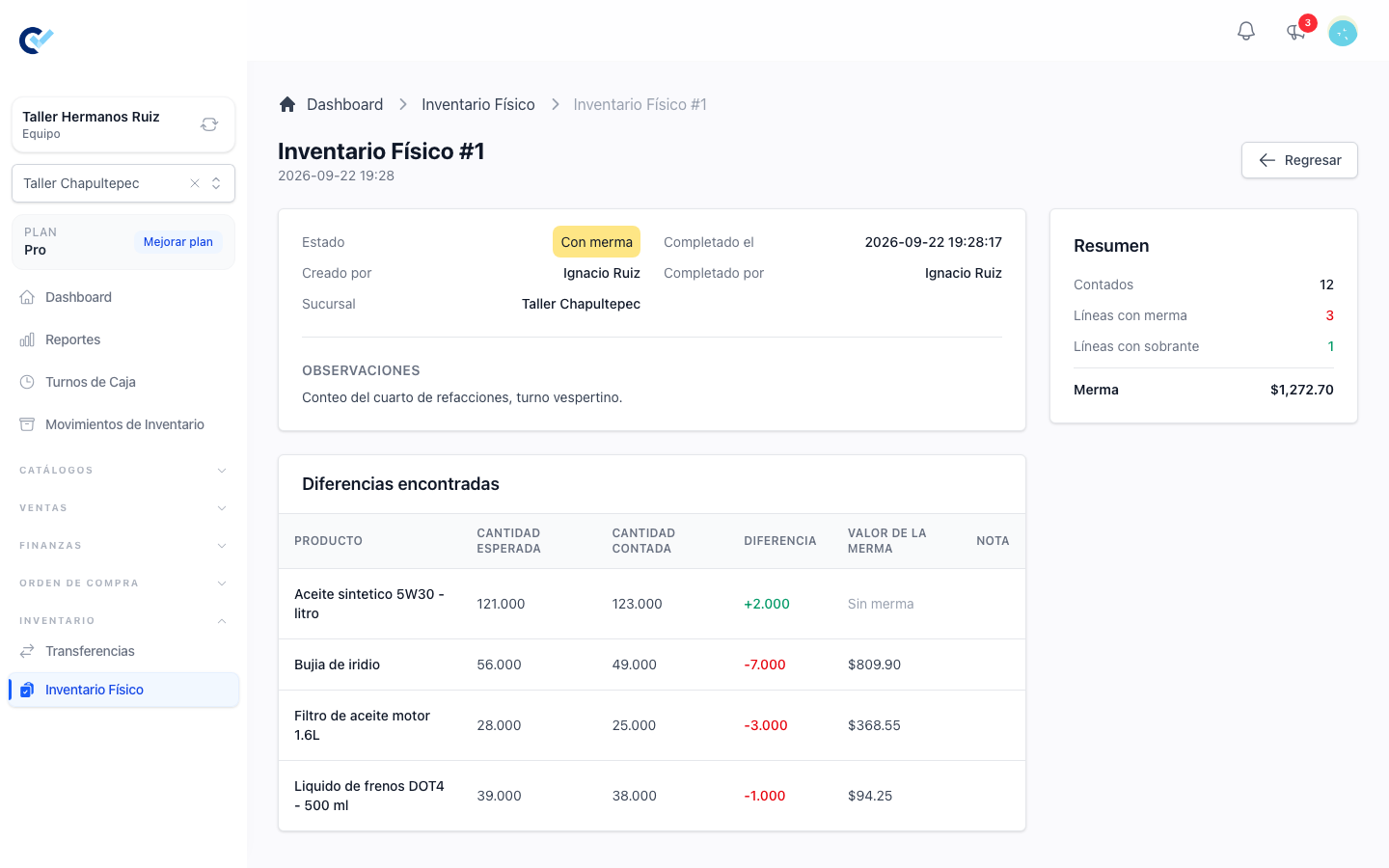
A completed count gets one of three statuses, by the value of its shrinkage:
- Completed, in green — nothing is missing. Only surpluses, or an exact match.
- With Shrinkage, in yellow — something is missing, below your Large Shrinkage Amount.
- Large Shrinkage, in red — the shrinkage reaches or goes past that amount.
The list shows, for every count, its date, who created it, its status and its shrinkage. Opening a completed count shows the Differences found, line by line, with the value of each shrinkage and its note, and a summary of what was counted.
A completed count is permanent. It cannot be edited, cancelled or reopened: if the stock needs correcting again, start a new count.