

Charge extras on a product
How numerical variations work: defining the extras a product can carry, each with its own unit cost and maximum, and adding them to a line of a quotation or a sell order so they are charged on top of its price.
Some products are sold with something added that changes the price: an extra ingredient on a pizza, more candles on a cake, extra copies of a print, more hours of a service. Creating one product for every possible combination is not practical, and typing the difference by hand on each sale is how mistakes happen.
Numerical variations let a product carry those extras. You define each extra once on the product, with what one unit of it costs and how many a customer can add. When you sell the product, you choose the extras and how many, and their cost is added to the line.
Before you start
Numerical variations are a module. Open Add-ons, under Administration in the team menu, find the Variaciones Numéricas card and press Buy: it is a paid module, added to your subscription (see Your plan and support). While it is off, the block described here does not appear in the product form, and quotations, sell orders and fast orders neither offer extras nor charge them: a draft line that already had extras chosen hides them and stops adding their cost the next time it is recalculated. The extras stay saved on the line, so switching the module back on brings them back as they were. A finished or cancelled document keeps its total.
Define the extras on a product
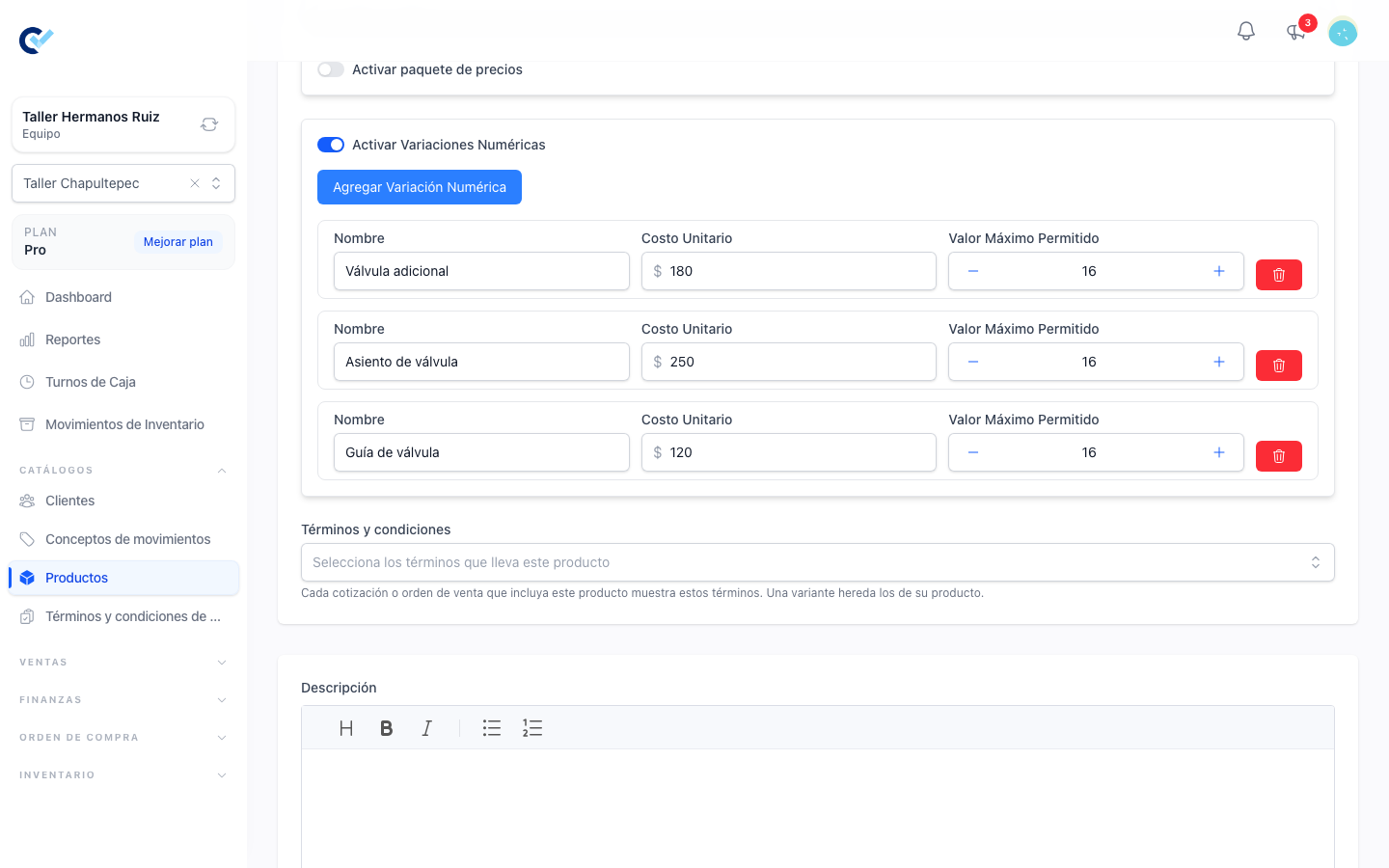
Open a product, or create one, and turn on Activar Variaciones Numéricas. Use Agregar Variación Numérica for each extra the product can carry, and fill in:
- Nombre — what the extra is called, as your customer will read it: Ingrediente extra, Vela, Hora adicional.
- Costo Unitario — what one unit of the extra costs.
- Valor Máximo Permitido — how many units of that extra a line can carry at most.
Save the product. An extra with any of the three fields empty, or with a maximum of zero, is discarded when you save. The trash button removes one you no longer need.
Each product has its own extras. Two products that share an extra define it on each.
Add the extras when you sell
In a quotation, a sell order or a fast order, a line of a product with numerical variations shows Agregar extras under its name. Press it and a small Extras window opens:
- Choose one in Selecciona un extra. It is added with a quantity of 1.
- Change the Cantidad if you need more. The Total of that extra is worked out as you type: quantity by unit cost.
- Add another extra the same way, or remove one with its trash button. The same extra cannot be added twice.
- Press Confirmar.
A quantity above the extra's Valor Máximo Permitido is refused with a message naming the extra, and nothing is saved until you correct it. Once confirmed, the button changes to Editar extras, so you can come back and change them.
How they add up
The extras are added to the line's subtotal on top of its price — after a price list or a pricing package has already set it. They are added once per line, whatever the line's quantity: two pizzas with three extra ingredients carry three extra ingredients, not six. If each pizza takes its own extras, capture them as separate lines.
A discount on the line applies to the whole subtotal, extras included.
Each extra is shown under its line as name: quantity x unit cost = total — on the document, on the page your customer opens, and on the printed ticket.
Purchase orders do not offer extras: what you pay a supplier has nothing to do with them.
What does not change
A line keeps the extras it was given. Editing the extras of a product, changing their cost or removing one does not go back and rewrite a document that already has them.