

What Control Total is
What the system is for, how a team holds one business, what each part of the menu does, and where to start on your first day.
Control Total is an administrative system for anyone who sells something. It is deliberately generic: the same installation serves a counter that charges on the spot, a workshop that quotes before it works, and a distributor that buys stock, holds it and sells it over time. You are not expected to know accounting to use it.
What it becomes depends on which modules your team uses. Turn on a few and it behaves like a point of sale; turn on more and it covers purchasing, inventory, credit and fiscal invoicing. This guide orients you: it explains the pieces and how they connect, not every field in them.
Everything belongs to a team
A team is one business. Every client, product, document, payment and report belongs to exactly one team, and nothing crosses from one team to another — not a list, not a search, not a PDF, whatever role you hold.
Signing in takes you straight into the team you last worked in. If your account belongs to more than one business, the switch control beside the team name at the top of the sidebar opens the list of them, and you pick the one you want. When the branches module is on, a branch selector sits just below the team name and narrows what you see to that branch.
What the menu holds
Three entries sit above everything else:
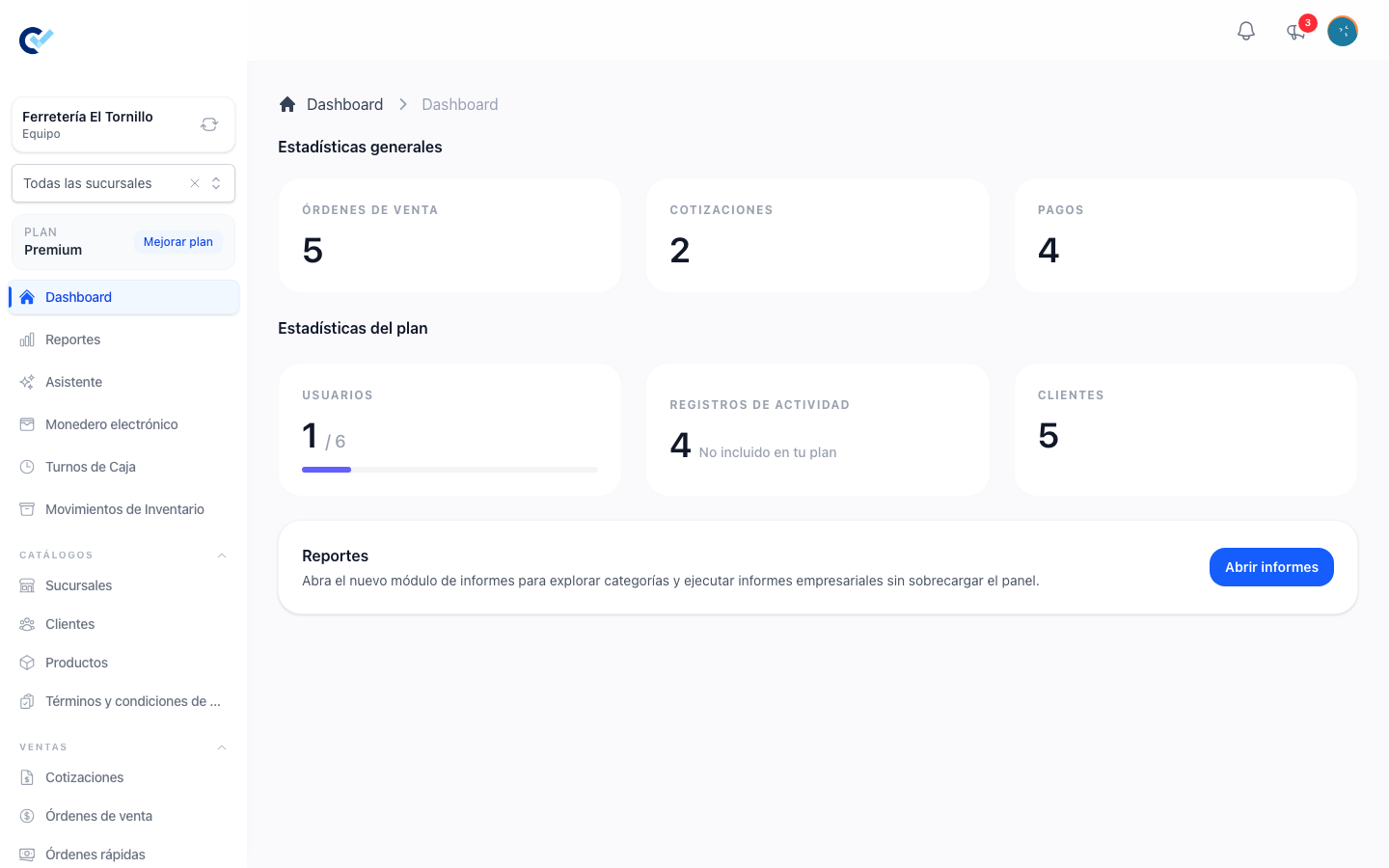
- Dashboard — how many sell orders were created, how many quotations were sent or accepted by their client, how many payments were collected, and how much of your plan you have used. Inside a branch the counters are that branch's.
- Reports — report categories you open one at a time: daily income, cash flow, products, clients, sellers, suppliers, payment methods, inventory and purchased products.
- Assistant — only when the AI assistant module is on for your team.
Below them the menu is grouped into collapsible sections. A section only appears when it has something in it, and an entry only appears when your role may open it and the module behind it is on for your team.
| Group | What lives there |
|---|---|
| Catalogs | Clients, Products, Suppliers, Branches, Terms and conditions — the records your documents are built from |
| Sells | Quotes, Sell orders, Fiscal invoices, Fast orders, Reservations, Cashboxes, Internal orders |
| Finances | Payments and Accumulated debt |
| Purchase Order | Purchase orders |
| Inventory | Transfers between branches |
| Users | Members and Roles |
| Administration | My plans, Support and Settings |
How the documents connect
Selling runs through two documents, and a third when the sale has to be invoiced to the tax authority.
- Quotation — a priced proposal you send to a client before there is a sale. It holds no money and moves no stock. The client can open it from a link and accept it. See Create a quotation.
- Sell order — the sale itself. It is where the money is captured, where stock leaves, and where a debt is recorded if the client is paying later. A quotation that is accepted becomes one with a single action. See Create a sell order.
- Fiscal invoice — created from a finished sell order, when your team has fiscal invoicing set up.
Around them: payments settle what a sell order still owes, purchase orders bring stock in from suppliers, and inventory movements record what went in and out.
Your role decides what you see
Permissions are granted per team, so the same person can be an administrator in one business and a salesperson in another. Nothing is inherited between teams.
Each entity has its own set — read, create, update and delete — and there is one extra scope, "only sees their own data", which narrows a role to the records it created. That scope is enough on its own to read your own documents, but it grants nothing else: updating still needs the update permission, and cancelling still needs the delete one. The team owner passes every check without holding the permissions.
Roles are managed under Users.
Documents are never deleted
Once a document is finished it stays. If it was a mistake, you cancel it, which needs the delete permission and leaves the cancellation, its reason and its author on the record. Deleting outright only exists while the document is still a draft.
Names are yours to change
Everything here ships with a default name — client, product, quotation, sell order — but a team can rename them for itself. In Settings, a member with the custom titles permission opens Manage custom titles, picks a menu entry and writes the singular and plural name it should carry. The menu, the list headings and the create buttons all follow.
So if the screens in front of you say something other than what these guides say, it is the same thing under another name.
Where to start
- Load your catalogue: create your clients and your products under Catalogs. You can also create a client without leaving a document, from the client field itself.
- Make your first sale. If you charge at the counter, go straight to a sell order. If you quote first, start with a quotation and convert it when the client says yes.
- Read Create a quotation and Create a sell order — between them they cover the whole selling flow.
Your plan sets a ceiling on how many documents you can create. When you reach it, creating stops and the screen says so, with a link to your plans.