

Clients and their history
How to build the client file — commercial details, fiscal data for a CFDI, categories and the wallet percentage — and how to read everything that ever happened with one client on a single screen.
Every document you issue points at a client: a quotation, a sell order, a payment, a CFDI. The client file is where the name that gets printed, the phone your links are sent to and the tax details a CFDI needs are kept, and it is what the debt, the statement and the wallet are all counted against.
Clients live under Catalogs in the menu, as Clients. They belong to the team and not to a branch, so the same client is reachable from every branch.
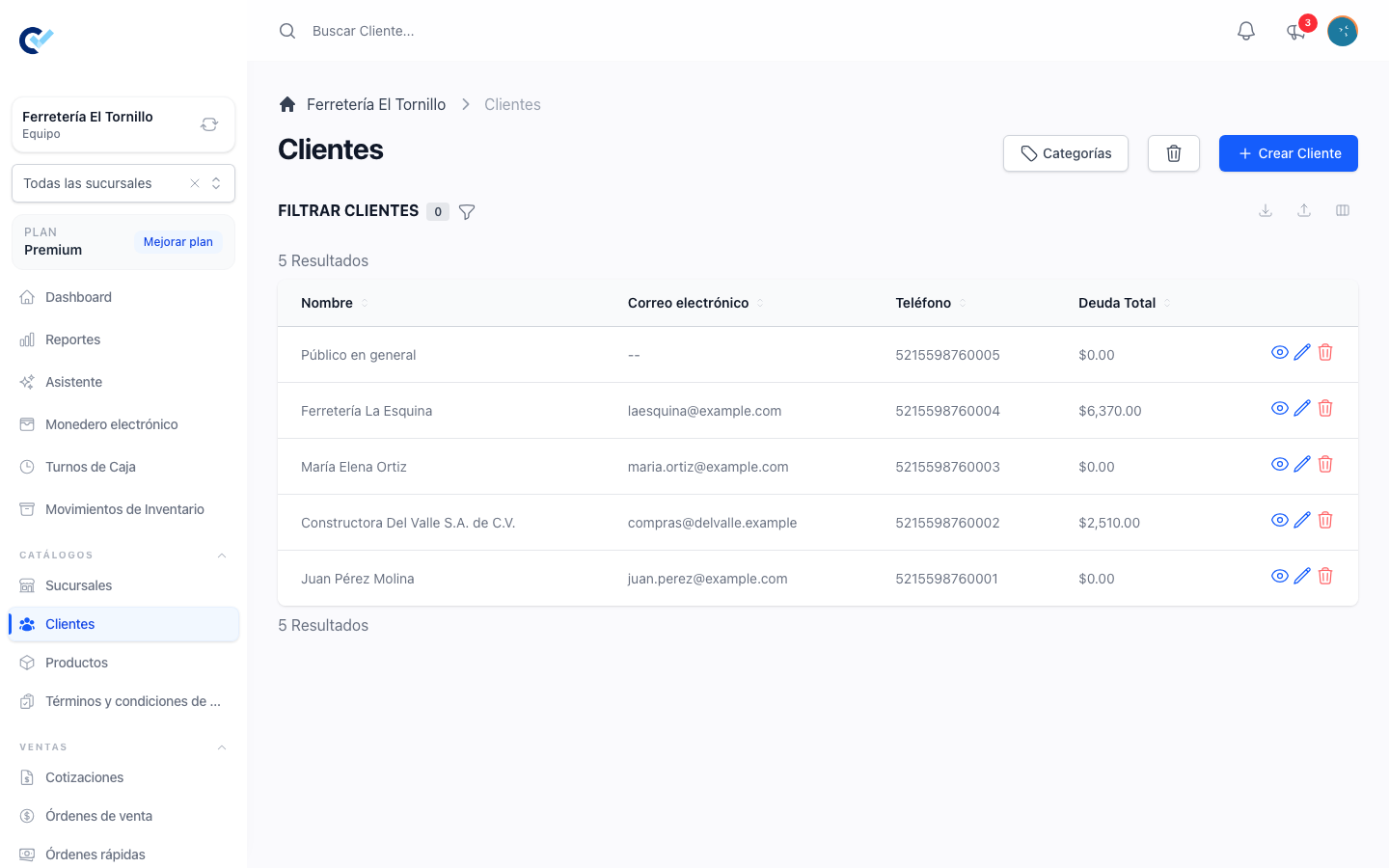
Create a client
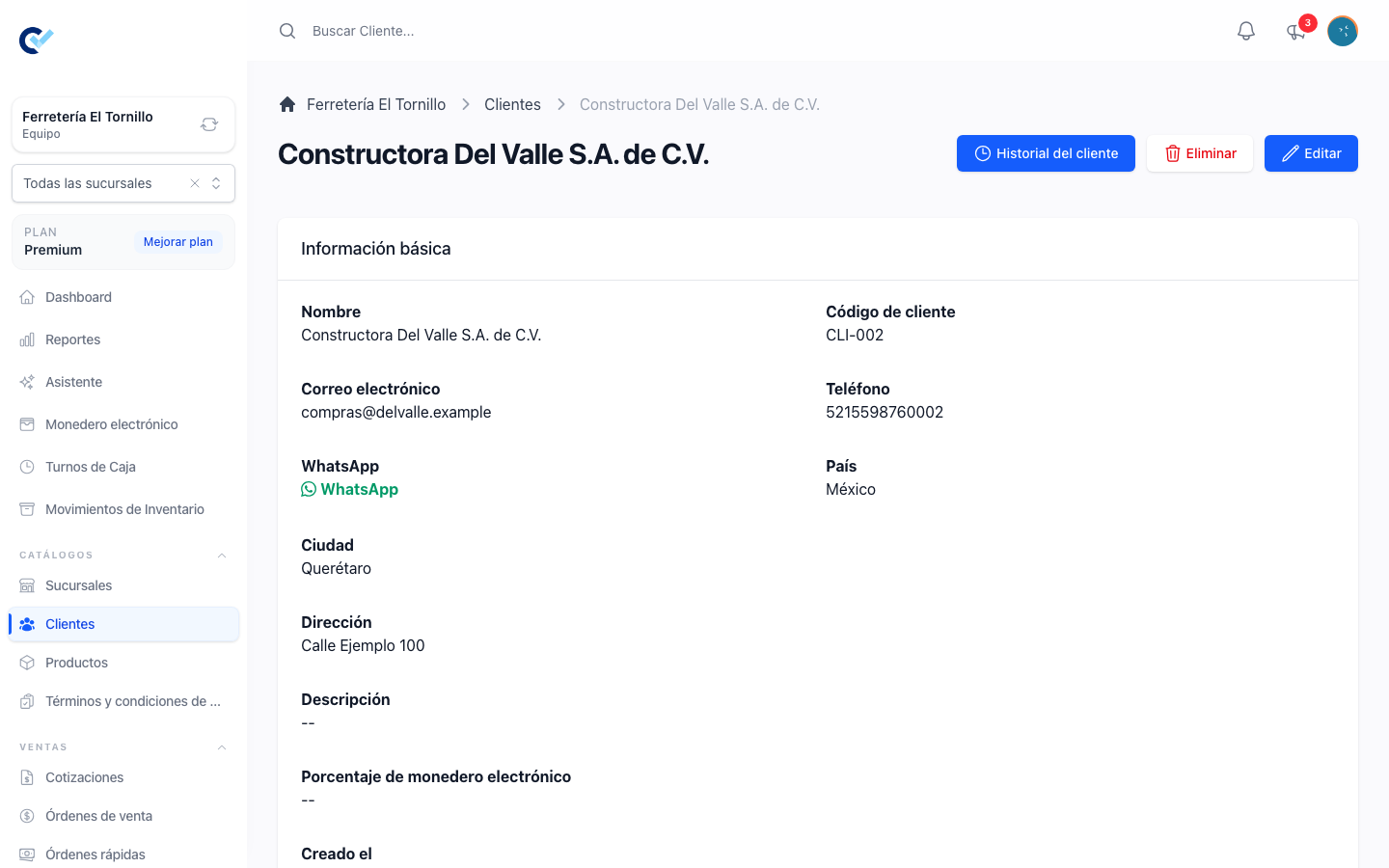
Create opens the form. Only the name is required; everything else can be filled in later, and a client with nothing but a name can already be sold to.
| Field | What it is for |
|---|---|
| Name | Required. It is what the lists, the documents and the PDF show. |
| Client Code | Your own reference for this client, if you keep one. |
| Where a quotation, a sell order, a statement or a CFDI is sent. Two clients of the same team cannot share it. | |
| Phone | The international prefix and the number together, with no spaces or signs — 5219991234567. Two clients of the same team cannot share it. |
| Country, City, Address | Commercial address. They are searchable. |
| Description | A free note about the client. |
| Categories | Your own classification, explained below. |
| Electronic Wallet Percentage | Only when the loyalty wallet is on for your team. See the loyalty wallet. |
The phone is not decoration. It is what the WhatsApp button uses, so a client with no phone cannot be sent their quotation, sell order or statement by WhatsApp. The link itself does not need it: you can still copy the Direct link and send it another way. Writing the phone correctly once saves it every time.
Under Calculations the file shows Total Debt, and further down its sell orders, its payments and its quotations, each list opening the document it names.
Creating one without leaving the sale
You do not have to interrupt a sale to file a new client. In the client selector of a quotation or a sell order, typing a name nobody has brings up a create option that asks for two things only — the name and the phone — and returns you to the order with that client already picked. The rest of the file can be completed afterwards.
Fiscal data for a CFDI
When fiscal invoicing is on for your team, the file carries a Mexico fiscal data panel, apart from the commercial details above. That panel is the receiver of the CFDI, and the SAT does not accept it half-filled:
- Fiscal business name — the name as it is registered with the SAT.
- Fiscal RFC — saved in upper case, and checked for shape as you save.
- Fiscal postal code — exactly five digits.
- SAT tax regime and SAT CFDI use — picked from the official catalogues.
- Fiscal contact email — optional. With none, the client's ordinary email is used.
A client can be saved with this panel incomplete, on purpose: selling to them is not blocked by it. What is blocked is stamping. The file tells you where it stands — Complete receiver client fiscal data, naming the fields that are still missing, or Receiver fiscal data complete — and issuing a CFDI is refused until it says the second one.
A CFDI that was already stamped keeps the receiver it was stamped with. Correcting the client afterwards changes what the next invoice carries, never what the SAT already sealed.
Categories
Categories on the list opens the classification of your clients. A category can hang under another one, so you can keep them as a short tree — by zone, by channel, by whatever your business sorts customers by. A client can hold several.
They are yours to organise by: nothing in the system changes behaviour because of a category.
Searching
The search box matches the name, the client code, the ID, the phone, the address, the city and the country. Inside a quotation or a sell order, the client selector searches as you type and offers the ten closest matches by name.
The list also filters by Minimum Total Debt, which is how you get to everyone who owes more than a figure without reading the whole catalogue.
The customer history
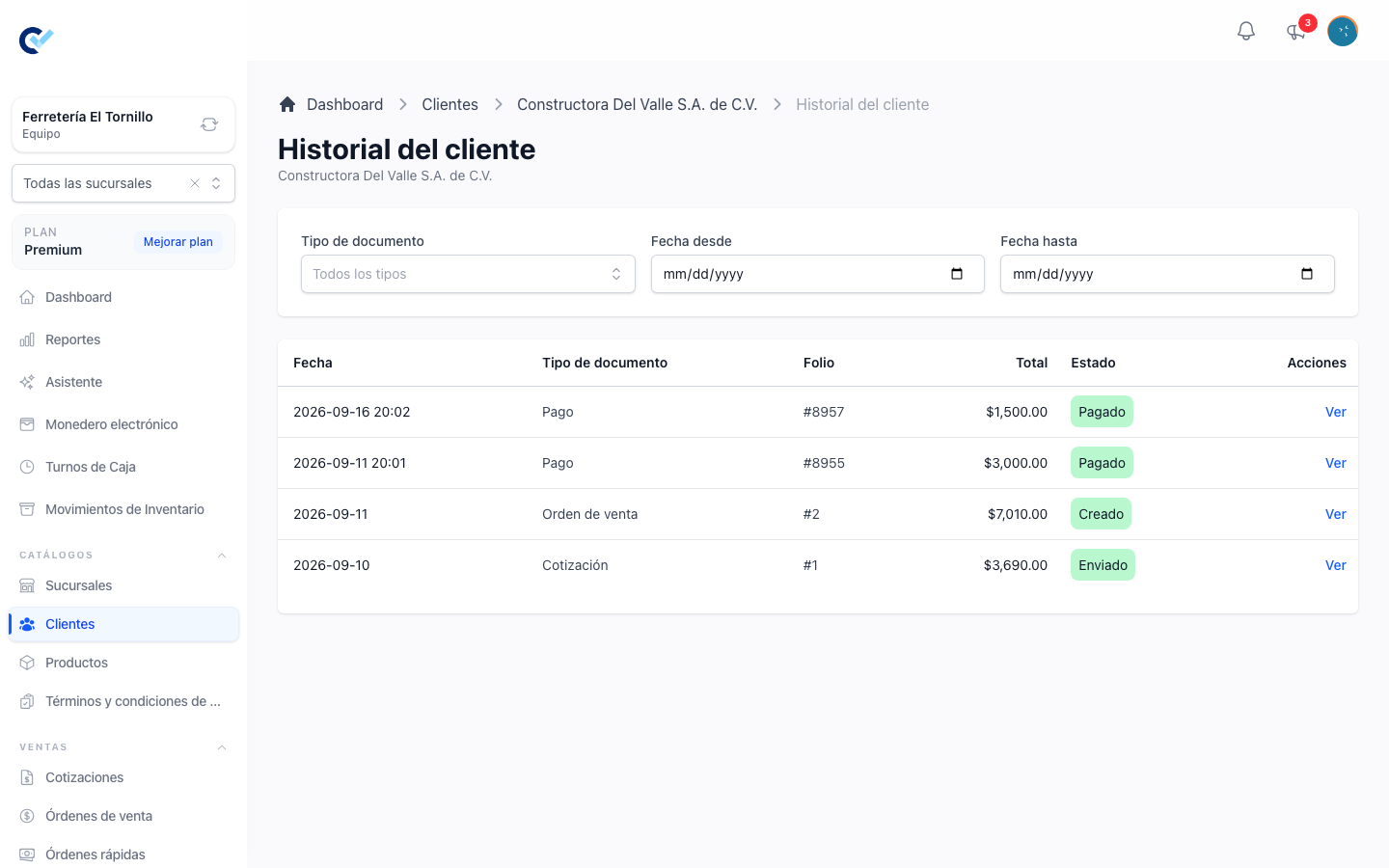
Open a client and use Customer history on their page. It is not an icon on every row of the list, because it is opened from the client you already have in front of you.
The history is one table with everything that happened with that client, newest first: quotations, sell orders, payments, fiscal invoices, credit notes and payment complements together. Each row shows the date of the document, its type, its folio, its amount, its status, and a View link to the document itself.
What it holds follows the same rules the lists follow. Drafts and internal documents stay out, fiscal documents appear once they are stamped or cancelled, cancelled documents appear carrying their status, and anything you cannot read elsewhere you cannot read here either. An invoice to the general public is not the client's, so it never shows up — the sell order it covered does.
Document type keeps one or several kinds, and Date From / Date To narrow the period. Both travel in the address bar together with the page, so reloading returns the same slice and the link opens it for whoever you send it to.
The page only reads. Nothing is created, edited, cancelled or deleted from it.
Debt
Every sell order that is not fully paid adds to what the client owes, and the figure is kept for you — there is nothing to mark as pending. Total Debt appears on the list and on the file, and the whole of it is read in customer debt and statements.
One thing is worth knowing here: the debt figures are never cut down by the Only sees their own data restriction, anywhere they appear. The debt is the client's, whoever made the sale, so a salesperson who only sees their own orders still sees the client's whole balance.
Permissions
Reading the list and the file needs See Client; the history adds nothing of its own beyond being able to open the client. Creating needs Create Client, editing needs Update Client, and the quick create inside an order asks for the same Create Client.
There is no limit on how many clients a team may hold. What the client page does warn about is the documents your plan still allows you to create, since a quotation and a sell order are both started from here — see your plan and support.