

Credit notes and payment complements
How to credit part of a stamped invoice with an egreso invoice, and how to report a payment against a deferred invoice with a payment complement.
Two fiscal documents hang off a stamped invoice and neither one replaces it. A credit note gives money back — the invoice stays live and the credit is declared beside it. A payment complement reports a payment that the invoice itself could not report, because it was issued as deferred. This guide covers both: when each one can exist, what amounts are allowed, and what it takes to get one stamped. Issuing the original invoice is covered in Issue a CFDI invoice.
Your team may have renamed these entities for itself from the settings, so the screen can say something other than "sell order" or "fiscal invoice". The behaviour is the same.
Two names for the same document
The commercial document is a credit note: the decision to give the client back part of what was charged. When the same thing is spoken of as a CFDI it is an egreso invoice, a CFDI of type E. Control Total uses "egreso invoice" wherever the screen is about the fiscal document — the buttons, the tables and the editor all say it that way — and the two words mean one document, never two.
Credit notes
When one can be created
The invoice being credited has to be an income invoice that is Stamped and carries its fiscal UUID, and it has to have creditable amount left. What is left is the invoice total minus every egreso invoice already stamped against it, so a fully credited invoice offers nothing more. An egreso invoice cannot itself be credited.
There are two ways in, and they are not interchangeable: they start from different decisions and answer to different permissions.
From a post-sale adjustment
A return or a post-sale discount registered on the sell order is a commercial decision that already carries its own amount and its own lines. Open the adjustment from the sell order and press Create egreso invoice. Control Total picks the invoice that charged that sell order, builds the egreso invoice from the adjustment, and opens it. An adjustment that already has its egreso invoice shows View egreso invoice instead, so the same adjustment is never credited twice.
What is credited depends on the kind of adjustment:
- A return credits the invoiced lines of the products returned, each one capped by the quantity still not credited on that line. The amount does not have to match the adjustment to the cent: the CFDI lines carry taxes and prices the commercial document may not, and the quantities and the remaining balance already bound what can be credited.
- A post-sale discount credits an exact amount, spread across the invoice lines, and it has to match the adjustment's amount. If it cannot be made to match, the egreso invoice is not created.
Either way, the plan can never exceed what is still creditable on the invoice.
From the invoice itself
On the stamped invoice's page, Create egreso invoice opens a window that asks for a Type:
| Type | What it asks for | The limit |
|---|---|---|
| Product return | A quantity for each invoice line you want to credit. Each line shows the quantity still available. | The line's own remaining quantity. |
| Discount | An Amount (tax included). | The invoice's remaining creditable amount, shown under the field. |
The same window is reached from Fiscal Invoices → New invoice, on the Egreso invoice card: choose the Source invoice and press Create egreso invoice.
Before you confirm, a summary shows the invoice total, the amount about to be applied, the new invoice total, and what the pending payment becomes. When the team uses inventory and a credited line is a stocked product, a notice says plainly that no inventory comes back here — inventory is moved on the sell order, not on the CFDI.
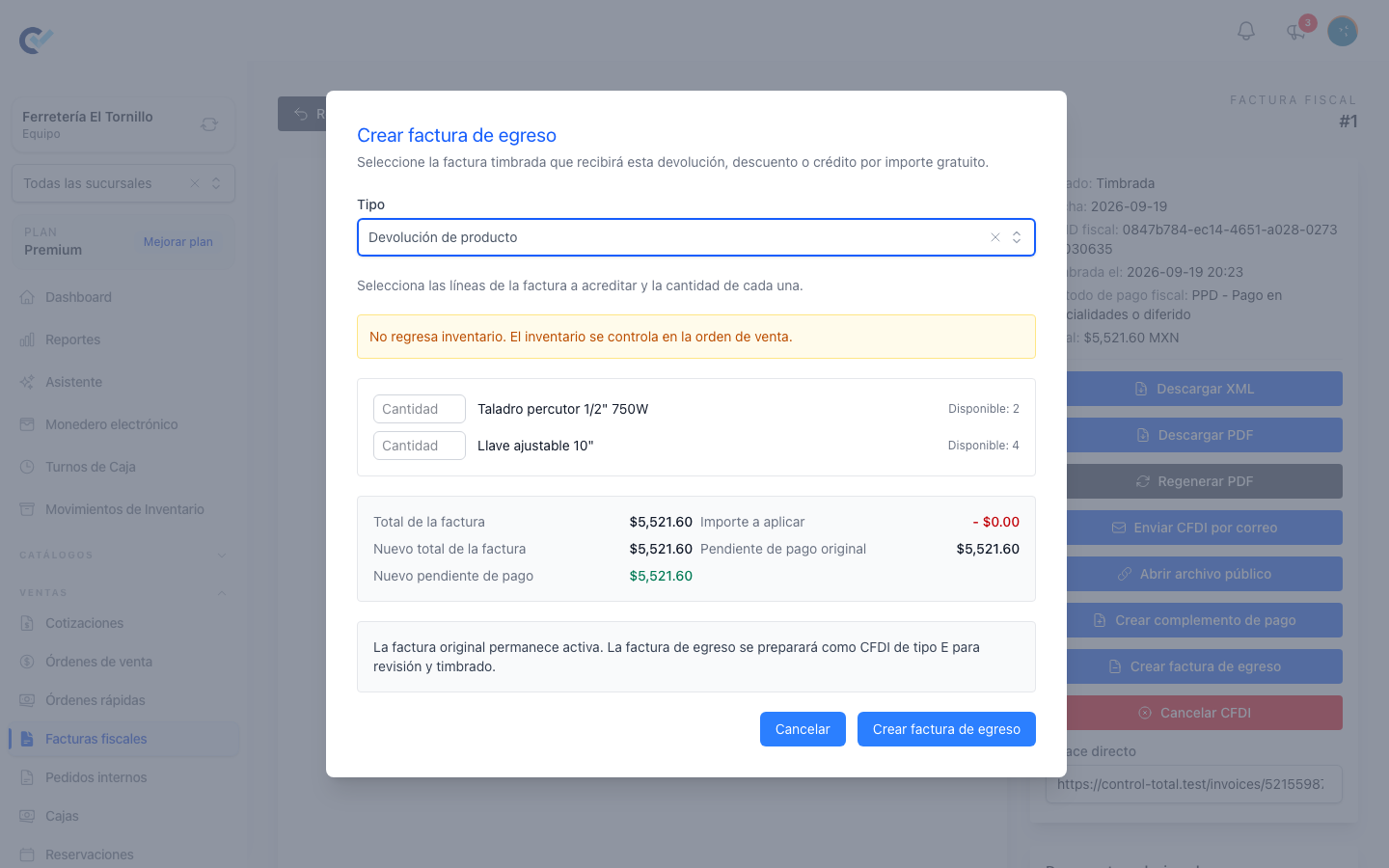
What the egreso invoice carries
However it was created, the document comes out the same way: the original invoice's series, today's date, the same currency and SAT payment form, the fiscal payment method PUE, CFDI use G02, and a declared relation to the original invoice. The original invoice stays active; the egreso invoice is prepared as a CFDI of type E for you to review and stamp.
It opens in the invoice editor. Check the concepts, save it if you need to come back to it, and press Stamp CFDI when it is right. Two conditions are checked at that moment: the original invoice has to still be stamped and active, and the declared relation type has to be a valid one for a credit note.
An egreso invoice you have not saved yet does not appear in the Egreso invoices table on the invoice's page. Once saved as a draft it shows there, with Continue to reopen it and a delete action beside it. Deleting is only possible while it is a draft: a stamped one is cancelled instead, which is covered in Cancel or replace a CFDI.
What a stamped credit note changes
A stamped egreso invoice reduces what is still creditable on the original invoice, and it reduces the balance a future payment complement may still report. It does not cancel the original invoice, does not touch the sell order, and does not return inventory or money by itself.
Payment complements
What a PPD invoice needs
An invoice issued as PPD — payment in instalments or deferred — declares to the SAT that it was not collected at the moment it was issued. Every payment received afterwards is reported with its own CFDI: a payment complement.
Control Total offers Create payment complement on an invoice only when all of these hold:
- It is an income invoice, not an egreso invoice.
- It is Stamped and carries its fiscal UUID.
- The fiscal module is active for the team.
- Its fiscal payment method is PPD, or its SAT payment form is
99.
The button is on the stamped invoice's page and in the invoice editor. The same screen is reached from Fiscal Invoices → New invoice, on the Payment complement card, whose Fiscal invoice list offers the team's stamped PPD invoices.
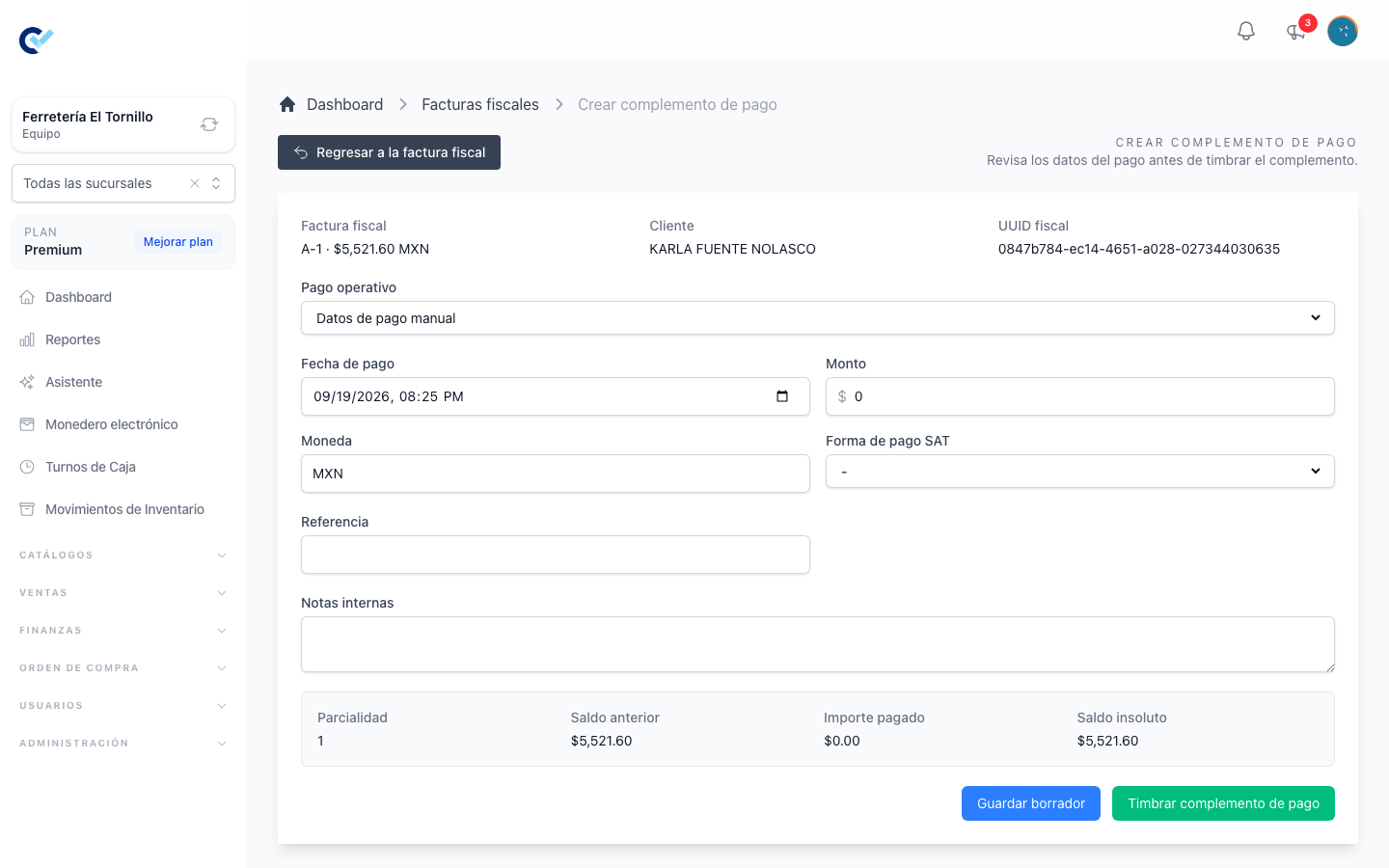
Capturing the payment
Operational payment is the first field, and it is what keeps the fiscal document tied to money that actually came in. The list offers the payments registered against the invoice's sell order that are active, dated as paid, and not already covered by a live complement. Choosing one fills in the amount, the payment date, the SAT payment form and the reference from the payment itself. Manual payment data is there for the case where the payment is not one of those — then the fields are typed in.
The rest of the form is Payment date, Amount, Currency, SAT payment form, Reference and Internal notes; Exchange rate appears only when the currency is not MXN. Registering the payment on the sell order in the first place is covered in Register a payment.
Underneath, a live summary shows what the complement is about to declare:
| Field | What it means |
|---|---|
| Partiality | Which instalment this one is, counting the complements that already count against the balance. |
| Previous balance | The invoice total, less what earlier complements already reported, less the egreso invoices already stamped against it. |
| Paid amount | What this complement reports. |
| Remaining balance | What is left after it. |
An amount above the pending balance is not blocked, but it is called out with a warning, because the CFDI would declare more paid than the invoice has left.
Drafts, and why they move nothing
The screen offers two ways out: Save draft and Stamp payment complement.
A draft is a complement that exists but has not been declared to anybody. It is deliberately inert: it does not count as an instalment, it does not reduce the invoice's pending balance, it does not change the invoice's payment status, and it does not stop the invoice from being cancelled. Only a complement that has been sent for stamping — or already stamped — counts against the balance. That is what makes a draft safe to leave unfinished: nothing in the invoice's numbers has moved yet.
Saving a draft opens its own edit page, and that page is where a draft is finished. It is reached again from the Payment complements table on the invoice, with Continue. There you can change anything, Save draft again, Delete draft, or Stamp payment complement. Once stamped it can no longer be edited or deleted — only cancelled.
When you capture a complement for a payment that already has a draft, Control Total reuses that record instead of creating a second one, so a retry does not leave two complements behind for the same payment. If that payment's complement was sent and the provider never confirmed the result, the form does not stamp again: it links to that complement, where you retry or reconcile it as Issue a CFDI invoice explains.
What a stamped complement changes
Stamping a complement recalculates the invoice's payment status. An invoice that is not PPD is simply Paid. A PPD invoice becomes Paid when the reported payments reach its total, Partially paid when they cover part of it, and Unpaid while nothing has been reported. Cancelling a stamped complement recalculates the same thing, so the balance it had covered comes back.
Its XML and PDF
A stamped complement's page offers Download XML, Download PDF, Send CFDI by email and Open public file. Control Total keeps the copy it got from the provider the first time, and from then on the page, the downloads, the public page and the email all use that same copy, without asking the provider again. When the PDF needs refreshing, Regenerate PDF asks the provider for a new one and replaces the copy you had. The XML is what the SAT sealed and never changes.
Who can do it
In Users → Roles, each row of the permissions grid is something the system holds and each column an action, written here as Row: Column. The two entry points for a credit note answer to two different rows, and that is deliberate: crediting a decision already registered on the sell order is not the same authority as crediting an invoice directly. A role needs:
| Action | On the Roles screen |
|---|---|
| Create an egreso invoice from a post-sale adjustment | Credit note: Create |
| Create an egreso invoice from the invoice itself | Egreso invoice: Create |
| Open a draft egreso invoice that came from an adjustment | Credit note: Create |
| Open a draft egreso invoice created from the invoice | Egreso invoice: Create |
| Edit a draft egreso invoice | Fiscal Invoice: Update, or the box that let you create it when you are the person who created it |
| Stamp an egreso invoice | The same box that allowed its creation |
| Open a stamped or cancelled egreso invoice | Egreso invoice: See |
| Delete a draft egreso invoice | Egreso invoice: Delete |
| Cancel a stamped egreso invoice | Egreso invoice: Delete |
| See a payment complement | Payment complement: See |
| Create one, edit its draft, or stamp it | Payment complement: Create |
| Delete a draft payment complement | Payment complement: Delete |
| Cancel a stamped payment complement | Payment complement: Delete |
"Only sees their own data" applies on top of all of them: a person restricted that way reaches only the documents they created.