

Invoices to the general public
How the sell orders of a period that nobody asked an invoice for are grouped into one CFDI to the general public, and what that CFDI declares.
Most sales are never invoiced to anybody: the customer takes the goods and does not ask for a CFDI. Those sales still have to be declared, and the SAT's way of declaring them is one CFDI that groups a period's worth of them and is issued to the general public. This guide covers how Control Total builds that invoice — which sell orders it can take, how it groups them, the period it declares, and what has to be decided before it can be stamped.
Your team may have renamed these entities for itself from the settings, so the screen can say something other than "sell order" or "fiscal invoice". The behaviour is the same.
Where it starts
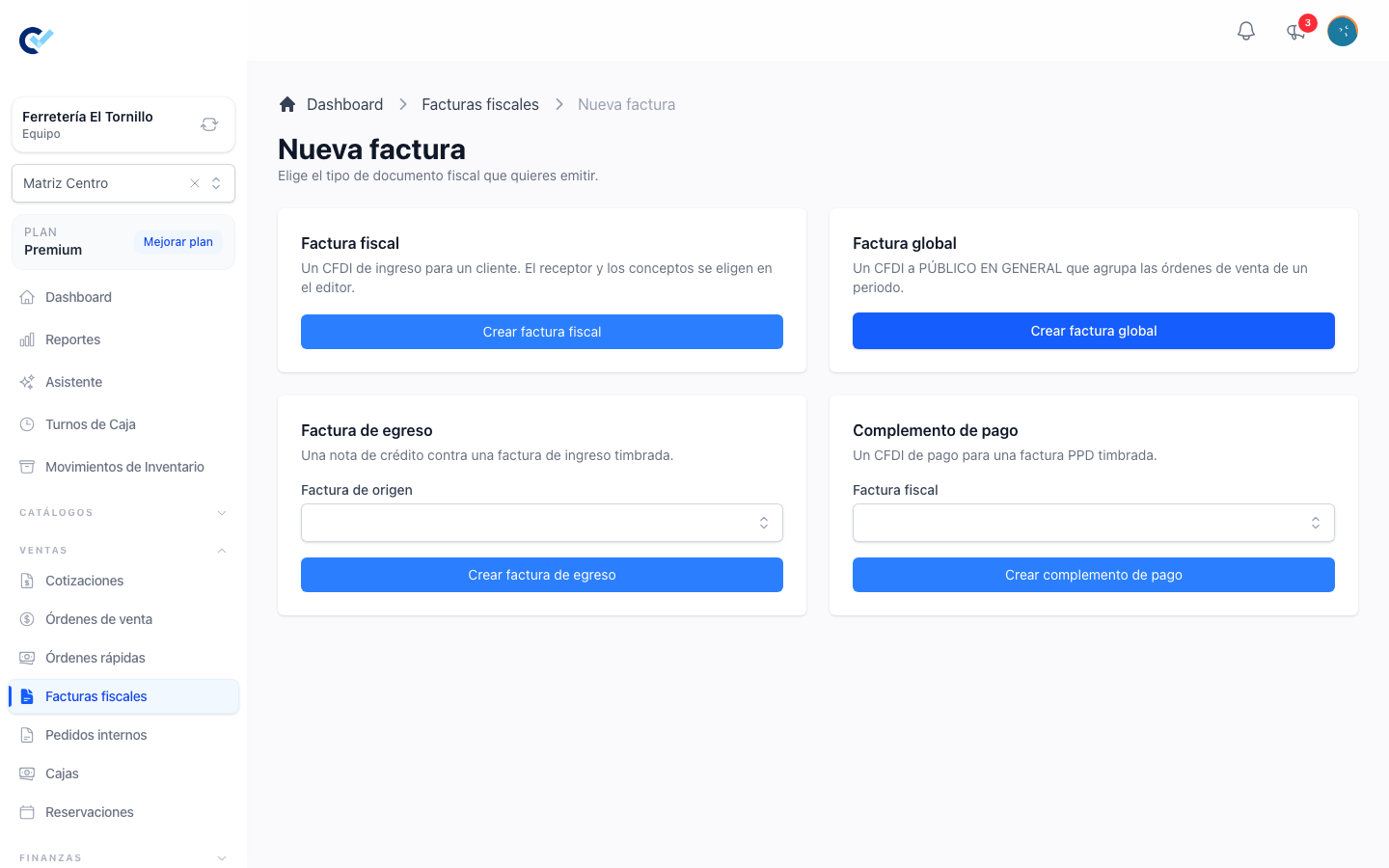
There is no separate screen listing global invoices: they live with every other CFDI in the fiscal invoices list, and they are created from the same place as everything else. Go to Fiscal Invoices → New invoice and press Create global invoice on the Global invoice card. That opens the selection screen; from there on the document is edited in the ordinary invoice editor.
A global invoice is also the answer when someone tries to invoice a client whose RFC is the SAT's generic one: Control Total refuses that and says to use a global invoice instead, because the generic RFC belongs to the general public and not to a client.
Which sell orders qualify
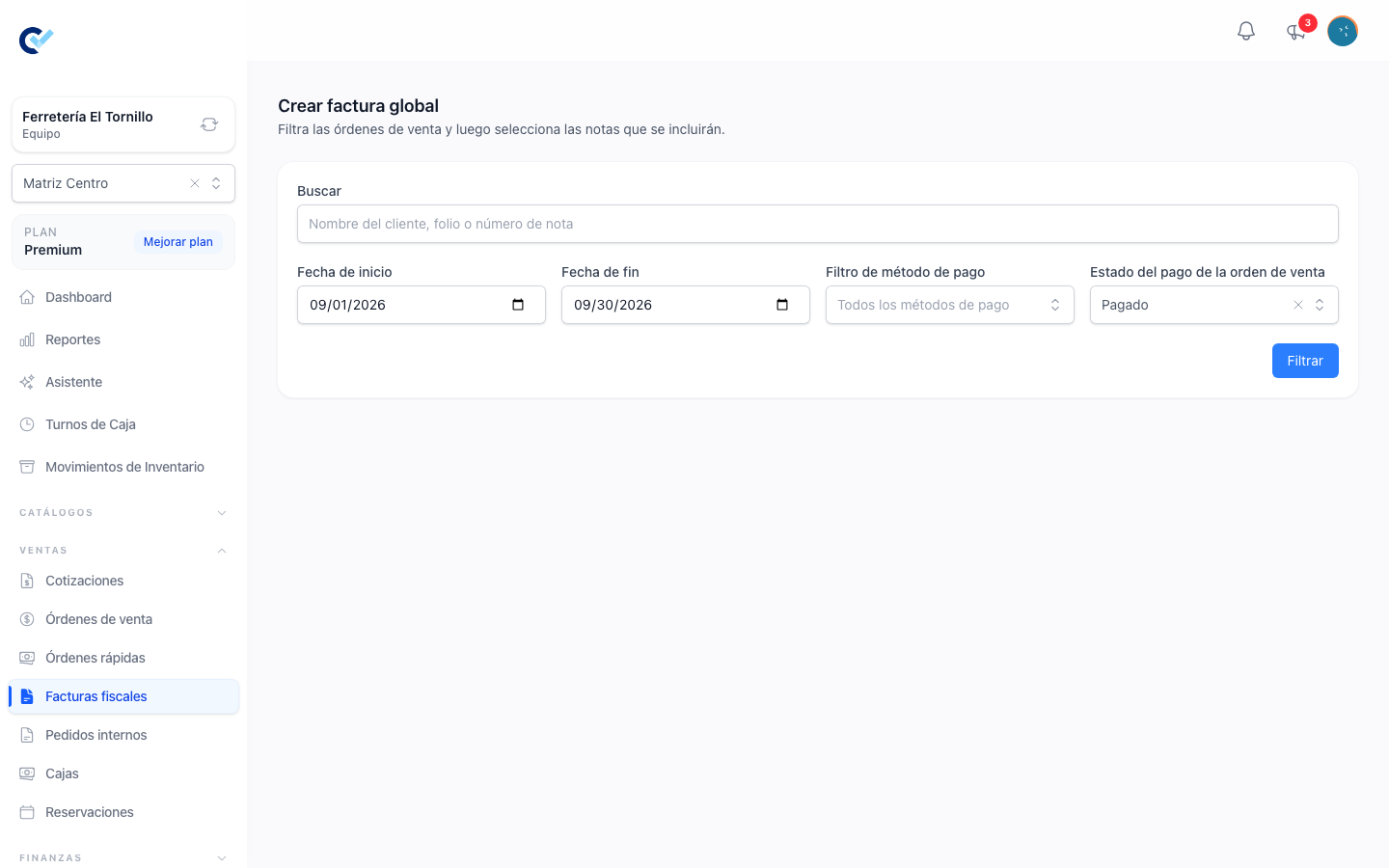
The selection screen opens on the current month and asks you to narrow it down:
| Filter | What it does |
|---|---|
| Search | Matches a client name, a folio or a sell order number. |
| Start date / End date | The range the sell order's own date has to fall in. Both default to the current month. |
| Payment method filter | Keeps only orders with an active, paid payment made with one of the methods chosen, and only orders fully paid. An order paid with several methods is offered for the part paid with the chosen ones. Choosing all of them means the same as choosing none. |
| Sell order payment status | Paid, partially paid or unpaid. It starts on Paid. |
Press Filter to run it. Beyond what you asked for, a sell order only appears when it is finished and when nothing fiscal already covers it: an order that already has a fiscal invoice of its own, or that is already inside another global invoice, is out unless that invoice was cancelled — or, for an order paid with several methods, until every part of it is invoiced (see below). When the team works with branches, only the active branch's orders are offered; and someone restricted to their own data sees only their own.
When nothing comes back the screen says why rather than leaving you guessing: that the period does hold orders which the other filters leave out, that the period is empty and naming the date of the most recent order still waiting, or that there is nothing left to invoice in any period at all.
Sell orders paid with several methods
A sell order can be paid partly by card and partly in cash. If you invoice by payment method — one global invoice for what you collected by card and another for what you collected in cash — each invoice takes only its part of that order, so what you invoice by each method matches what you collected by it.
Take an order of $1,000 paid $600 by card and $400 in cash:
- Filtering by card, the order is offered for $600, and the invoice takes $600.
- Filtering by cash afterwards, the same order is offered again for $400.
- Filtering by both methods, or by none, it is offered for the whole $1,000.
Once both parts are in invoices, the order no longer appears with any filter.
In the table, each order shows three figures. The Total column shows what this invoice would take with the current filter. Below it, in small grey text, Sell order total is the order's full amount and Left to invoice is what the whole order still has to invoice, whatever the filter takes. Take an order of $1,000 paid $300 by card and $700 in cash:
- With nothing invoiced yet, filtering by card reads $300, then $1,000 and $1,000.
- Once the card part is invoiced, filtering by cash reads $700, then $1,000 and $700.
An order paid with a single method shows the same amount three times.
The invoice lists the same products the order had, with the same quantities and the same taxes each product was sold with; only the unit value and the amount of each product are reduced to the part. No generic "mixed payment" line is added.
Without a payment method filter, an order is invoiced whole. If part of it was already invoiced by method, only what is left is offered and invoiced. An order paid with a single method is invoiced whole with or without a filter.
Finishing an order from the sell order. You do not have to come back to this screen for the rest of a mixed order. Create fiscal invoice on the sell order itself invoices only what is left: with the card part already in a global invoice, it creates an invoice for the cash part, with the cash payment form. Once that invoice exists the order is fully invoiced and no longer appears here. When every part of an order is already in invoices, Create fiscal invoice does not appear on the sell order at all. Issue a CFDI invoice explains that invoice.
Partially paid orders. When you choose a payment method, only orders that are fully paid are offered: the amount still owed was paid with no method, so it cannot be split by one. A partially paid order still appears when no payment method is chosen, and it is invoiced whole. If you choose a method and ask for Partially Paid in Sell order payment status, the list comes back empty and says the filters leave those orders out.
Selecting and creating
The results arrive with every row already selected — the common case is invoicing the whole period — and the checkbox in the header toggles them all. Uncheck whatever should not go in, then press Create global invoice.
One question can appear at that point. If every selected order belongs to one and the same client, Control Total asks Choose invoice receiver: that client, or PÚBLICO EN GENERAL. Choosing the client produces a consolidated invoice addressed to them — a normal income CFDI with no period to declare. Choosing the general public produces the global invoice this guide is about. When the orders do not share a single client, the question is not asked and the invoice goes to the general public.
What the draft is built from
The draft groups the concepts rather than repeating them. Lines from different orders that are identical — same product, same description, same price, same discount, same fiscal data — become one concept whose quantity and amounts are the sum of all of them. The sell orders themselves stay attached to the invoice, and the editor says how many of them it contains.
Three things are decided from the selected orders and are worth knowing, because they are the ones you may have to correct:
- Fiscal payment method is always PUE. A global invoice is not issued as deferred, and the editor does not offer anything else.
- SAT payment form follows the payment method you filtered by. With one method chosen, it is that method's form; with several, the form of the method that accounts for the largest amount among them. Without a filter, the form that accounts for the largest amount still to be invoiced wins. When the orders disagree, the majority form is the one that lands on the CFDI, so check it. When the method has no SAT payment form set, the draft is created with
99, which a global invoice may not be stamped with — pick a real form in the editor before stamping. - Payment conditions are only carried over when every selected order carries the same ones. If they disagree, or if any order has none, the field is left empty rather than taking one order's word for the rest.
The receiver is fixed and cannot be edited: RFC XAXX010101000, name PUBLICO EN GENERAL, the issuer's own postal code, tax regime 616 and CFDI use S01.
The period
A global CFDI has to declare which period it covers, and that is the one thing the selection screen does not decide for you. In the invoice editor, a Global invoice period section asks for three fields:
| Field | What to put in it |
|---|---|
| Periodicity | Daily, Weekly, Fortnightly or Monthly. Bimonthly is offered only when the issuer's SAT tax regime is 621. It starts on Monthly. |
| Months | A calendar month, or — when the periodicity is Bimonthly — one of the two-month ranges, which the field switches to on its own. |
| Year | 2022 at the earliest, and no later than next year. |
These three are what the stamped CFDI declares as its global information; the dates you filtered by are not what the SAT reads. Setting them is a fiscal decision about which period is being declared, so check them against the dates you actually selected rather than accepting the defaults.
Reviewing and stamping
The draft behaves like any other invoice in the editor. Concepts can be corrected, Save as draft keeps the work, and Discard draft throws the draft away and releases its sell orders, or the parts it took of them, which then show up again in the selection screen. Cancelling a global invoice releases them the same way.
If another global invoice took one of those sell orders, or the same part of one, while you were working, saving or stamping is refused and names the folios affected, so you can remove them or discard the draft.
When the concepts stop adding up to the grouped sell orders — or to the parts of them this invoice took — the editor says so, names the expected total and the current one, and lets you save and stamp anyway. It is a warning that the CFDI no longer matches the sales behind it, not a refusal.
Stamp CFDI runs the usual checks plus the ones only a global invoice has: the receiver has to be the generic public one, the periodicity and the months have to agree with each other, and the year has to be within range. A bimonthly invoice needs a bimonthly range; any other periodicity needs a calendar month.
Once stamped, the CFDI carries the issuer, the grouped concepts, the generic public receiver and the global information block with the periodicity, the months and the year you declared. What it carries beyond that is what the SAT and the fiscal provider accepted, and it is read from the stamped XML and PDF.
What a global invoice does not do
It is a document for the authority, not for a customer, so some things other invoices offer are deliberately absent: it is not sent by email and it has no public link, and it cannot be turned back into a sell order. Cancel and replace is not offered for it either — a global invoice can be cancelled, but not through that shortcut.
Because it groups the whole team's sales, a global invoice has no single owner and stays outside the "Only sees their own data" restriction: anyone who can see fiscal invoices can see it.
When a customer asks for an invoice afterwards
A sale already inside a stamped global invoice cannot simply be invoiced again to the client: the global invoice already declared it. The SAT's cancellation catalogue has a reason for exactly this case, 04, Operación nominativa relacionada en una factura global. What to do with it is a fiscal decision, and how a cancellation is requested and what the SAT can answer is covered in Cancel or replace a CFDI.
While a global invoice that is not cancelled holds the whole order, Create fiscal invoice does not appear on that sell order. When the global invoice is cancelled, or its draft discarded, the button comes back.
Who can do it
In Users → Roles, each row of the permissions grid is something the system holds and each column an action, written here as Row: Column. A role needs:
| Action | On the Roles screen |
|---|---|
| Open the creation screen and create the draft | Fiscal Invoice: Create |
| Stamp it | Fiscal Invoice: Create |
| Discard the draft | Fiscal Invoice: Delete |
| See a stamped or cancelled global invoice | Fiscal Invoice: See |
| Cancel it | Fiscal Invoice: Delete |