

Send documents to your customer
How a finished quote, sell order, account statement or CFDI reaches your customer — by link, by WhatsApp, by email or on paper — and who can open what you send.
A document is finished when it is no longer a draft. From that moment Control Total gives you four ways to put it in your customer's hands: a public web page, a WhatsApp message, an email with the PDF attached, and print — either a full-page PDF or a thermal ticket. This guide covers all four, and says plainly what protects the pages you share.
The public page
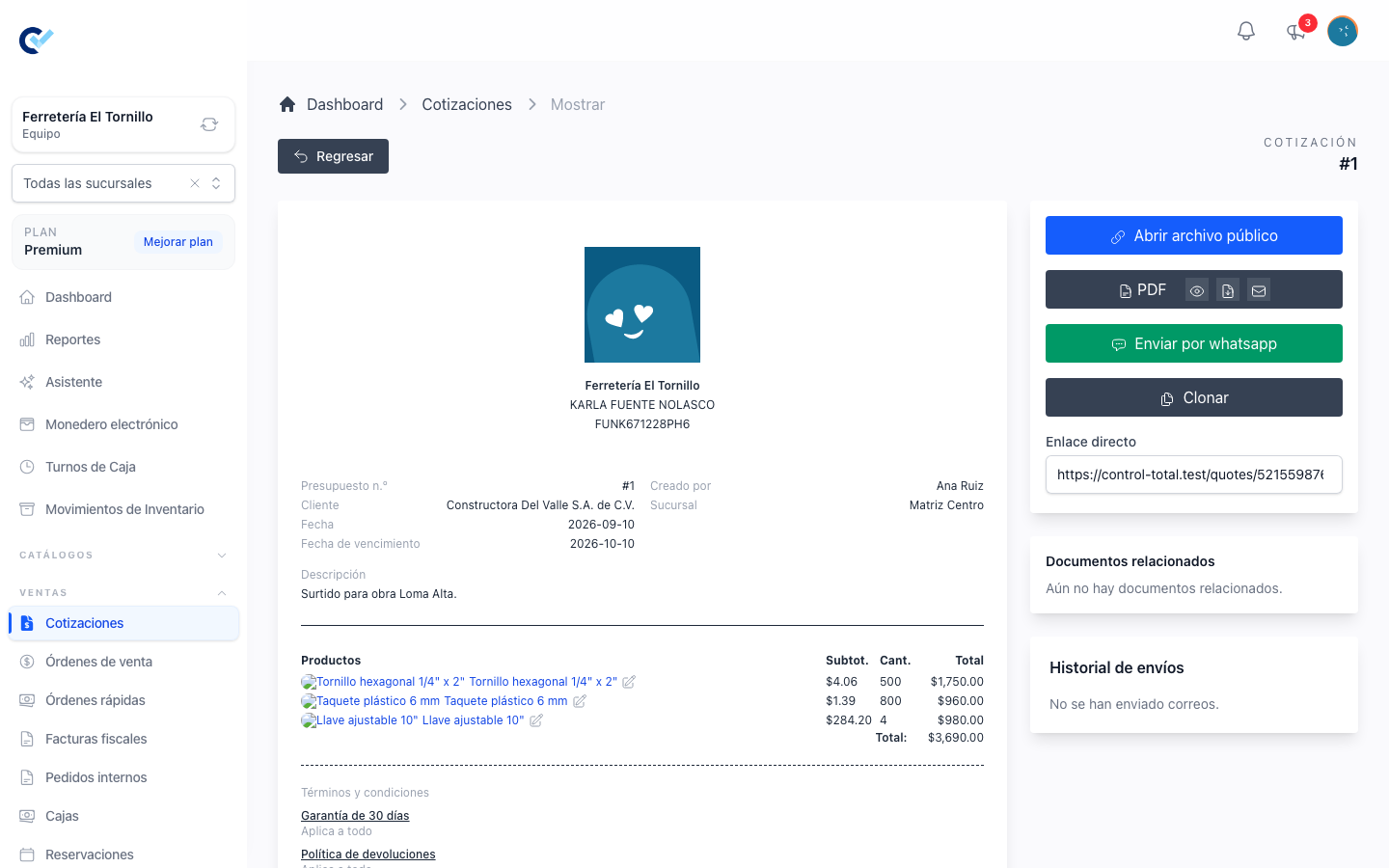
Every quote, sell order and fiscal invoice has a public page, and so does each customer's account statement. On the screen of a quote, a sell order or an invoice you will find two ways to reach it:
- Open public file, which opens the page in a new tab so you can see exactly what your customer will see.
- Direct link, a read-only box at the bottom of the side panel. Click it and the address is copied, ready to paste anywhere.
The account statement screen has the Direct link box too, and that is where you copy its address from.
The link your customer receives carries the document's number and a long random code that belongs to that document alone.
Who can open it
Be clear about this before you send anything. The page opens for anyone holding the link. What stands in the way of everyone else is that random code: nobody can guess it, and changing it, or the document's number, leads to a page that does not exist. A fiscal invoice must also be stamped or cancelled. There is no password, no expiry date and no way to revoke a link once it has left your hands.
Links you sent before carried your customer's phone number in place of that code. They keep opening as long as the customer has that same phone registered. A link sent to a customer without a phone, or for a sale without a customer, no longer opens: copy the Direct link again and send the new one.
So treat these links the way you would treat a printed copy of the document: forwarded, it works; posted in a group chat, it works for everyone in the group. Send them to the person who bought, and nowhere else.
What your customer sees
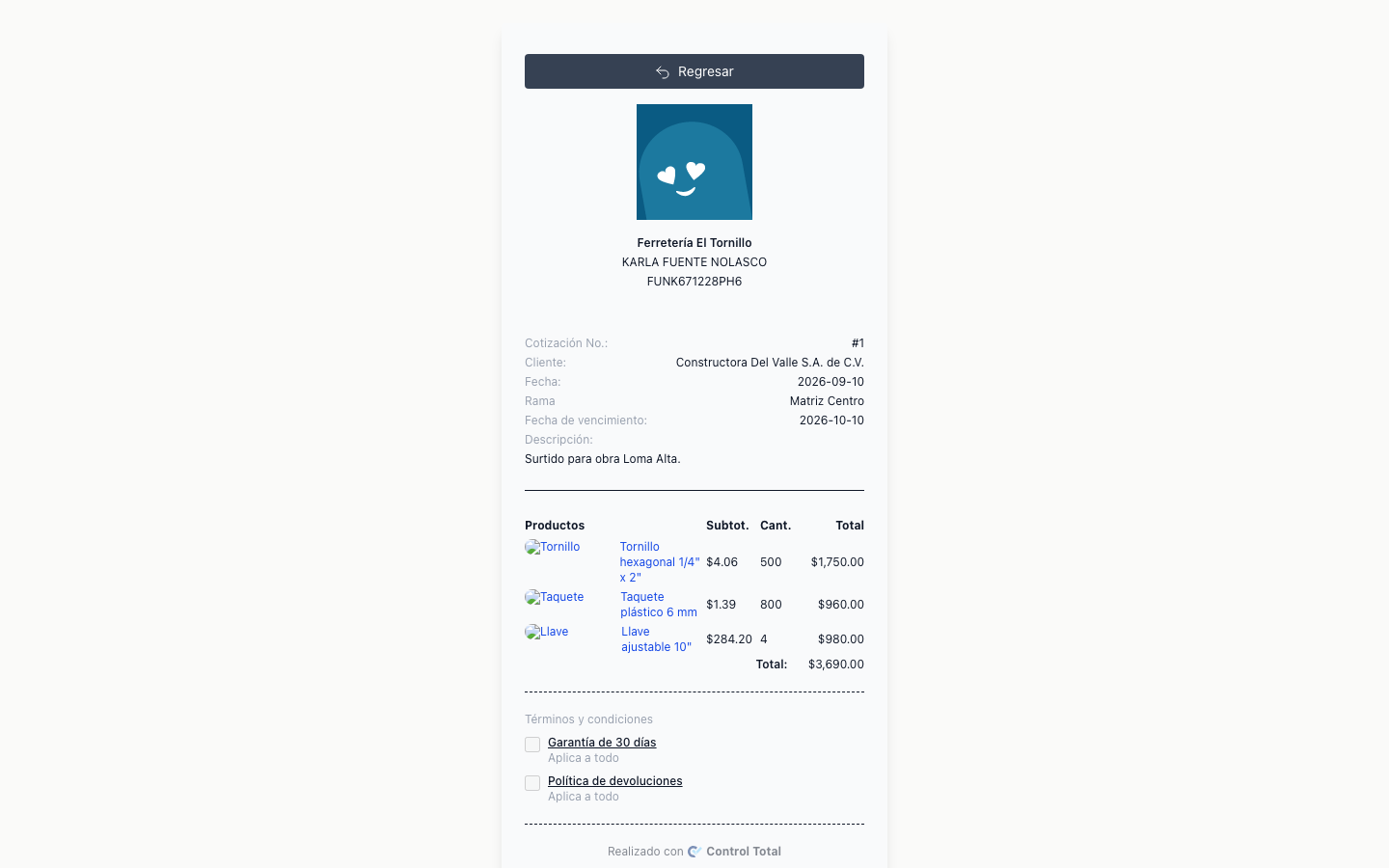
A quote becomes visible the moment it stops being a draft. The page shows the items, the totals, your business details and the payment information your team configured, and — when the quote has a customer on it — a Download PDF button. While the quote is in its sent state, your customer accepts it there with Accept proposal; when your terms and conditions apply, they tick them in the same step, and the required ones have to be ticked before the acceptance goes through. After that the page says when the proposal was accepted. If the expiry period your team set for quotes has already passed, the page warns that the prices may have changed. See Create a quotation.
A sell order becomes visible once it is finished. The page shows the items, the payment and refund history, the returns registered against it, and Download PDF. A cancelled order still opens — it says it is cancelled, and shows who cancelled it, when and why, because a finished document is never deleted. If the order was replaced by a newer version, the link sends the reader to the version that is current now.
An account statement shows the customer's notes with their totals, what is paid and what is pending. The reader can switch between Current debt and Full history, and in full history choose a From date. The link you copy carries the mode and date you had on screen, so what they open is what you were looking at. See Customer debt and statements.
A fiscal invoice opens only once it is stamped or cancelled, and offers Download PDF and Download XML. See Issue a CFDI invoice.
Knowing it arrived
The first time someone outside your team opens a quote or a sell order, the document records it. On the document's screen you will see Last public access with the date and time. It tells you the link was opened; it does not tell you who opened it.
Send by WhatsApp
On a quote, on a sell order and on an account statement there is a Send by whatsapp button. It opens WhatsApp with your customer's number and a message already written, ready for you to read over and send. Nothing leaves Control Total by itself.
The button only appears when the customer has a phone number on file. If it is missing, add it to the customer first. See Create a sell order.
The message your team writes
The text is yours to set, once, for the whole team. Go to Settings and open the Messages tab. There are three boxes:
- Quote
- Sell Order
- Debt
Anywhere you write {url} in one of them, Control Total puts the document's public link when the message is built. That is the only placeholder; write the rest of the message in your own words.
Each box shows the default message as its placeholder text. Leave a box empty and that default is what gets sent — it greets the customer in your business's name, points at the link and offers to help. Fill it in and yours replaces it, for every message of that kind from then on. See Set up your team.
Send the PDF by email
On a quote or a sell order, the dark PDF strip in the side panel holds three controls: view the PDF in a new tab, download it, and send it by email. The email one opens a small form:
- Email — filled in with the customer's address when they have one on file. When they do not, the form asks for it and offers to Save this email on the client so you do not have to type it again.
- Subject — filled in with the document number and your business name; change it if you want.
- Additional emails — anyone else who should receive a copy, separated by commas, semicolons or spaces.
The PDF travels as an attachment. There is no link in it to expire or leak.
These controls appear while the sell order is in its created state, and on a quote that has been sent, converted or discarded. A cancelled document is not emailed this way — share its public page instead.
Everything you send by email is recorded. Further down the same screen, Send history lists each address and the date it was sent to.
Send a CFDI by email
A fiscal invoice is sent from its own screen, with Send CFDI by email. The form asks for the address — already filled in with the customer's fiscal email when your records have one — a Subject and an optional message.
The XML and the PDF go out as attachments to the mail itself, so your customer receives the fiscal files rather than a link to them. If the PDF is not ready yet, the form tells you so and sends what is available. The button appears once the invoice is stamped, and an egreso invoice is sent exactly the same way. See Credit notes and payment complements.
There are two kinds of printing, and they are independent of each other.
The full-page PDF
This is the same document your customer downloads: a letter-size page with your logo, your business details, the items and the totals. Use View PDF to open it in a new tab and print from the browser, or the download control to keep the file.
You can add your own text above and below the items on these pages. In Settings, the Files tab has a header and a footer for Quote and for Sales Note — which is the sell order — written in Markdown.
The thermal ticket
A Print ticket button appears on quotes, sell orders and account statements, but only once thermal printing has been switched on in the browser you are working in. Until then the button stays hidden, because a ticket is no use without a ticket printer.
You switch it on in Settings, in the Local Configuration box: turn on Activate thermal printing and choose a Thermal printing mode:
- Normal browser printing opens the ticket in a small window and hands it to your browser's own print dialog. Nothing to install.
- QZ Tray (ESC/POS) sends the ticket straight to a chosen printer without a dialog. It needs QZ Tray installed and running on that computer, and it works from a desktop browser only — on a phone or tablet the ticket falls back to normal browser printing.
With QZ Tray you also pick a Thermal paper size, 58 mm or 80 mm, which decides how wide the ticket is laid out, and you select the printer and run a test ticket from the same box.
These settings live in that browser, for that team. They do not follow you to another computer, and your colleagues each set their own. There is also Always print fast orders, which prints the ticket by itself as soon as a fast order is created — useful at a counter, and equally local to that browser. See Cashier shifts.
Where to start
If you have not sent anything yet, the shortest path is: finish the document, press Send by whatsapp, and check the message before it goes. Everything else on this page is a variation on that — a different channel, or a different piece of paper.