

A sell order is finished, and then something changes: the customer brings a product back, or you agree to take something off what they still owe. Control Total handles both without editing the original document. It records an adjustment against it, and the sell order keeps its history intact — what was sold, what was paid, and what was given back.
There are two kinds of adjustment, and they answer to different permissions, so one person can be allowed to take returns without being allowed to forgive debt.
| Adjustment | What it is for |
|---|---|
| Register return | The customer gives products back |
| Apply post-sale discount | You reduce what the customer still owes, without any product moving |
Both are offered from the sell order's screen, in the side panel, and both need the order to be in its created state. A cancelled order cannot be adjusted, and neither can a draft. See Create a sell order. To undo the whole sale instead, cancel it: see Cancel a sell order.
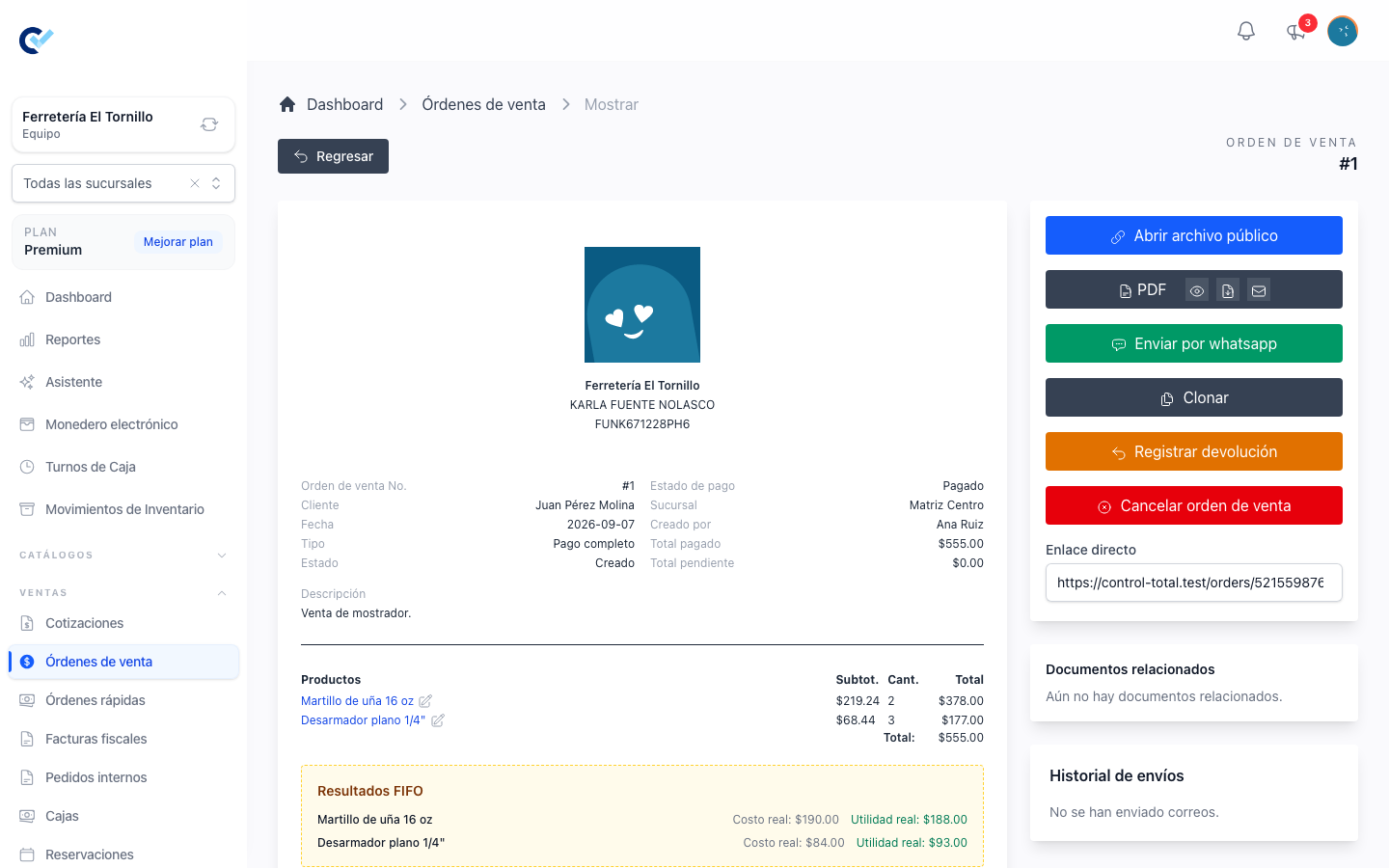
Register a return
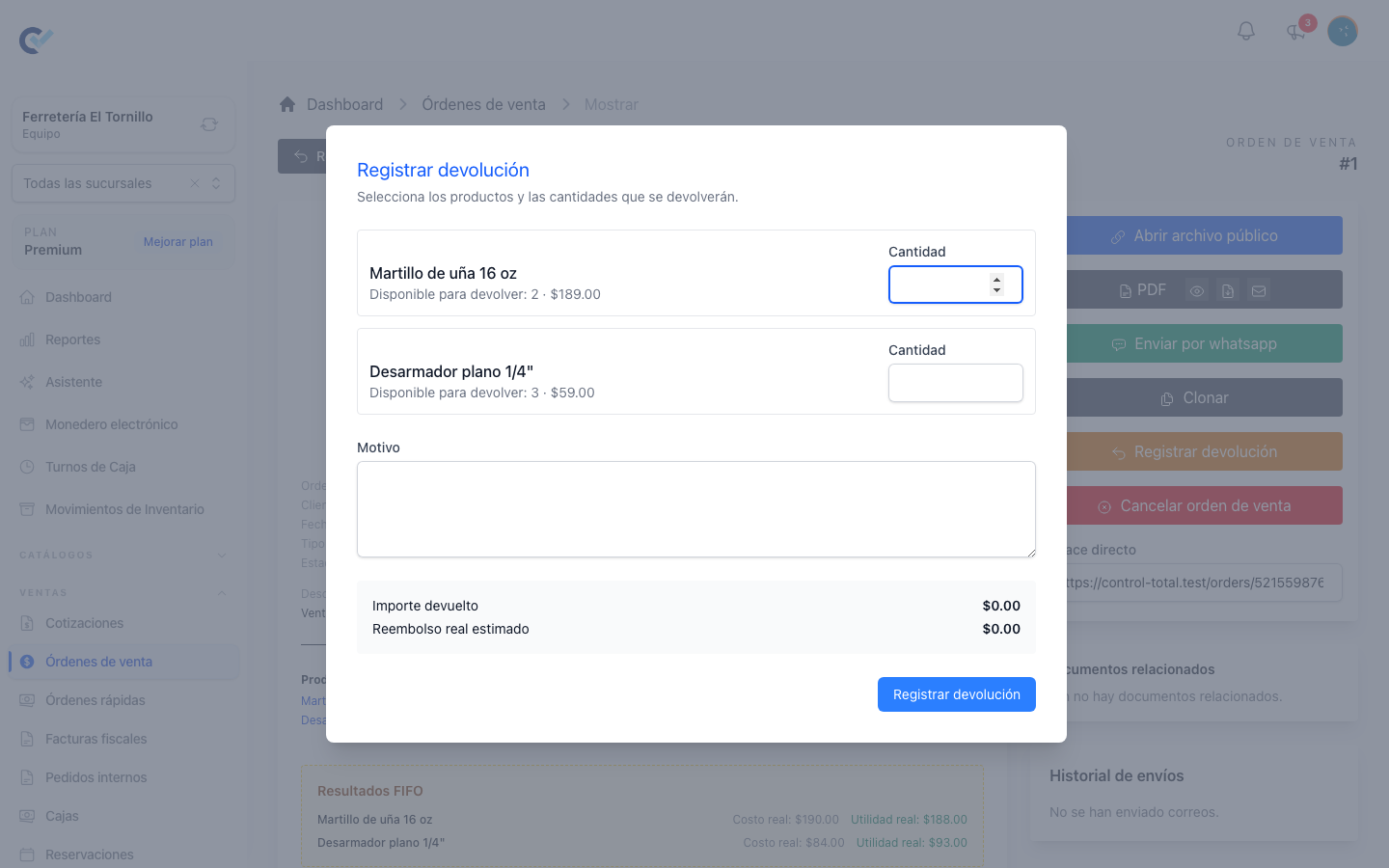
Register return opens a form listing every product on the order. Each line tells you how much is Available to return — the quantity sold, less whatever has already come back — and the unit price it was sold at. Type the quantity for each product being returned; leave the rest empty. You can return part of one line, all of one line, or the whole order.
Then:
- Disposition, which appears when one of the products you are returning is tracked in your inventory. Choose Restockable (returns to inventory) when the product can be sold again, or Damaged (does not return to inventory) when it cannot. Products that are not tracked are unaffected either way.
- Shrinkage reason, which appears and is required only when you choose Damaged. It says why the product is lost, and the loss appears with it in the Shrinkage report. It is separate from the reason of the return below.
- Reason, which is required. It is what you and your colleagues will read months later in the order's history, so write something a stranger would understand. Your customer reads it too, on the order's public page, as the form reminds you under the field.
As you type quantities, the form shows two figures:
- Return amount — what the returned products are worth.
- Estimated real refund — how much of that has to come back out of the till, once the outstanding balance has absorbed its part.
If that second figure is above zero, the form asks for:
- Amount to refund — it starts at the estimated real refund and follows it as you change quantities. You can lower it, down to zero, but never raise it above the estimate. The business keeps the difference: the return then counts only what it actually gives the customer, so the order's Returns and Total to pay show the value you kept, and the return's own window says how much that was.
- Refund payment method — it suggests the method the customer last paid with.
- Cashbox — only when the method is cash, the amount is above zero and your team uses cashier shifts. Pick the register the cash comes out of. When the sale was made in a shift that is still open, its register is already selected.
- Any extra reference for the payment, and the date of the refund. Left as it is, the refund is dated the moment you press Register return; change it only when the money went back at another time.
When the estimate is zero, no amount is asked and no money leaves the till.
Press Register return and the adjustment is recorded. The window then shows Return registered, with the folio, the return amount, what the business kept when you lowered the refund and, when money went back, the refund amount and method. Press Print to print the sale's ticket, which now lists this refund, to hand to the customer. Print appears when your team prints tickets on a thermal printer, like Print ticket on the sell order.
What the return does
The amount of the return is applied in a fixed order, and understanding that order is the whole of it:
- The wallet comes back first. If the customer paid part of this order with their electronic wallet balance, the return puts that share back into their wallet, in proportion to how much of the order has now been returned. See Register a payment.
- Then the debt goes down. Whatever is left of the return amount reduces what the customer still owes on this order, up to the whole outstanding balance.
- Only then is money refunded. If there is still something left over after the debt has gone to zero, that is what leaves the till — and never more than the customer actually paid, and never more than the Amount to refund you entered. It is registered as a refund on the order, with the method, register and date you entered, so the day's cash matches. A cash refund from a shift that is still open appears in that shift's refunds and lowers its expected cash; from a register already closed, it lowers the suggested opening amount of that register's next shift. See Cashier shifts.
Two more things happen alongside:
- Stock. A restockable return puts the quantity back into inventory, returning it to the batches it came from so your costs stay right. A damaged return is recorded as having come back and been written off in the same movement, so nothing becomes sellable again but the trace exists, and the loss is recorded with its reason and estimated value in the Shrinkage report. See Products and stock.
- The wallet earned on the sale. If your customer accumulated wallet balance by paying this order and you are now refunding money, the matching share of what they earned is taken back off their balance.
When everything comes back
If the return leaves nothing on the order — every line fully returned — the sell order moves to cancelled by itself. The reason you wrote becomes its cancellation reason, and the order records who cancelled it and when. It is not deleted: it stays in your lists, in the customer's statement and on its public page, marked as cancelled, with the returned products listed. See Customer debt and statements.
That happens only when what was returned covers the whole order. If every product came back but you lowered the refund, the business kept part of the money, so the order stays created and paid: its Total to pay is what you kept, and it matches what the customer paid in the end.
Apply a post-sale discount
Apply post-sale discount is for the other case: the product stays with the customer and you decide they owe less.
Post-sale discounts are a free module: activate Descuentos posteriores from your team's add-ons, and the button appears on your sell orders. Teams that had already applied a post-sale discount found it switched on for them. Switching it off only hides the button: every discount already applied stays on its order, still counts and can still be removed. The discounts you set on the lines while building an order do not depend on it.
The form shows the order's Total Pending, and asks for:
- Discount amount, which must be above zero and cannot be more than what is still pending.
- Reason (optional), which is worth writing anyway. Your customer sees it on the order's public page, next to the discount, as the form reminds you under the field.
Press Apply discount and the pending balance drops by that amount. The screen says it plainly: this adjustment reduces the pending balance and does not move money through cash flow. No cash leaves the till, nothing returns to the wallet, no stock moves. Behind the scenes the discount is spread across the lines of the order so each product keeps its share, which is what lets the fiscal document below be built correctly.
The button only appears while there is something still pending. Once an order is fully paid, there is nothing left to discount — a refund at that point is a return.
The opposite case — the customer owes more, for late-payment interest or a penalty — is an additional charge: see Additional charges.
Reading the adjustments later
On the sell order's screen, Payments and adjustments lists payments and adjustments together, in one place. A return that gave money back is a single row: the refund, with its date, the return's reason and the payment method. A return that only lowered the debt and a post-sale discount keep a row of their own. Payments made counts only what the customer paid, never refunds, returns or discounts.
The row of a return or a discount opens the adjustment, showing its date, its reason and its disposition. A discount shows its total. A return shows what the returned products were worth, what it gave the customer and, when you lowered the refund, what the business kept; then how much of it went to the debt, how much was refunded, when and how, and the products and quantities that came back, with what each one did to your stock.
The ticket, the printed order, the customer's statement and debt and the public page show the same Returns and Total to pay as the sell order's screen.
The sell order's history also lists each return, with the products and quantities, the reason, the disposition, the amount and, when money went back, the refund amount, method and register.
The customer sees the same list on the order's public page, under Payments and adjustments: each payment, each post-sale discount and each return, with its date, the reason exactly as you wrote it and the amount in red. A return that gave money back appears once, as its refund. The customer can read those rows but not open them. The returned products are also listed on that page, so a customer opening the link sees what was given back and why their total went down.
Removing an adjustment
From that same window, a post-sale discount can be removed while it has no fiscal document attached to it, even when the module is switched off. The discount disappears, the order's totals are recalculated, and that is all it takes, because a discount only ever held an amount.
A return cannot be removed. It moved stock, it may have refunded money and restored wallet balance, and taking the record away would leave all of that standing with nothing explaining it. If a return was registered in error, correct it with the movements that undo it rather than by deleting the trace.
Turning an adjustment into a credit note
When the sale was invoiced, the adjustment has a fiscal counterpart: a credit note, which in CFDI terms is an egreso invoice issued against the original invoice.
Open the adjustment from the history. If it can be documented, the window offers Create egreso invoice, which takes you to the new fiscal document ready to review and stamp. Once it is stamped, the same window offers View egreso invoice instead, and the history row is marked so you can see at a glance which adjustments were declared.
The option is there only when all of this holds:
- The sell order has a stamped income invoice.
- That adjustment does not have a fiscal document of its own already.
- What the adjustment is worth still fits inside what the invoice has left to credit — earlier credit notes against the same invoice have already used part of it.
- For a post-sale discount, the amount that would be credited matches the discount exactly.
Issuing it needs its own permission, separate from the ones that let you register the adjustment in the first place. You can also start from the invoice's own screen, which offers Create egreso invoice and lets you pick the adjustment to document. See Credit notes and payment complements and Issue a CFDI invoice.
Once an adjustment has been declared to the tax authority, it can no longer be removed — the fiscal document would be left pointing at something that no longer exists.