

Sell at the counter
How a fast order works — one screen, one customer in front of you, paid on the spot and printed — and what it does differently from an ordinary sell order.
A fast order is the same sale as a sell order, stripped down to what a counter needs: one screen, no form to fill in first, paid before it is finished, and a ticket printed at the end. It is what you use when the customer is standing in front of you and the whole sale lasts a minute.
It lives under Sells in the menu, as Fast Orders.
What it does differently
An ordinary sell order starts with a form — client, date, how they will pay, the branch — and can be left as a draft for days. A fast order skips all of it:
- There is no date and no payment type to choose. It is today, and it is paid now.
- It cannot be left unpaid. A fast order is finished by registering the money, and it is finished or it is not a sale.
- Only one draft fast order exists per person. Leaving the screen and coming back returns you to the one you had open instead of starting an empty one, so a sale interrupted halfway is not lost and is not duplicated.
- Finishing it opens the printed document straight away and leaves you on a new empty fast order, ready for the next customer.
Everything else is the same sale: the same products, the same stock, the same client debt if any is left, the same document afterwards.
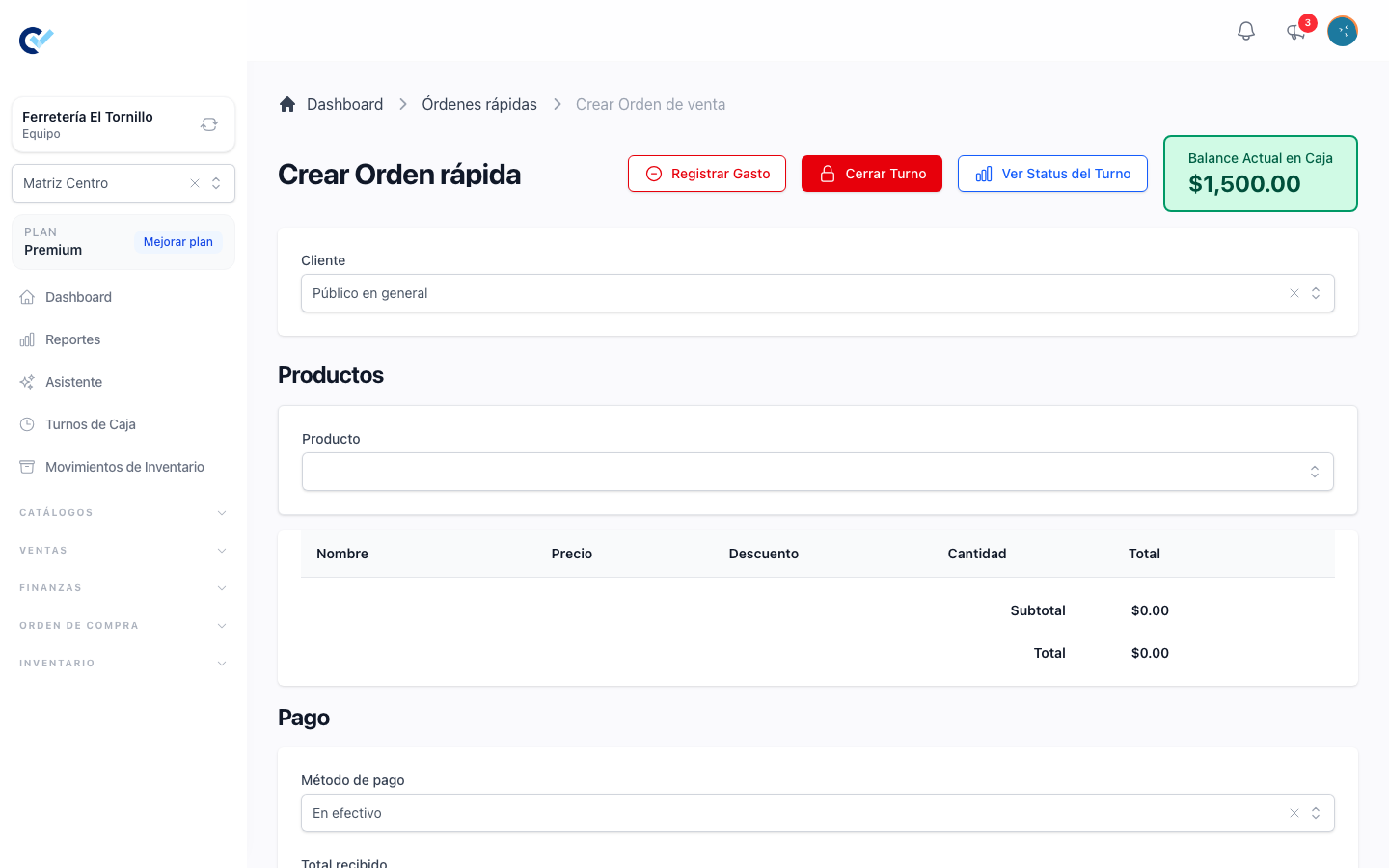
The default customer
Most counter sales are to nobody in particular. In Settings → General Configuration there is a Fast Order Default Client: pick one there — a client named Público general, or whatever your business calls the walk-in customer — and every fast order opens with it already selected.
You can still change it on the screen. Selecting a real client is what you do when the sale has to reach their account, their statement or their invoice; typing a name that does not exist offers to create the client there, asking only for the name and the phone.
The client line also shows what that client owes and what their loyalty wallet holds, so a debt does not have to be looked up somewhere else before deciding whether to sell.
Opening a shift first
When cash register closing is part of your plan, a fast order cannot be made without an open shift. Reaching the screen with none of your own brings up Open Shift on its own, and cancelling it sends you back to the dashboard rather than letting the sale through.
With a shift open, the top of the screen carries the shift's own controls — Register Expense, Close Shift, View Shift Status — and the Current Cash Balance that should be in the drawer right now. The sale you are about to make is attached to that shift, which is what its closing report reads later. The whole of it is in cashier shifts.
Making the sale
Add the products the same way you add them anywhere: search by name, or scan the barcode. The scanner is listened for on the whole screen, so nothing has to be clicked into first — a code that matches the SKU of a product or of a variant adds the line, and one that matches nothing offers to create the product with that code. A product with variants asks which one; a product sold by fraction takes a fractional quantity. All of it is in products and stock.
While a window is open over the sale — opening a shift, creating a client, registering an expense — what you type belongs to that window and is never read as a code. Close it before scanning.
Below the products is the payment. It is captured exactly as it is on a sell order — one method or several rows adding up to the total — and it is described in register a payment.
Finish then does the checks in order and stops at the first that fails:
- There is an open shift, when your plan requires one.
- There is at least one product on the order.
- The stock covers what is being sold.
- The money captured covers the total.
Nothing is half-done: a fast order that fails one of these is still your open draft, with everything you had typed still on it.
After finishing
The document opens in front of you and prints. What comes out is the ticket or the sheet your local printing configuration is set to, and when thermal printing is off it is the ordinary PDF. Closing it leaves you on a new empty fast order.
The sale itself is now an ordinary sell order. It appears in Sell orders, it can be sent to the customer, it can be invoiced, and it can be returned or discounted like any other. Nothing about it stays special because it was made here.
Permissions
The screen needs Create Sell Order, and finishing needs Create Payment on top of it — a person who may write the sale but not register money is told so rather than being left with a sale that cannot be closed.
Your plan limits how many documents the team creates. When that limit is reached the screen says so and sends you back, and the way out is a larger plan — see your plan and support.